---
title: "Customer account downloads"
url: "https://fileflare.io/docs/customer-account-downloads/"
description: "Let customers access their downloads from the Shopify customer account — order page download box, \"View all downloads\" page, plus integrations with CustomerHub and Froonze."
published: "2026-03-27T16:32:40+00:00"
modified: "2026-11-09T22:26:05+00:00"
---
Customer account downloads put a “View all downloads” button on the customer’s account page, a download box on each order page, and a Downloads page that lists every file a customer owns, so customers can come back to their files anytime — not just from the post-purchase email. This page covers setup for both Shopify’s New Customer Accounts and the Classic customer accounts, plus troubleshooting and how to integrate with third-party customer account apps.
Customer account downloads require the Basic plan. Setup differs significantly between New and Classic Shopify customer accounts — pick the section that matches your store.
## When you’d use this
- Customers frequently come back for the same files (e.g., software updates, recurring subscriptions, course materials).
- You want to reduce “I lost my download email” tickets — customers can self-serve from their account.
- You sell [subscription products](/docs/subscription-downloads/) where customers expect ongoing access.
- You want a unified place for customers to find downloads across multiple orders.
## Which Shopify customer accounts do you have?
Shopify offers two flavors. Most stores should use New Customer Accounts; Classic is being phased out. Check Shopify → Settings → Customer accounts to see which you have enabled.
### Quick comparison
- **New Customer Accounts** — modern, app-block-based setup. No code changes. Recommended.
- **Classic Customer Accounts** — older, requires a small code snippet in your theme. Still works, but Shopify is phasing it out.
## Setup: New Customer Accounts (recommended)
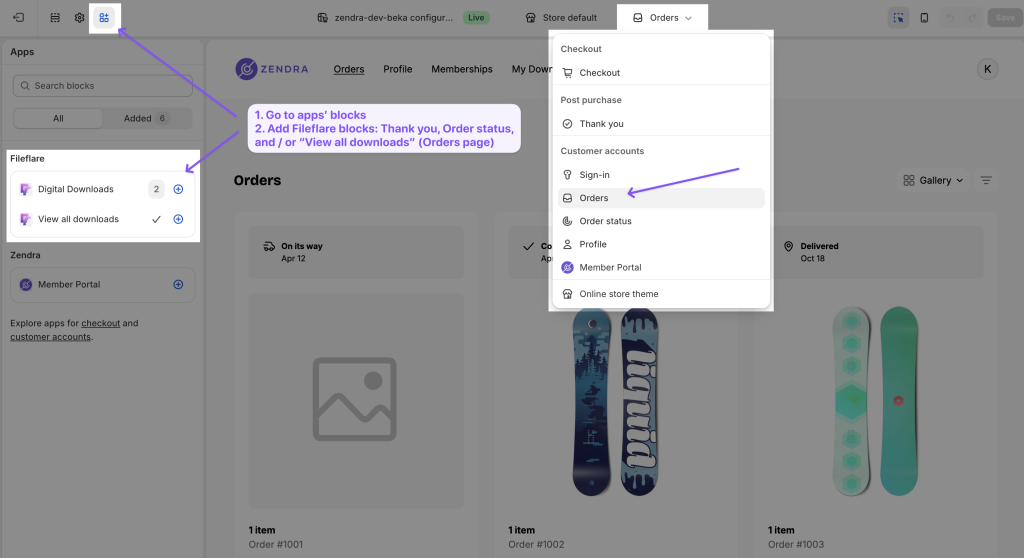
1. In Fileflare, go to **Settings » Delivery methods**. The **Where customers get their files** panel shows whether the **Order history** and **Customer account Downloads page** blocks are added.
2. Next to a block that isn’t added yet, select **Add in editor**. Fileflare opens Shopify’s editor.
3. If there’s no **Add in editor** link, open Shopify » **Settings** » **Customer accounts**, click **Customize**, then edit your active account configuration.
 4. Use the page selector at the top to switch to the **Orders** page.
5. In the left sidebar, click **Apps**.
6. Add every Fileflare app block available — typically the order-page download box and the “View all downloads” button.
7. Save.
 ### Optional: add a “My downloads” navigation item
To make the all-downloads page easier to find:
1. Go to Shopify → **Content** → **Menus**.
2. Edit your customer account menu.
3. Add a new item — name it **My downloads**, link to `/apps/digital-downloads/`.
4. Save.
The link is dynamic — when a customer clicks it, Fileflare looks up their orders and shows them their downloads.
 ## Setup: Classic Customer Accounts
Classic accounts require a small code snippet in your theme — there’s no app-block surface available.
### Step 1: enable the customer account icon
1. Shopify → **Settings** → **Customer accounts**.
2. Edit the top section.
3. Enable **Show login link in the header of online store and at checkout**.
### Step 2: place the snippet in your theme
There’s no setting to turn on in Fileflare for Classic accounts: the snippet is the whole setup.
Add this snippet wherever you want the download box to appear on the order page. Common placement is between the order summary and the line items.
```
```
1. Shopify → **Online Store** → **Themes** → click the three dots → **Edit code**.
2. Find the customer order template — usually `customers/order.liquid` (older themes) or `main-order.liquid` (newer themes). If you can’t find it, search for “order” in the file list.
3. Paste the snippet where you want the download box to appear.
4. Save.
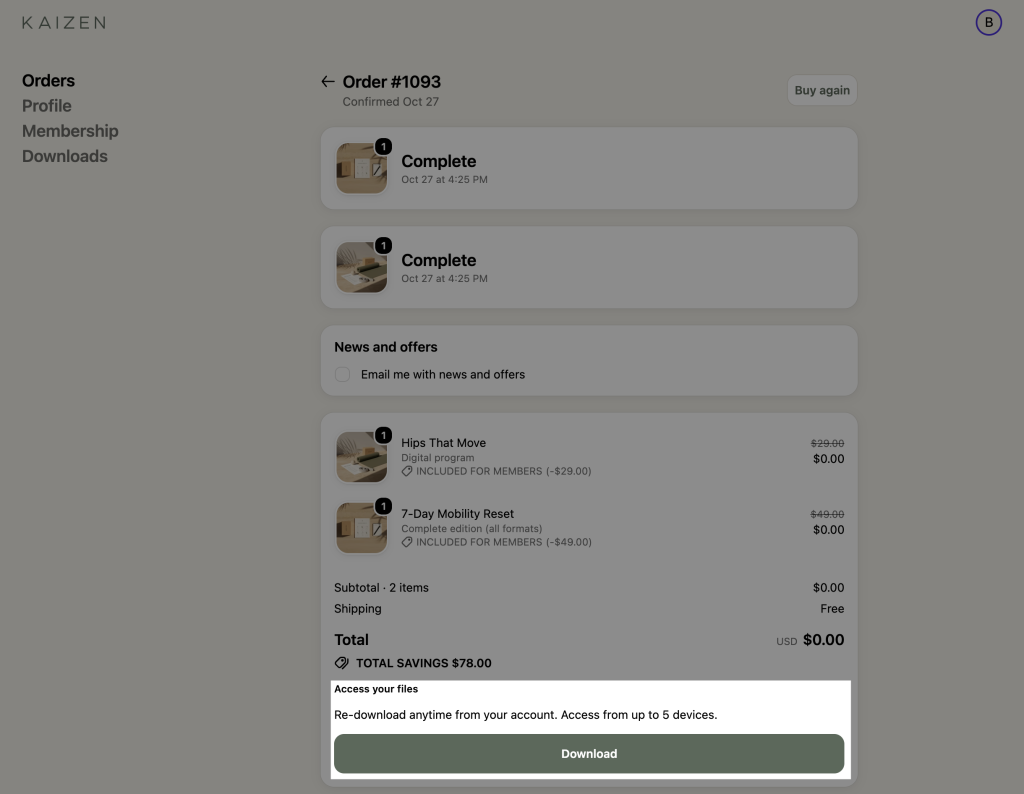
The snippet renders the download box only when the customer’s order has digital assets attached. Empty orders show nothing.
### Optional: “View all downloads” button
On Classic accounts, you can also add a “View all downloads” button on the main account page. Use either the button code or just the link, placed wherever you want in the customer account template (usually `main-account.liquid`):
```
```
## Customer experience
Once configured, customers see their downloads in these places:
- On each individual order page (the per-order download box).
- On the [Downloads page](#the-downloads-page), if you’ve added it to your customer account menu.
- On the “View all downloads” page if enabled (consolidated list of all their files across orders).
 - Optionally, in their main account navigation if you added the menu item.
 ## The Downloads page
The **Downloads** page lives in the customer account and lists every file a customer can download in one place: the files they bought, and the files shared with them through a [Zendra membership](/docs/zendra-integration/). Each file shows its type and size, with a **Download** button. (Handy once someone’s library runs past a few dozen sample packs.)
Purchased files appear on the Basic plan and higher, like the rest of customer account downloads.
### Add the Downloads page to your customer account menu
Customers reach the page from a link in your customer account menu. If your store uses Shopify’s new customer accounts, your Fileflare dashboard shows whether the Downloads page is on: it’s one of the setup steps for new stores, and a row on the **App block status** card. Either one walks you through it:
1. Open the checkout and accounts editor (**Open editor**), then select **Apps**.
2. Under Fileflare, select **+** next to **Downloads**, then **Add page to › Accounts**.
3. Save your changes.
Then add it to the menu so customers can find it:
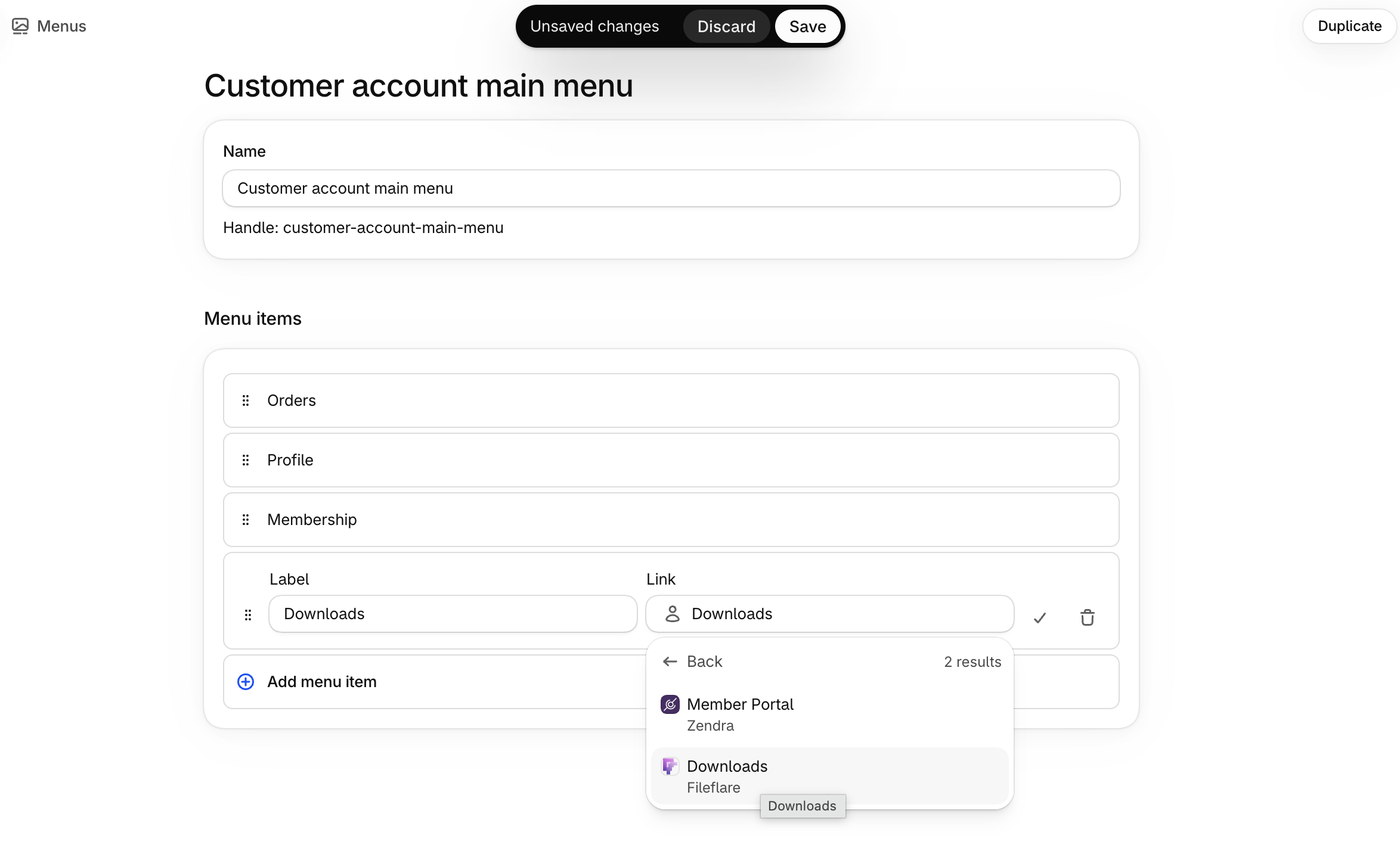
1. Shopify admin » **Content** » **Menus** (or **Open menus** from the dashboard).
2. Open your customer account menu.
3. Add a menu item that links to Fileflare’s **Downloads** page.
4. Save.
 ### What customers see
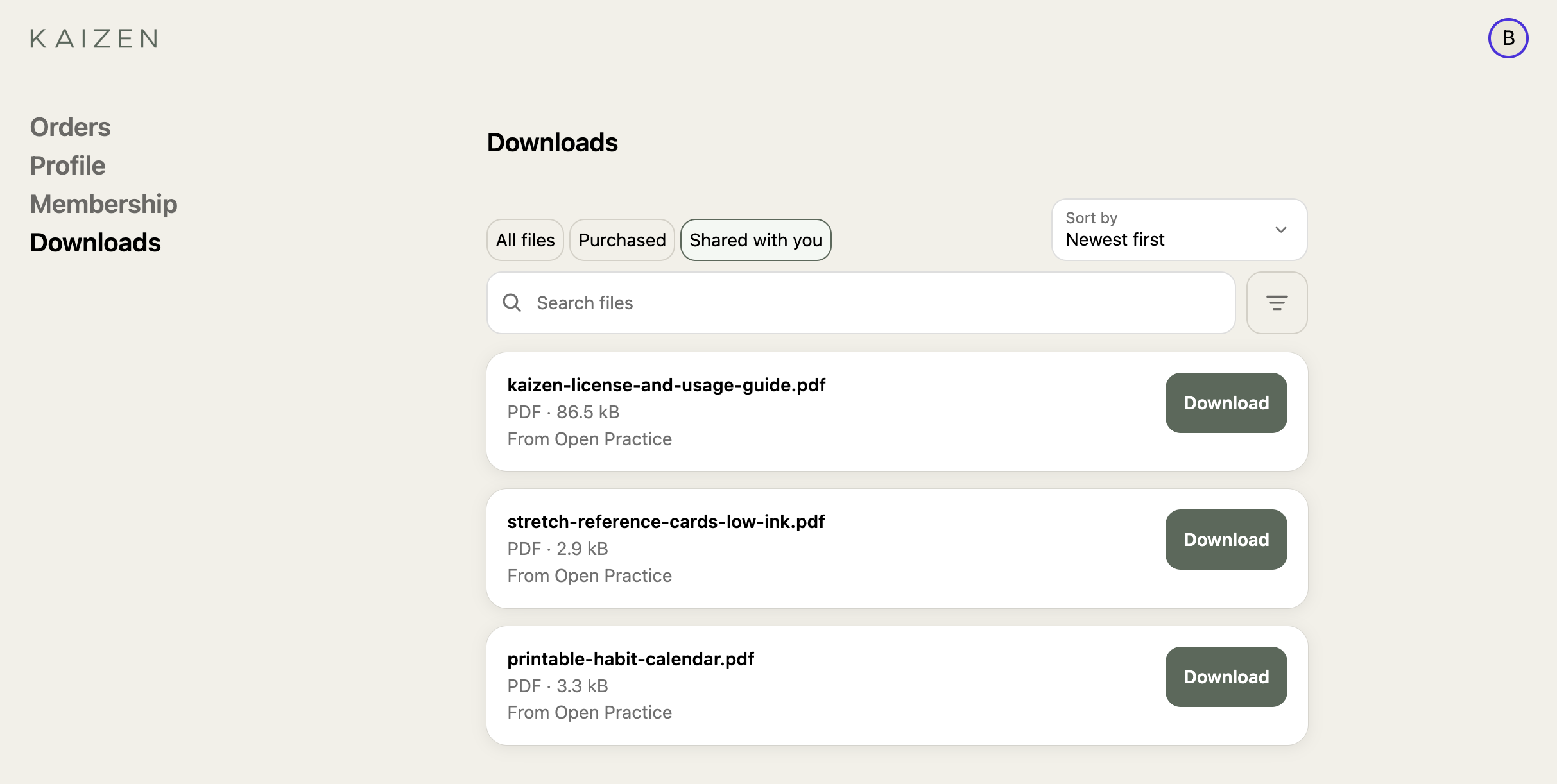 - **Where each file comes from.** A purchased file links to its order (**Order #1001**). A shared file names the membership it comes from (**From Gold membership**). A file the customer has both ways is listed once, as a purchased file.
- **Search files** finds files by name.
- **Sort by** orders the list: **Newest first** (the default), **Oldest first**, **Name A-Z** or **Name Z-A**.
- **File type** narrows the list to the file types the customer picks, with quick picks for Documents, Images, Audio, Video and Archives. It shows up once the customer has more than one file type.
- **All files**, **Purchased** and **Shared with you** switch between sources. They show up once the customer has both purchased and shared files.
- **Scheduled files** show **Available** with their release date, and their **Download** button stays disabled until then.
- **Streaming-only files** are listed without a **Download** button.
A customer with no files yet sees **No downloads yet**.
## Files from a Zendra membership
If you give members files as [Zendra membership perks](/docs/zendra-integration/), those files come from the membership rather than an order. Members find them in Zendra’s member portal, and under **Shared with you** on the [Downloads page](#the-downloads-page), in the same customer account.
Perk links are personal. A member has to be logged in to their own customer account to open one: a forwarded link asks the next person to log in, and someone logged in as a different customer can’t use it.
## Third-party customer account apps
If you use a customer account app like CustomerHub or Froonze, Fileflare has dedicated integrations that don’t require any code:
- [CustomerHub integration](/docs/customer-accounts-hub/)
- [Froonze integration](/docs/froonze-integration/)
- Other apps (Flits, etc.) — use the “View all downloads” link `/apps/digital-downloads/` as a navigation menu item.
### Building your own customer-account integration
If you’re a developer or app partner building a customer-account integration that needs to list a customer’s Fileflare orders and downloads, [contact support](/contact/) before you start.
## Common issues
- **Downloads aren’t showing on the order page** — work through this list: the order’s payment status must be **Paid**; the product in the order must have at least one asset attached in Fileflare; for Classic accounts the snippet must be in the right liquid file (`customers/order.liquid` or `main-order.liquid`); for New accounts the Fileflare app blocks must be added in customer account customization; you must be on the Basic (or higher) plan; and the order must be one Fileflare knows about (orders placed before installing Fileflare need to be [imported](/docs/import-all-orders-from-store-s-order-history/) first).
- **Customer is on the right page but sees nothing** — make sure they’re on the *order* page, not the main account page. Downloads are per-order on the order page; only the “View all downloads” button shows a consolidated list.
- **A customer who changed their email can’t find an older order** — Fileflare finds a customer’s orders by their Shopify customer account as well as their email, so orders placed before the change still show. Guest checkouts, and orders Fileflare synced before it stored the customer account, match by email only. For those, correct the email on the order in Fileflare and [resend the download email](/docs/how-to-resend-a-download-email-to-your-customer/).
- **The Downloads page shows only shared files** — purchased files need the Basic plan or higher. See [pricing](/pricing/).
- **Downloads show on Classic but not New accounts** — they’re independent. Adding the snippet to a Classic theme doesn’t enable downloads on New Customer Accounts. You need to also add the Fileflare app blocks via the customer account customizer.
- **Brave browser blocks the download click** — Brave’s “block downloads from non-trusted origins” setting can prevent the download click. Customer needs to enable downloads in Brave settings or use a different browser.
- **Custom theme uses a non-standard template name** — search the theme files for “order” or “account” — the template name varies by theme (e.g. Craft uses `main-order.liquid`). [Contact support](/contact/) with your theme name if you can’t find the right file.
## Styling the download box
The download box inherits your theme’s typography automatically. To customize the button colors specifically, add this CSS to your theme stylesheet:
```
#digitalAssets {
--dda-color-100: #F7F9FC; /* Button background */
--dda-color-200: #E2E7F0; /* Button border */
--dda-color-400: #CBD2E0; /* Button hover */
--dda-color-600: #2D3648; /* Button text */
}
```
See [Customize the download box](/docs/customize-download-box/) for the title and supporting text.
## Keep learning
- [CustomerHub integration](/docs/customer-accounts-hub/)
- [Froonze integration](/docs/froonze-integration/)
- [Customize the download box title and text](/docs/customize-download-box/)
- [Add download links to the Shopify order confirmation email](/docs/order-confirmation-downloads/)
- [Thank-you page downloads](/docs/checkout-page-downloads/)