
The asset library is where you manage every file and URL that Fileflare can deliver. Use its tabs, filters, and sortable columns to find the right assets, check where they’re attached, and take bulk actions without opening each asset separately.
The library shows 12 assets per page. Bulk actions apply to the assets you select on the current page; there isn’t a select-all-across-pages option.
When you’d use this
- You need to find every asset of a particular file type, such as PDF or ZIP.
- You want to check which products and orders include an asset.
- You need to add files or URLs, update several assets, or attach a group of assets to products.
- You want to review upcoming scheduled releases.
How it works
Open Assets in Fileflare. The library is split into four tabs:
- All: every uploaded file and URL asset.
- Files: files stored in Fileflare or your connected S3-compatible storage.
- URLs: links to files or content hosted elsewhere.
- Scheduled: assets with a future release date.
Find the assets you need
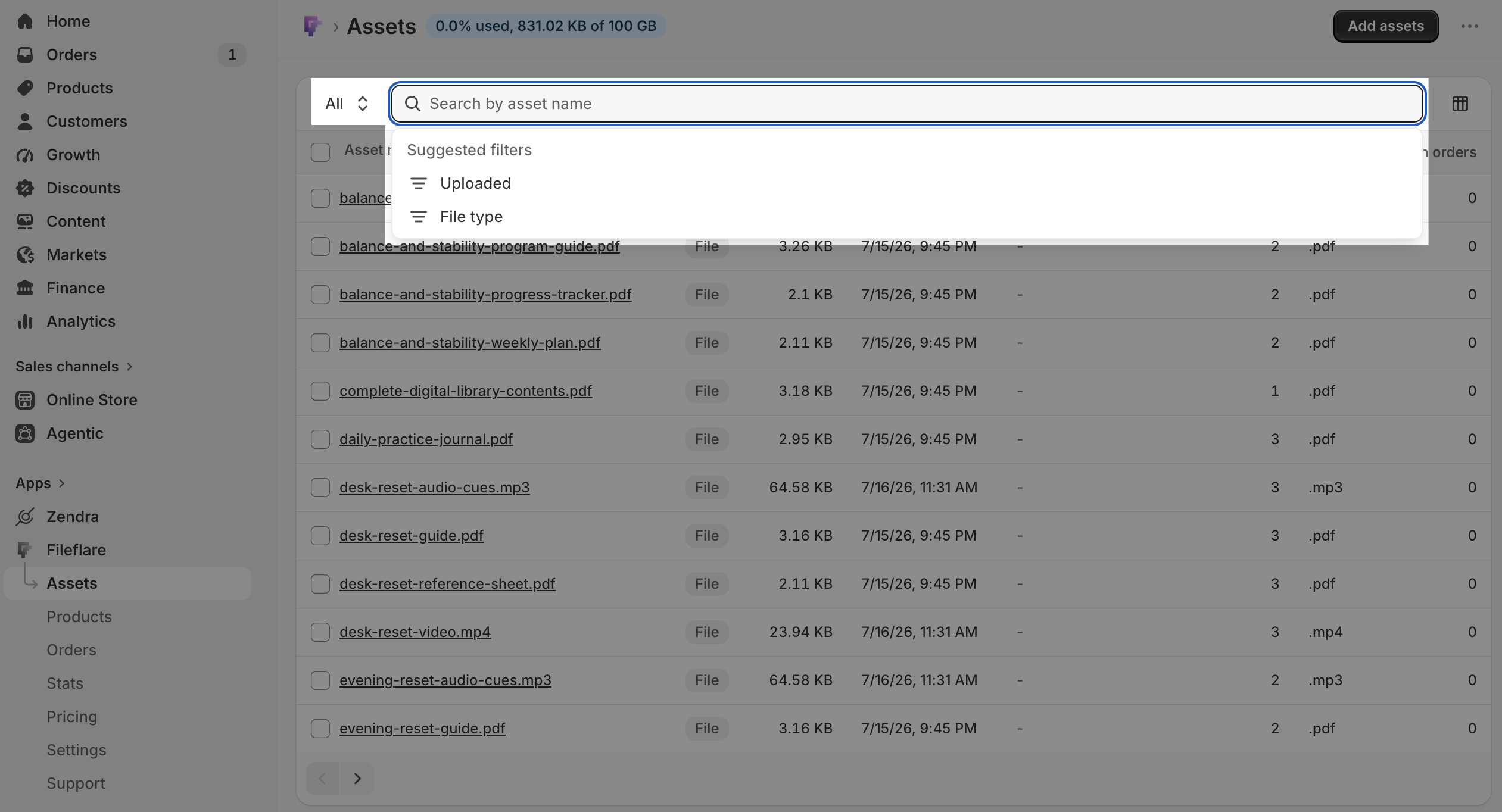
Open the filter panel to narrow the table. The File type filter is useful when you want to pull up every PDF, ZIP, audio file, or other format together. The filter may appear a moment after the page first loads.
Click a column heading to sort the current view. You can sort by the fields shown in the table instead of opening a separate sort menu.
Read the attachment columns
The table includes two attachment counts:
- On products: how many Shopify products include the asset.
- On orders: how many digital orders include the asset.
Use these columns to distinguish files that are configured for sale from files that have already reached orders.
Add files or URLs
Click Add assets to open one place for both kinds of asset. From there, upload files from your computer or add URLs for content hosted elsewhere.
Take action on several assets
Select one or more rows. The action bar stays available as you move down the page, so you can act on the selection without scrolling back to the top.
To attach the selected assets to products, use the product attachment action. Fileflare opens Shopify’s product picker, where you can search, filter, and select up to 50 products at a time. See Bulk-attach assets to products for the full workflow.
Check storage usage
Your storage usage appears beside the page heading. The badge turns amber at 70 percent of your plan’s storage allowance and red at 90 percent, so you can make room or change plans before an upload is blocked.
Shops using their own S3-compatible storage don’t see Fileflare plan-storage figures because those files don’t use the plan quota.
Common issues
- The File type filter isn’t visible yet. The filter loads after the first table view. Give the page a moment, then open the filter panel again.
- I can’t find a total asset count. The library uses previous and next page navigation and doesn’t currently show a total count.
- I can’t select every asset in the library at once. Selection applies to the current page. Complete the action for one page, then continue to the next.
- An asset shows zero under On products. It isn’t attached to a Shopify product yet, so a product purchase won’t include it. Attach it to products or open a product in Fileflare and add the asset there.
- An uploaded file doesn’t appear. Refresh the Assets page and check the current tab and filters. If it still doesn’t appear, contact support with the filename.