
PDFs are quietly one of the most sold digital products on Shopify. Not just ebooks — although ebooks are a big slice. The format is a workhorse across dozens of categories:
- Template shops sell editable planners, resume templates, Notion imports, and budgeting spreadsheets as PDFs.
- Printable sellers move coloring pages, wall art, worksheets, party printables, and nursery prints.
- Educators sell lesson plans, worksheets, curriculum packs, and study guides.
- Crafters sell crochet patterns, sewing patterns, and cross-stitch charts.
- Musicians sell sheet music and lead sheets.
- Coaches sell workbooks, self-assessments, and journaling prompts.
- Tax pros and consultants sell checklists, intake forms, and templated contracts.
If you have a PDF, there’s almost certainly someone willing to pay for it. Shopify is a capable place to sell it — with one caveat we’ll get to in a second.
This guide is for anyone who wants the mechanics: how to upload a PDF to your Shopify store, how to deliver it automatically after checkout, how to protect it from casual sharing, and how to get started for free.
If you’re specifically selling an ebook, we have a companion guide on selling ebooks on Shopify that covers multi-format delivery (PDF / EPUB / MOBI), ebook pricing, and cover art. If you’re still figuring out the broader digital-store setup, the complete guide to selling digital downloads on Shopify covers everything from product setup to analytics.
What selling a PDF on Shopify actually looks like
Shopify doesn’t deliver digital files with its core checkout flow. It handles the store, the product page, the cart, the payment, the order record — but delivering the actual PDF after the buyer pays is handled by a small piece of software that listens for new orders, grabs the attached PDF, and either emails the buyer a download link or shows the link on the order confirmation page. That piece of software is called a digital delivery app. Shopify has one built in, and there are better ones on the app store.
Why Shopify’s built-in options fall short
Shopify itself has two places where you can upload a file:
- The Files area (Content → Files in the admin). This is for files you want to reference on your storefront — product images, PDFs linked from a page, downloadable assets on a public page. The catch: these files are publicly accessible if someone has the URL, the maximum upload size is 20 MB, and there’s no way to attach them to an order or deliver them automatically after checkout. It’s fine for a free PDF hosted on a landing page; it’s useless for a product you’re actually selling.
- The Digital Products app (Shopify’s free first-party app). This one does deliver files after checkout, and it handles the basic “buyer gets an email with a download link” flow. The limitations are real, though: each file caps out at 5 GB, there’s no branded download page, no watermarking, no access controls, no analytics, and a lot of small bugs that show up around variants and multi-file products. Most stores outgrow it within the first 50 digital orders.
For anything you’re selling seriously, use a dedicated app. Fileflare is free to start, has no file size cap, and covers everything the built-in app doesn’t.
What you need to sell a PDF on Shopify
You need four things:
- A Shopify store. Any plan works; digital-only stores run comfortably on the lowest tier.
- Your PDF. It should be finished, proofread, and exported at the right resolution. (More on PDF prep below.)
- A digital delivery app. Fileflare’s free plan covers unlimited products, unlimited files per product, unlimited bandwidth, historical order import, download tracking, and automatic delivery emails — enough to run a PDF store entirely free.
- A product page on your store. You’ll create a Shopify product the buyer purchases, and the PDF will be attached to it.
That’s the whole stack. You don’t need a separate server, a separate payment processor, or any code.
Prep your PDF for sale
Spend ten minutes on the PDF itself before you upload it. Here are a few things to check.
Resolution, for anything meant to be printed. Printables, wall art, planner pages, worksheets for classroom use — anything a buyer will print — should be exported at 300 DPI. PDFs exported at screen resolution (72 DPI) look fine in a browser and blurry on paper, and you’ll get refund requests.
File size, for anything not meant to be printed. A PDF that’s meant to be read on screen should be as small as possible without looking bad. For a long, image-heavy PDF, 10 to 50 MB is a reasonable range. If yours is 300 MB, compress the images. Tools like Adobe’s Online PDF Compressor or the free Mac Preview “Reduce File Size” Quartz filter handle this in a click.
Fillable form fields, if relevant. Workbooks, worksheets, intake forms, and fitness trackers are often more valuable as fillable PDFs than as static ones. If yours is meant to be filled in on a computer or tablet, make sure the form fields are actually editable — it’s easy to accidentally export a flattened version where they aren’t.
Metadata and author fields. Open the PDF’s document properties and set the title, author, and (if relevant) subject. These fields show up in a reader’s window chrome and can be indexed by search.
Embedded fonts. For printables and designed PDFs, make sure fonts are embedded in the export. A PDF that references an installed font will look different on the buyer’s computer than on yours, and the difference is often ugly.
Don’t watermark the PDF yourself before upload. If you want watermarking — and for most PDF products you probably do — let the delivery app apply it dynamically at download time, so each buyer’s copy is personalized with their own name and order info rather than the same generic watermark for everyone. More on that below.
How to upload a PDF to Shopify and deliver it to customers
Four steps, assuming you already have a Shopify store.
Step 1: Install Fileflare from the Shopify App Store
Go to Fileflare on the Shopify App Store, click Install, and follow the approval flow. The app loads in your Shopify admin under Apps → Fileflare.
The free plan is selected by default: you can start there and upgrade later if you need a feature that’s on a paid tier. There’s a 14-day trial on paid plans if you want to test them.
If you’re switching from another Shopify digital delivery app (Single, Filemonk, Sky Pilot, Shopify Digital Products, etc.), Fileflare’s migration guide walks you through moving your assets and historical orders.

Step 2: Upload your PDF to the Fileflare asset library
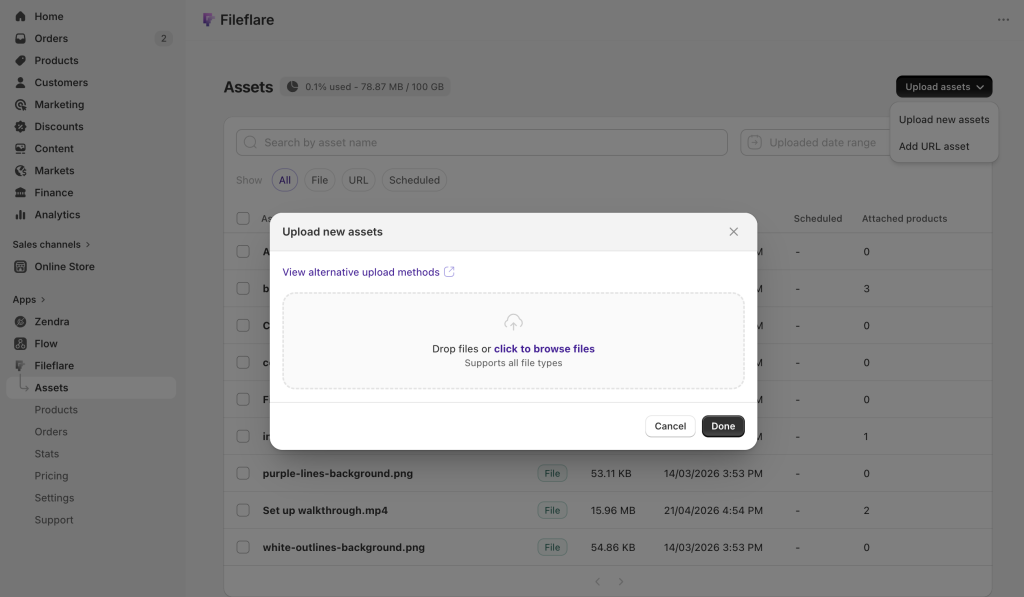
Inside the Fileflare app, go to Assets → Upload new assets, and drag your PDF into the uploader. Large files are supported — there’s no 20 MB cap like Shopify’s built-in Files area. The upload runs in the background, and the asset appears in your library as soon as it finishes.
If your files already live in an S3 bucket or an S3-compatible storage provider, you can connect that bucket directly to Fileflare instead of re-uploading: the files stay where they are, and Fileflare delivers them from your bucket.
Step 3: Attach the PDF to a Shopify product
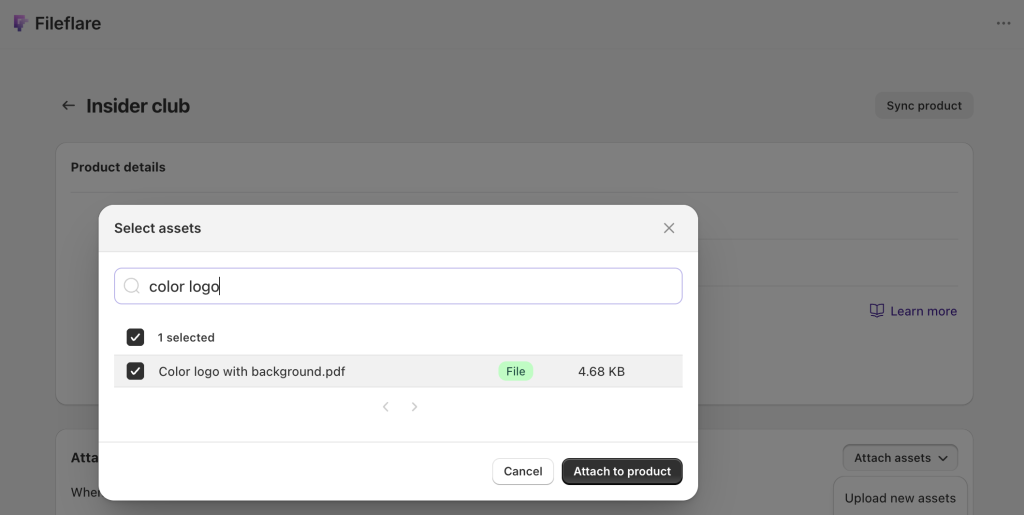
Fileflare pulls your Shopify products into the app automatically, so you don’t create anything twice. Open the product in Fileflare, click Attach asset, and pick your PDF from the asset library. The attachment saves immediately.
Every future order for that product will include a download link for the attached PDF. You can attach multiple PDFs to the same product — useful if you’re selling a bundle like “The Full Planner Pack” that includes five separate printables — and you can attach different files to different variants if you’re selling formatted versions at different price points.
If you have existing orders from before you installed Fileflare (common for stores switching apps), run the historical order import — past buyers will get access to their purchases on their next visit to the download page, with no manual work.
Step 4: Customize the download experience and enable protection
By default, after a new order, the buyer gets an email with a link to a branded download page on your store’s domain. That’s enough to go live. But a few optional settings are worth ten minutes of your time.
Download page heading and description. Go to Settings → Download page and set a friendly heading (“Your downloads”, “Your files”) and a short description that thanks the buyer. If there are any setup instructions the buyer needs (for example, “open the PDF in Adobe Acrobat for the form fields to work”), this is where they go.
Delivery email. Edit the subject line, sender name, and body of the delivery email under Settings → Emails. The default works; customizing it is mostly about matching your brand voice.
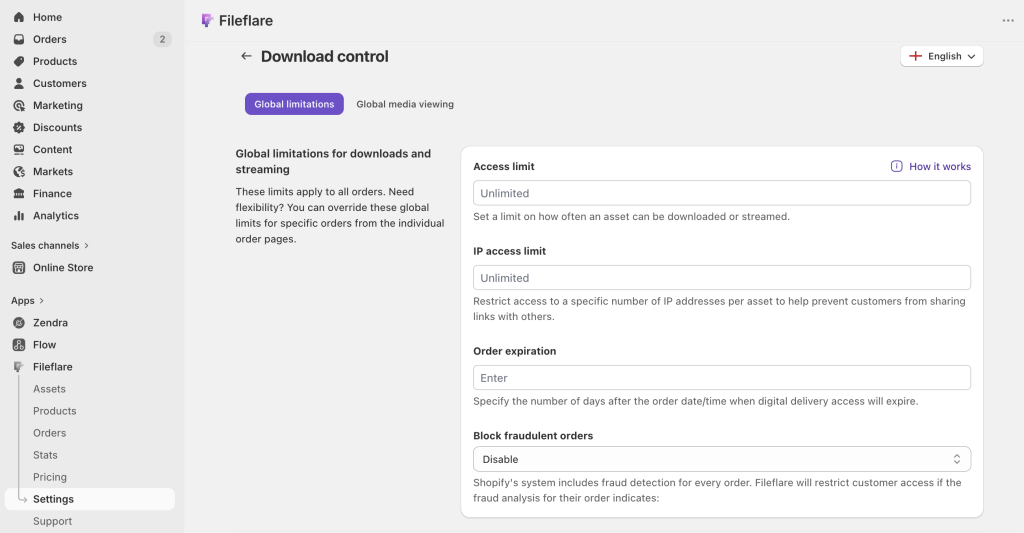
Download controls. Set a reasonable per-order download limit (we recommend 10 to 25 downloads — enough for legitimate re-downloads, low enough to deter link sharing) and, if relevant, an expiration date or an IP cap.
PDF stamping. If your PDF is at any real risk of being shared, turn on dynamic watermarking (details below).
Show the PDF in the browser
One of the better-kept secrets of selling PDFs direct is that buyers often don’t need to download the file at all. Fileflare’s download page includes an in-browser PDF reader: the buyer clicks View and the PDF opens right there, on your domain, on any device, no app required.
For printables and templates the buyer is going to use offline, downloading is the right flow. For ebooks, reference guides, newsletters, and anything the buyer might want to read once and forget, in-browser viewing is often a better experience. It also cuts down on “where did my file go?” support tickets, especially on mobile where download behavior varies by browser.
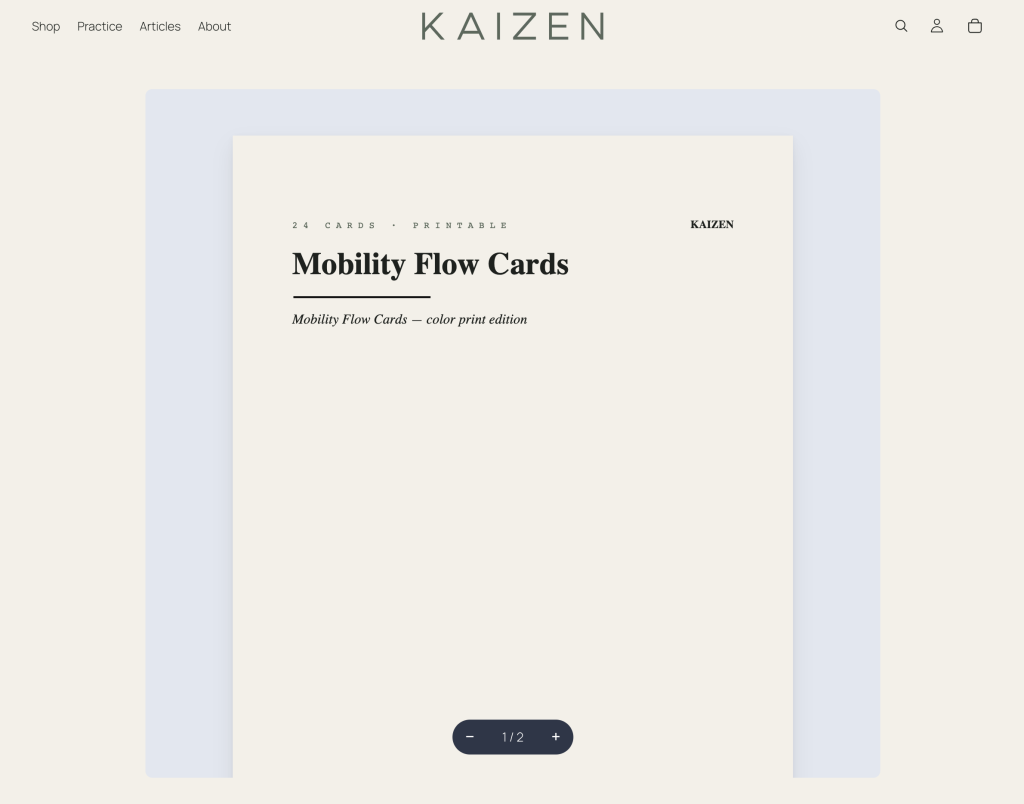
If you want to be strict about it, you can set the asset to streaming-only: the download button disappears, and the buyer can only view the PDF in the browser. It’s a soft protection rather than hard DRM, but it does raise the friction for casual saving and sharing.
Protect your PDF from casual sharing
Piracy is real and also often overstated. Most buyers don’t share. Most pirates wouldn’t have bought anyway. The reasonable goal is to make casual sharing less tempting, not to build DRM Fort Knox.
The highest-leverage protection for PDFs is dynamic watermarking (also called PDF stamping). Fileflare can automatically stamp each downloaded PDF with the buyer’s name, email, order number, and date of purchase. The buyer’s copy is visibly personalized. If it ends up on a file-sharing site or in a forum thread, it’s the buyer’s name on it, which is a strong deterrent against casual uploading.
You can configure stamping globally (one template applied to every PDF in your store) or per-asset (different books stamped differently). If you want to stamp PDFs that were sold before stamping was enabled, the retroactive stamping option applies your template on the next download, even for existing orders.
Stamping is on paid plans; the Basic plan tier includes one template, and higher tiers unlock unlimited templates.
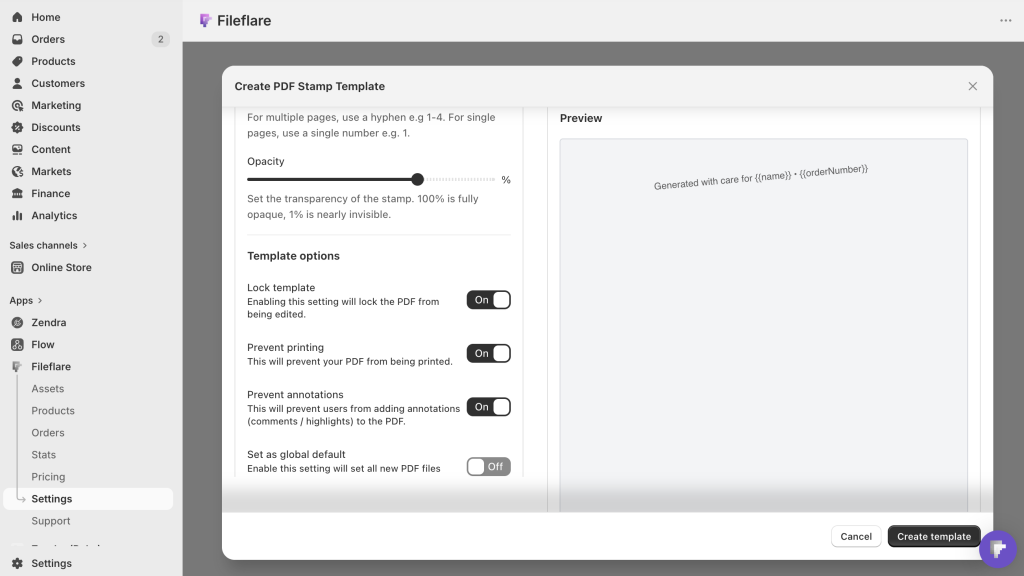
Two smaller protection toggles worth knowing:
- Print lock disables printing on the stamped PDF. It’s useful for screen-only content but overkill for anything a buyer might legitimately want to print.
- Annotation lock prevents the buyer from editing or annotating the stamped PDF. It’s useful for contracts and templates where edits would break the value.
Both locks rely on PDF reader conventions and can be bypassed by a determined user with readily available tools. They help against casual misuse; they are not hard DRM. We’ve found that most usage is fine with locks as a sharing deterrent.
Update past buyers when you revise the PDF
If you revise the PDF — fix a typo, update a year, add a bonus page, cut a section that no longer applies — you don’t have to pick between “abandon the old buyers” and “email everyone a new link manually.”
Replace the asset file in Fileflare (same asset, new file), and optionally tick the “Notify past buyers” checkbox when you save. Fileflare sends a short email to everyone who’s previously bought products with that asset attached, letting them know a new version is ready. They head back to their download page and pull down the latest version.
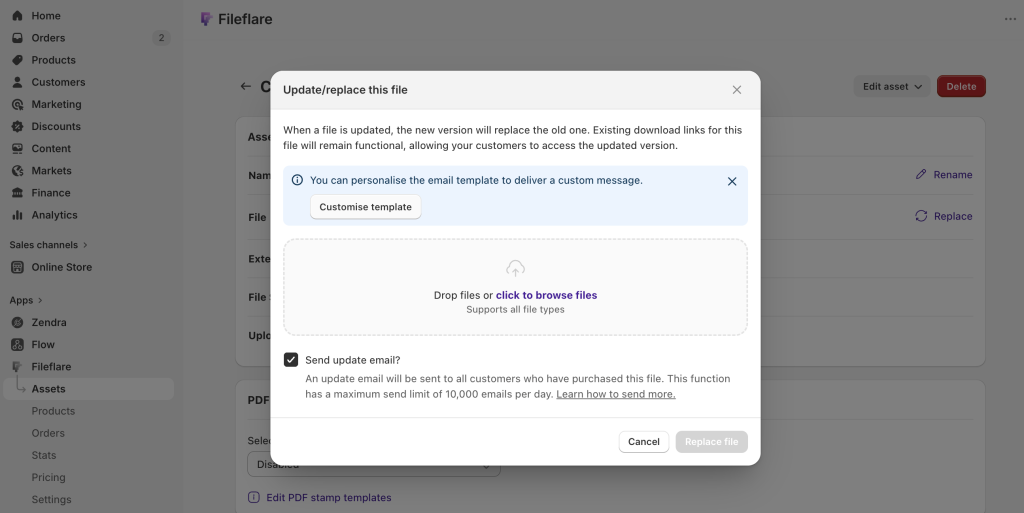
This is the kind of small delighter that’s hard to do from the built-in flow, and it changes how you ship. You can publish a “1.0” PDF that’s good-enough, listen to feedback, release a cleaner “1.1” a month later, and turn the update cycle into a customer-retention moment rather than a silent correction.
How much should you charge for a PDF?
It depends on what kind of PDF it is. Some rough ranges from watching what actually sells on Shopify:
- Printables and single-page PDFs (coloring pages, wall art, worksheets, printable labels) tend to price from $3 to $12. Volume sellers discount further on bundles.
- Templates (resume templates, Notion templates, budget spreadsheets as PDFs, social media templates) tend to price from $9 to $29, depending on how much work the template saves the buyer.
- Workbooks and guided programs (workout plans, meal plans, course workbooks, self-coaching PDFs) tend to land between $19 and $59 for a single product. Higher tiers exist for niche professional content.
- Sheet music varies by instrument and complexity, but $5 to $20 per piece is typical for indie composers.
- Patterns (crochet, cross-stitch, sewing) tend to sell for $5 to $15 each.
- Reference PDFs for professional audiences (tax guides, compliance checklists, clinical protocols, industry reports) routinely price between $49 and $299, and often higher. The audience is smaller, but the willingness to pay is real.
The common thread: price on value to the buyer, not on what feels “fair” for a PDF. A single-page wedding ceremony script you wrote once can save a stressed couple three hours of work the night before their wedding. That’s worth more than $3.
Final thoughts
Keep these in mind as you build your PDFs or decide on merchandising:
- PDFs are harder as pay-what-you-want on Shopify. Shopify doesn’t support customer-defined pricing natively; every product has a fixed price. Workarounds exist (a “tip jar” product with multiple price tiers as variants, a $0.01 product where customers change quantity, or a custom app), but most pay-what-you-want sellers have to figure out the best setup for themselves.
- You can absolutely run a PDF as a free lead magnet. Create a $0 “product” in Shopify, attach the PDF in Fileflare, and the free order runs through the normal delivery flow. The buyer gets the file by email the same way a paying customer would.
- Multiple currencies are trivial. Shopify Markets handles multi-currency pricing for your products, and the delivery app doesn’t care: the buyer gets the same PDF regardless of checkout currency.
- “The file won’t open” is the most common support ticket. Almost always it’s one of three things: the file didn’t finish downloading (spam folder, or the download was cancelled partway), the buyer is opening it in the wrong app (old Mac Preview installs can struggle with complex PDFs — Adobe Acrobat Reader is the reliable fallback), or a PDF with form fields needs Acrobat rather than a browser reader. Most resolve in a two-email exchange, and Fileflare’s download log shows exactly when the file was last pulled, from where, and by which browser.
Keep learning
If you’re looking for the bigger picture on how digital delivery works on Shopify (product setup, fulfillment, analytics, access control), start with the complete guide to selling digital downloads on Shopify.
If the PDF you’re selling is specifically an ebook, our guide to selling ebooks on Shopify covers multi-format delivery (PDF / EPUB / MOBI), ebook pricing, cover art, and bundling ebooks with physical products.
When you’re ready to upload your first PDF, install Fileflare from the Shopify App Store. The free plan covers unlimited products and unlimited files, and you’ll be live in under ten minutes.