
There are two very different things people mean when they say “watermarking a PDF.” The first is what you can do yourself in Adobe Acrobat: open your PDF, add a watermark image or text, save. Every buyer who downloads gets the same watermark. Your logo, your URL, your “© 2026 — do not redistribute” disclaimer. That’s a static watermark.
The second is what we’ll cover in this post: a watermark that’s generated for each buyer at the moment they download, with their own name, email, and order number on it. Buyer Adam gets a copy with “Adam Smith — adam@example.com — order #1042″ stamped on every page. Buyer Beth gets a different copy, stamped with her name. That’s dynamic watermarking, also called PDF stamping.
The distinction matters because they do different things: Static watermarks identify you as the source, but dynamic stamps identify the buyer as the holder of that specific copy — which means if it leaks to a torrent or a forum thread, the buyer’s name is on it. The deterrent effect, and the attribution, are completely different.
For Shopify sellers, dynamic stamping is the more useful of the two. The rest of this post covers when it’s worth turning on, what to put in the stamp, how to set it up with Fileflare on Shopify, and the gotchas worth knowing.
How dynamic watermarking works
Every time a buyer downloads a PDF, the file is generated on the fly. The base PDF (the one you uploaded) is unchanged. The download stream pulls the base file, adds a layer with the buyer’s identifying information, and ships the resulting personalized PDF to the buyer. Their copy is unique to them.
The information in the stamp is whatever you decide — typically some combination of:
- Buyer’s name (from their Shopify order)
- Buyer’s email (or phone)
- Order number
- Date of purchase
- Optionally an IP address
The stamp can sit in the footer, the header, across the diagonal of every page, or wherever you place it. Opacity, font, size, and color are all configurable.
Because the stamp is generated per download, two things follow: every buyer’s copy is identifiable to them, and you don’t have to manage hundreds of pre-stamped files. You upload one base PDF, configure one stamp template, and the system handles the rest forever.

Stamping doesn’t add any appreciable difference in download speed. The PDF is generated in milliseconds; the buyer’s experience is the same as a regular download.
When stamping is worth it
Add stamping when the cost of one buyer sharing your file is more than a rounding error on your business. Imagine a single share costs you a couple dozen sales.
Stamping makes sense for:
- Workbooks, reference PDFs, and premium guides ($29 and up). These are the products where one shared copy in a community forum kills meaningful revenue.
- Ebooks, especially anywhere above $19. Pirated ebooks circulate freely online; named copies make buyers think twice about uploading theirs.
- Course PDFs and curriculum materials that ship as part of a paid program. The whole bundle’s value depends on it not leaking outside paying customers.
- Professional templates (legal contracts, financial models, design assets that ship as PDF). High-priced, narrow audience, high duplication risk.
- Sheet music, especially for premium arrangements where buyers might be tempted to share within a music school or orchestra. (Or offer a more expensive “license” or product variant to allow this!)
- Premium printables, especially if you sell at the higher end of the printable market.
Stamping is overkill for:
- Free lead magnets. You want sharing — that’s how the lead magnet does its job.
- Giveaway PDFs and promo content. Same reasoning.
- Single-page reference PDFs where the buyer’s intent is to print and pass to others as part of the value (event programs, wedding stationery, party printables given to multiple guests).
- Low-margin printables under ~$10 where the friction-vs-protection balance tips toward friction.
Our default rule-of-thumb is to stamp anything where you’d be unhappy to find it on a file-sharing site. Don’t stamp things you’d be fine with people forwarding.
Stamping is only available on PDFs. Files with different mime types (EPUB, MOBI, etc) cannot be stamped.
What to put in the stamp
The standard stamp combination is buyer name + email (or phone). That’s enough to identify the source if a leaked file shows up, and it sends the right deterrent signal to the buyer (they see their own email on the file).
Order number is a nice addition because it gives you a direct path back to the Shopify order if you do find a leaked copy — you can pull up the whole purchase history immediately. (Helpful if “John Smith” leaks a file and you need to find the right one.)
The date of purchase is fine to include, particularly for products that you update over time. It helps a buyer who reaches you with a question understand which version they have.
You should more strongly consider using other personal details, though.
- IP address. We technically support this, but it can feel surveillance-y to buyers if they notice. It’s best for technical products, where the buyer already knows their IP address is tracked everywhere, like software as part of a license file. We’ve found that a phone number is a far stronger deterrent, though.
- Billing address. Same “surveillance-y” reasoning, more so. Only include billing address for legal documents or expensive ($299+) assets, where the benefit outweighs risks.
Where to stamp a PDF
Using the document footer is the safest default stamping location: it ensures the stamp is readable, but doesn’t cover up any content (that is what people are paying for!). You can also ensure the stamp repeats on every page so the deterrent is consistent throughout the document, and harder to remove if folks try to share by rebuilding the PDF.
Using the header is fine if your document already uses footers heavily for things like page numbers, copyright info, or contact details.
Full-page diagonal stamps (the watermark across the middle of the page at 30% opacity) work, but can feel aggressive. Reserve them for content where you’d rather have a strongly-deterred file than a comfortably-readable one. Workbook publishers sometimes choose this; it’s rarely the right call for ebooks or printables.
Opacity matters more than font size. A footer stamp at 100% opacity looks like a printed-on watermark and reads as defensive; the same stamp at 40% opacity reads as “just a buyer identifier” and lands much better. Aim for legible-but-subtle.

Set up stamping in Fileflare
Stamping is on our Basic plan and above, and can be set up with a few steps from Settings > Branding > PDF stamping. The page lists your existing templates and lets you create new ones.
Step 1: Pick global or per-asset stamps
You can decide: do you want every PDF in your store stamped the same way, or do you need different stamps for different products?
For most stores, a global stamp is the right call — one template, applied to every PDF, configured once. If you have a mixed catalog where some PDFs need stamping and others don’t, the per-asset approach lets you assign templates only to the products that need them. (Or to customize the stamp per asset.)
Step 2: Configure the text stamp
The text field uses Liquid-style template variables to insert per-buyer information.
{{ customer.name }} — {{ customer.email }}
Order #{{ order.number }} — {{ order.date }}
Whatever you write here is what appears on every page of every stamped PDF, with the variables substituted at download time.
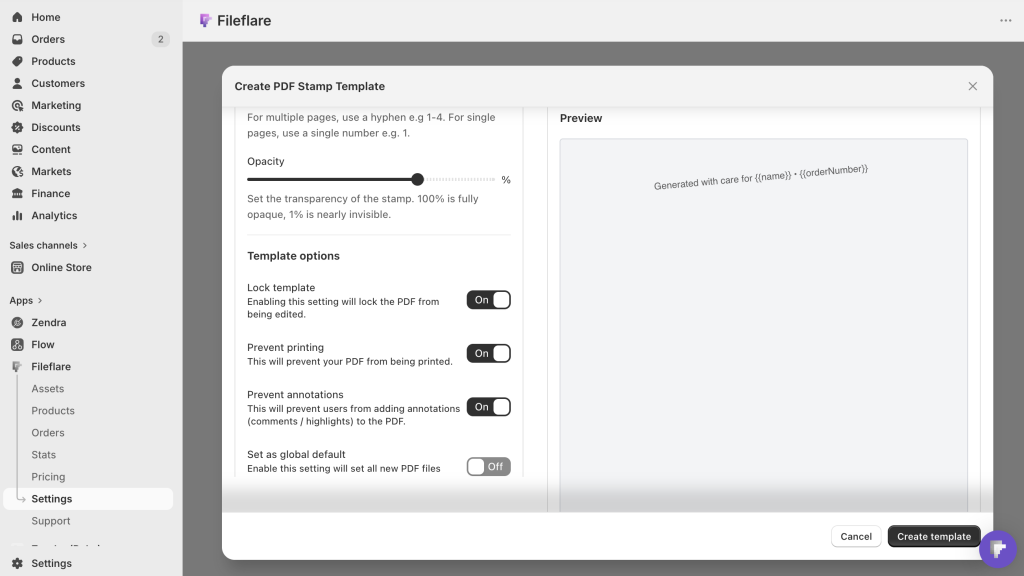
A few practical notes on your stamp text:
- Keep it under two lines. Anything longer turns into visual clutter.
- Test with a real buyer’s information (use a $0 test order) before going live. Some character combinations look weird at certain font sizes.
- If your customer base includes international names with special characters, Fileflare handles them correctly — but worth checking that your chosen font does, too.
Step 3: Position, opacity, and size
Determine where you want your stamp, and how it should look.
- Position: footer (default), header, custom coordinates if you want the stamp on a specific spot.
- Opacity: 30% to 50% is the sweet spot. Below 30% reads as decorative; above 50% reads as defensive.
- Font size: Use 8 to 10pt for footer stamps. Large enough to read, small enough to not crowd the page.
- Color: black on light backgrounds, white on dark backgrounds. Skip colored stamps — they can look unprofessional unless you really know what you’re doing.
Step 4: Save and test
Save the template, place a $0 test order on your store using your own buyer information, and download the stamped PDF from your test account. Verify the stamp appears, the text variables substituted correctly, the position is sensible across page count, and the opacity is what you wanted.
A round of testing here is worth the time. Stamps that ship with bugs (using the wrong field, garbled variables, or illegible position) become a support headache faster than no stamping at all.
Per-asset templates
If you’re on the Growth plan or above, you can configure different stamp templates for different files. Using different templates can be helpful in a couple situations.
- Mixed-value catalog. A premium $99 workbook gets a full name + email stamp; a free bonus PDF distributed alongside gets only a logo stamp.
- Different stamp positions for different products. A sheet music PDF might need a header stamp because the footer is musical bars; a workbook PDF uses the footer.
Per-asset templates are accessed from the asset detail page in Fileflare — open the asset, scroll to the Stamping section, and pick a template (or create one specifically for that asset).
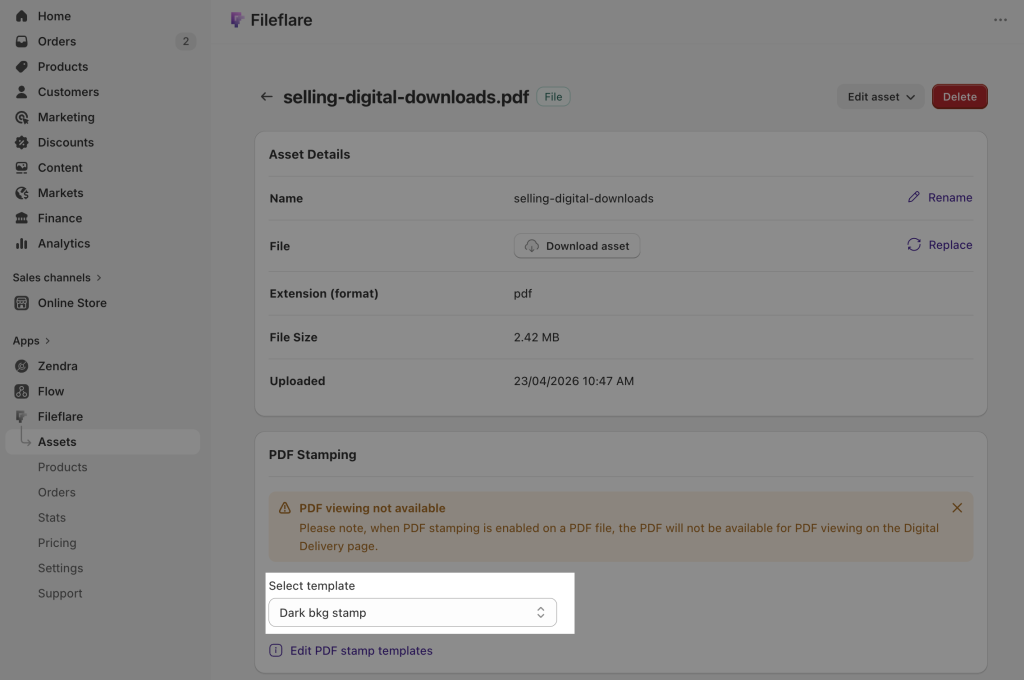
For most stores, one global template covers everything and per-asset is overkill — but the option is there when you need it!
For stamping to work, the source PDF needs to be unencrypted. If you’ve password-protected your source file, decrypt it before uploading.
Retroactive stamping
If you turn on stamping after you’ve been selling for a while, you’ll have past orders that were delivered without stamps. Fileflare’s retroactive stamping option applies your current template to those existing orders on their next download.
For any buyers: they’ll go to their existing download page, click download, and get a freshly-stamped copy of the file they originally bought. They don’t have to re-purchase, contact support, or do anything different on their end.
Retroactive stamping is particularly useful if you’re rolling out stamping in response to a piracy incident — past buyers immediately get the same protection level as new buyers, with no manual cleanup work.
Print and annotation locks
Stamping deters sharing through attribution, and by making sharing uncomfortable; sharers don’t usually want to share their personal details with strangers. Print and annotation locks deter sharing with technical constraints.
- Print lock disables printing on the stamped PDF. Print locks are useful for screen-only content like premium reference PDFs or professional courses where the buyer should access the material on a screen. Locks are overkill for anything a buyer might legitimately want to print.
- Annotation lock prevents the buyer from editing or annotating the stamped PDF. These locks are useful for templates and contracts where edits would devalue the file (a contract template the buyer fills in might be useful; one they can’t strip your boilerplate from is more useful for you).
Both locks rely on PDF reader conventions, and both can be bypassed by a determined user with readily available tools. Locks are not hard DRM. They help against casual misuse — and against the buyer who’d accidentally edit and re-share — not against someone determined to strip the protection.
What buyers see (and how to handle the rare complaint)
Most buyers never notice a stamp. It sits in the footer or as a faint diagonal, and unless they’re looking for it, it disappears into the document.
The 1-in-200 buyer who does notice and emails about it almost always accepts a short, factual reply:
"We watermark every download with the buyer's name and email to help prevent unauthorized sharing. Your name appears on the file we delivered to you specifically — it's not visible to anyone else, and the watermark helps us protect the value of the work for everyone who buys it."A short, clear reply almost always lands fine. The buyer feels respected, the protection stays in place, and you’ve added one supportive interaction to your customer relationship. (Ask them to write a product review!)
Keep learning
For the broader picture on protecting digital products, see how to protect digital products from piracy on Shopify — stamping is one layer in the broader strategy.
The format-specific guides go deeper on related topics: selling PDFs on Shopify for PDF mechanics across the customer experience, and selling ebooks on Shopify for multi-format ebook delivery (where stamping pairs with PDF and the other formats inherit deterrence layers).
When you’re ready to turn on stamping, install Fileflare from the Shopify App Store. The Basic plan ($19 /mo) includes one stamping template, which is enough for most stores. The 14-day trial gives you time to set up and test before committing.