
Somewhere in a customer’s inbox there’s an order confirmation from March with a link to the sample pack they bought. Somewhere else sit the delivery email for a preset bundle, two zine back issues, and whatever their membership dropped last month. Digital libraries pile up fast, and when someone needs a file again, “search my email” is where most of them start (and “email the store” is where a few of them end up).
Fileflare now adds a Downloads page to Shopify’s new customer accounts that holds all of it. It lists every file a customer has from your store: the files they bought, each linked back to its order, and the files they get through a Zendra membership. They can search it, sort it, and filter it by file type, so a library of 40 sample packs is as easy to browse as a library of four.
Give customers one place for every file
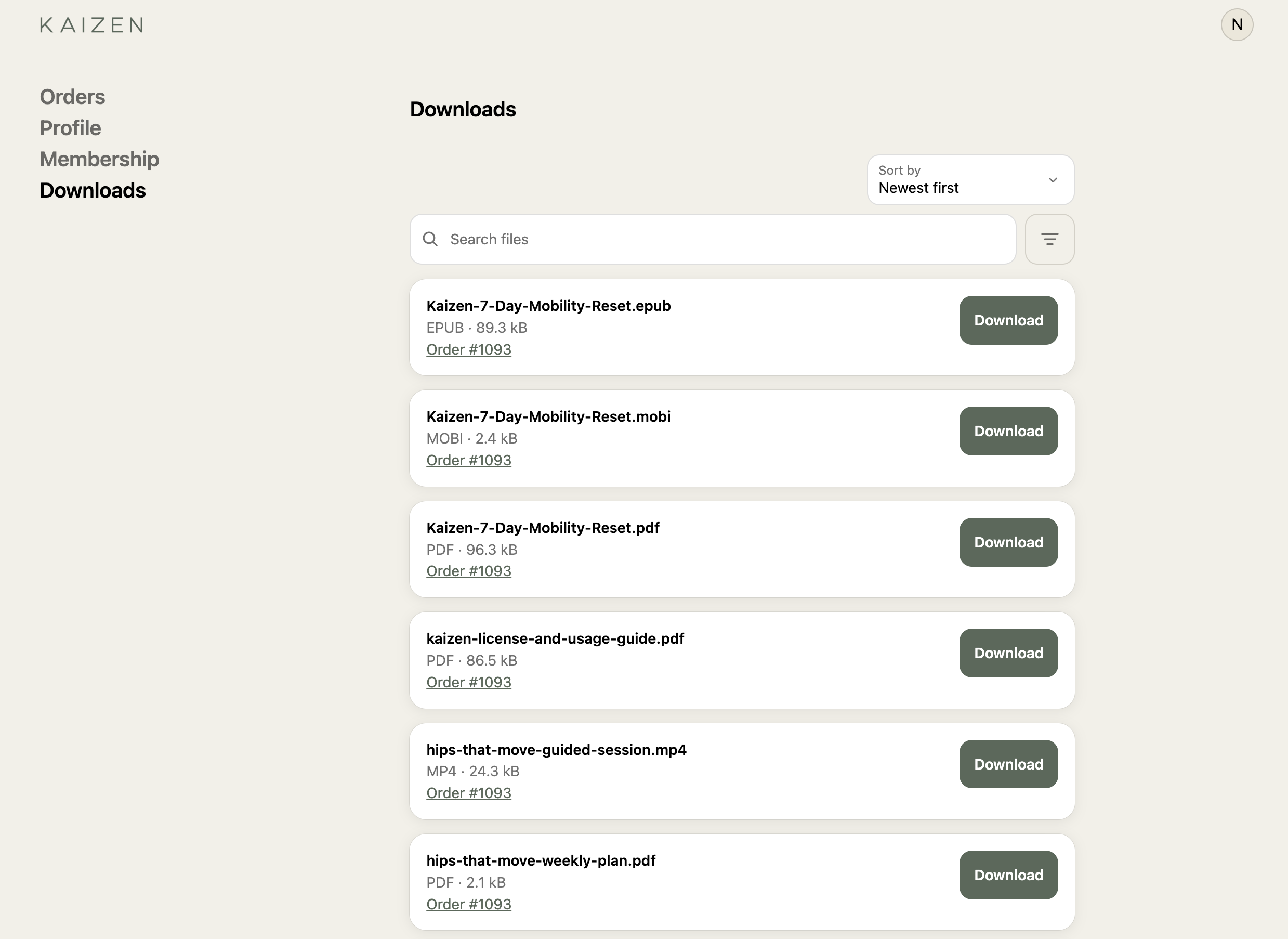
The Downloads page lives in the customer account, the same place customers already go to check on an order. Each file shows its name, its type and size, and a Download button, and each one says where it came from:
- Purchased files link to their order (Order #1001), which opens that order in the customer’s account.
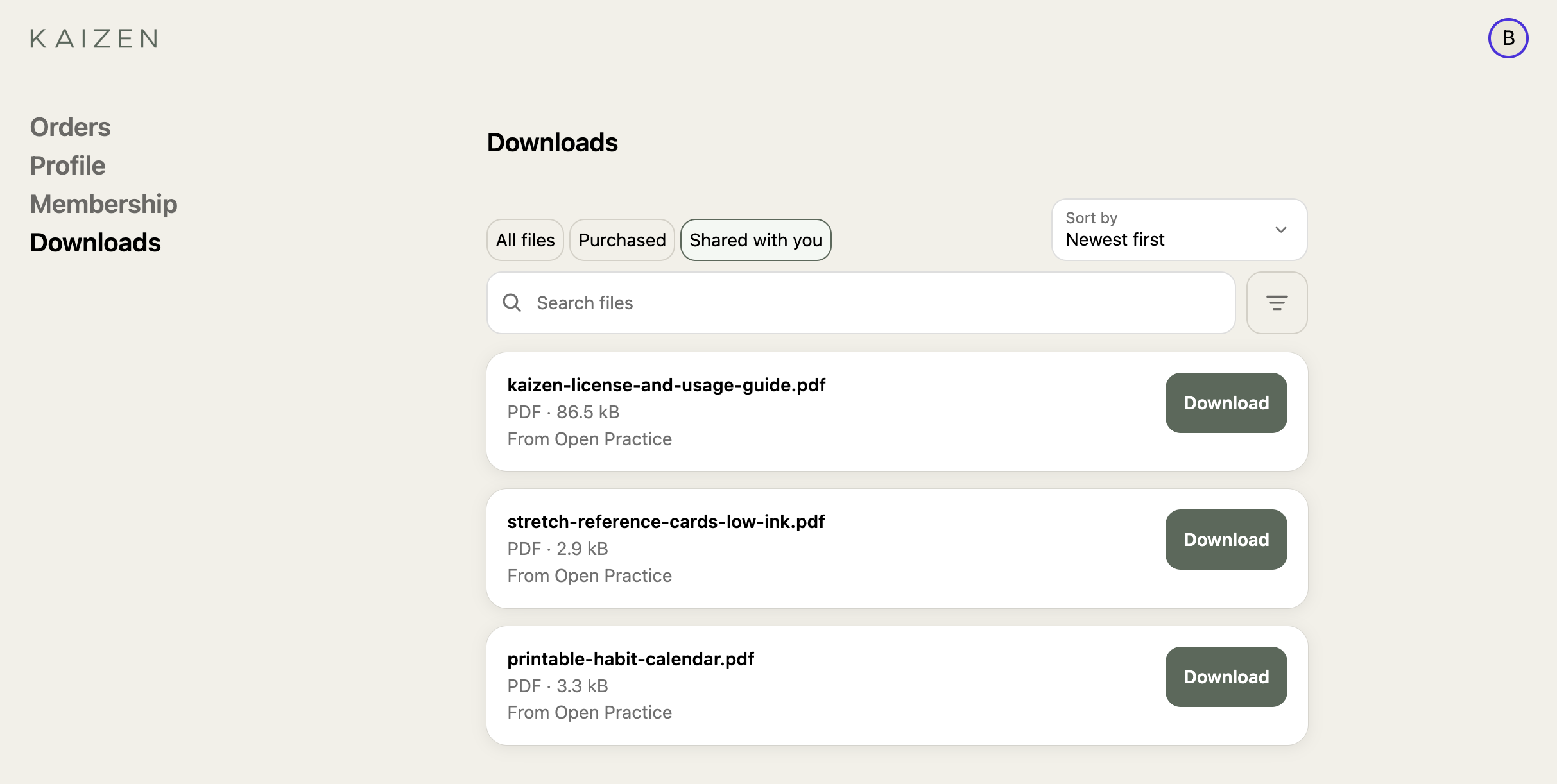
- Shared files name the membership they come from (From Gold membership).
- A file the customer has both ways is listed once, as a purchased file, so nothing shows up twice.
That order link is a small thing, but it saves a hunt: a customer who wants to check when they bought a pack, or what else came with it, goes straight from the file to the order. A customer who doesn’t have any files yet sees No downloads yet, with a note that files will show up there once they have access.
Let customers search, sort, and filter a big library
A plain list is fine for a handful of files. Past a few dozen, customers need a way in, so the page comes with four tools:
- Search files: finds files by name.
- Sort by: Newest first (the default), Oldest first, Name A-Z, or Name Z-A.
- File type: narrows the list to the types the customer picks, with quick picks for Documents, Images, Audio, Video, and Archives.
- All files, Purchased, and Shared with you: switch between what they bought and what a membership gives them.
The filters only show up when they’d do something. File type appears once a customer owns more than one kind of file, and the source buttons appear once they have both purchased and shared files. Someone who bought three PDFs gets search and sort, without filters for a library they don’t have yet.

Put Zendra membership files next to purchases
When we connected Fileflare to Zendra, membership perks turned your Fileflare library into something members could unlock, and Zendra’s member portal became where they browse it. Now those membership files also sit under Shared with you on the Downloads page, right next to everything the member has bought. The portal keeps its own view of the perks, but Fileflare’s Downloads page is the one that puts them beside purchases, so members don’t have to remember which files came from an order and which came with the membership.
Zendra still runs the perks themselves, so members keep picking their Free Downloads and checking their remaining allowance in the portal, as before. Member file links stay personal, too: a forwarded link asks the next person to log in, and someone logged in as another customer can’t use it.
Keep scheduled and streaming-only files the way you set them
The Downloads page follows the delivery settings you’ve already chosen, rather than turning every file into a download:
- Scheduled files (the ones you’ve set a future release date on, such as a pre-order) show a locked Available badge with their release date, and their Download button stays disabled until then. Pre-order customers can see what’s coming and when.
- Streaming-only files (the ones customers watch, listen to, or read in the browser while downloads are switched off) are listed without a Download button, so the page doesn’t hand out a download you’ve turned off.
Add the Downloads page to your customer account menu
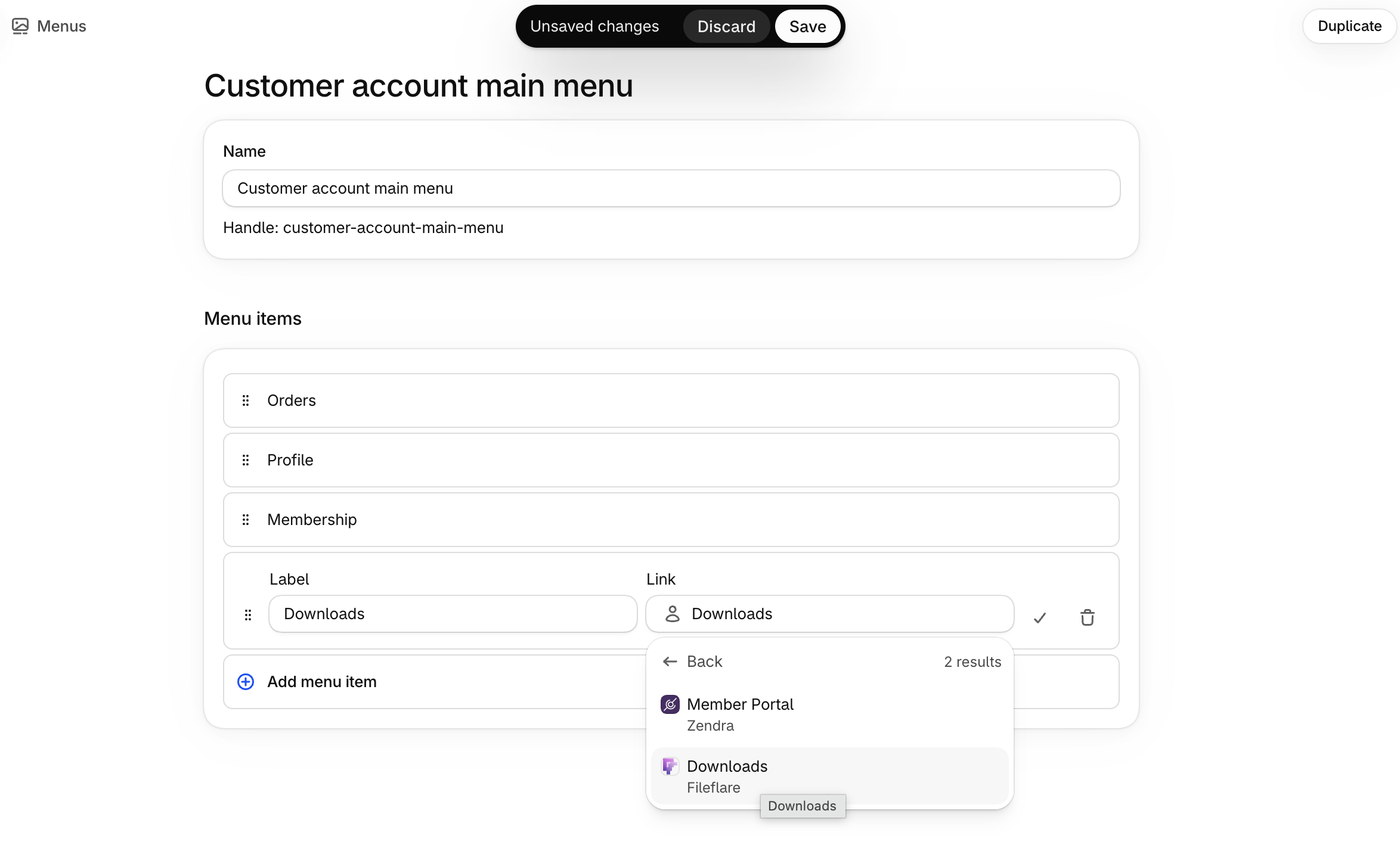
Customers reach the page from your customer account menu, so setup is adding the page block and one menu item in Shopify:
- From Fileflare Settings » Delivery methods, find Customer account Downloads page under Where customers get their files and click Add in editor. (The Downloads page step on your Fileflare dashboard opens the same editor.)
- Under Fileflare, select + next to Downloads, then Add page to › Accounts. You should be asked to also add a menu item. If not, keep going to add it manually.
- In your Shopify admin, go to Content » Menus.
- Open your customer account menu.
- Add a menu item that links to Fileflare’s Downloads page.
- Save.

If your block says “We couldn’t load your downloads” that’s okay! It’s just because Shopify doesn’t always load the account context in the preview — it will work on an actual account.
Nothing else about your setup changes. The View all downloads button on the order history page still opens your storefront downloads page, and the download box on each order page works as before.
Purchased files appear on the Downloads page on the Basic plan and up, and membership files come through the Zendra integration. Our pricing page has the details.
Start showing a unified download list
The Downloads page is available now. Add it to your customer account menu, then log in to your store’s customer account with an email that has a digital order on it, and you’ll see the library the way your customers do.
For the details, see the Downloads page section of the customer account downloads guide, and the Fileflare and Zendra setup guide if you’re adding membership files. Our guide to sending digital files after checkout covers the other places customers pick up their files, from the thank-you page to the order confirmation email.
Not on Fileflare yet? You can find us on the Shopify App Store. And if you’d like to sell memberships around your files, Zendra, our Shopify memberships app, is there, too.