
Digital downloads can be fulfilled in a number of ways. When you start out, it may be tempting to email files manually to buyers or embed Google Drive links in your thank you pages or order confirmation emails — especially if your downloads are customized or commissions for each buyer.
There’s no reason to brute force sending digital files. If the buyer closes the thank you page, deletes the email, or returns six months later from a different device, the thing they paid for should still be waiting for them. Digital fulfillment requires reliability, and you can get it for free when you start a new store.
First, start with our guide to selling digital products on Shopify if you haven’t read it. Then, come back here for a deeper look at to fulfill your digital orders.
The delivery is part of the thing you made — not a separate step.
Decide when the file should be released
Most ready-made digital products should be delivered automatically after the order is paid. The customer bought an ebook, typeface, drum kit, Lightroom preset, or ZIP archive; there’s no benefit in making them wait for someone to press Send. (Nobody has ever loved a “your files are on the way” email.)
That default changes in three common cases:
- Payment is still pending. If you use manual payment capture or a payment method that settles later, decide whether access should wait for payment. Fileflare keeps the delivery email, fulfillment, and download access together: with pending-payment downloads disabled, all three wait for capture. Refunded, cancelled, and fraud-blocked orders remain excluded.
- The file has a future release date. A preorder can be sold now and released on a schedule. The buyer gets the file when the asset becomes available, rather than receiving an empty promise after checkout.
- The file doesn’t exist yet. Personalized artwork, certificates, edited recordings, and client deliverables are attached to the individual order after the work is finished.
Shopify’s own digital-delivery tools also distinguish automatic from manual fulfillment. Whatever app you use, write the release rule down before launch: paid order, specific date, or manual completion. Ambiguity here becomes support work later.
Attach files at the right level
Attach a reusable file to the product when every buyer should receive the same thing. If the product has variants, you can attach a common file at the parent level and add variant-specific files where needed. A music release might give every buyer the cover art and liner notes, while WAV and MP3 variants receive different audio packages.
Fileflare can also deliver URL assets for content hosted elsewhere, such as a private course page, Google Drive file, or Dropbox link. A URL asset is a link, not a storage integration: Fileflare does not change the sharing permissions on the service where the content lives. Test the link in a private browser window before selling it.
Use an order-level attachment when one buyer needs a unique file. That distinction matters because attaching a custom certificate to the product would make it available to future buyers, while attaching it to the order keeps it with the customer it belongs to.
Give customers more than one way back to the download
A delivery email is useful, but it shouldn’t be the only copy of the map. Buyers delete messages, mistype addresses, close the thank-you page, and return from a different device a month later. Finding a purchase shouldn’t become a side quest through an inbox.
Fileflare can put access in three Shopify surfaces:
- The thank-you page: show a download button immediately after checkout. This is the shortest route from payment to file, especially on mobile.
- Shopify’s order confirmation email: add a download link to the receipt the customer already expects from your store.
- The Shopify customer account: add a View all downloads button to order history, so the buyer can recover past purchases without searching their inbox.
You can also send Fileflare’s separate delivery email. That message can carry a more prominent download button, the customer’s file list, and instructions specific to the product. Stores using custom SMTP or SendGrid can customize the sender, subject, and HTML template; stores that handle transactional messaging elsewhere can disable Fileflare’s automated emails.
Most stores should use the thank-you page, order confirmation link, and customer account together. They don’t send three competing messages. They cover three moments: I just paid, I’m checking my receipt, and I need that file again.
See examples of the customer download experience before choosing the surfaces for your store.
Make the download page explain the next step
The download page should answer four things without making the customer decode a filename:
- What did I buy?
- Which file should I open first?
- Do I need to save, extract, install, or import it?
- Where do I ask for help?
Name files for the buyer, not for the mildly haunted folder they emerged from. portrait-print-11x14.jpg is clearer than final_v7_revised.jpg; course-workbook.pdf beats asset-00392.pdf. (The version history can stay your little secret.) Put setup instructions above the file list when a product needs them, and include the same short instruction in the delivery email.
Fileflare’s full download page template can play supported video and audio files and open PDFs in the browser on the Premium plan. That’s useful when viewing is the product experience, but it isn’t the same as saving a copy. Keep the language explicit: Watch, Read, and Download describe different actions.
iPhone and iPad buyers need special care because Safari’s idea of “open” and a customer’s idea of “saved” are not always the same thing. Fileflare can show configurable iOS saving instructions on the download page, and automatic Safari previews do not count toward download limits. If mobile buyers are a meaningful part of your audience, test the flow on an actual iPhone before launch rather than assuming the desktop behavior carries over.
Add a file after the order is placed
Some work begins at checkout. A customer submits their details, you make the portrait, mix the recording, or build the custom template, and the finished file needs to join the order they already paid for. This is where digital delivery starts looking less like a switch and more like a tiny production pipeline.
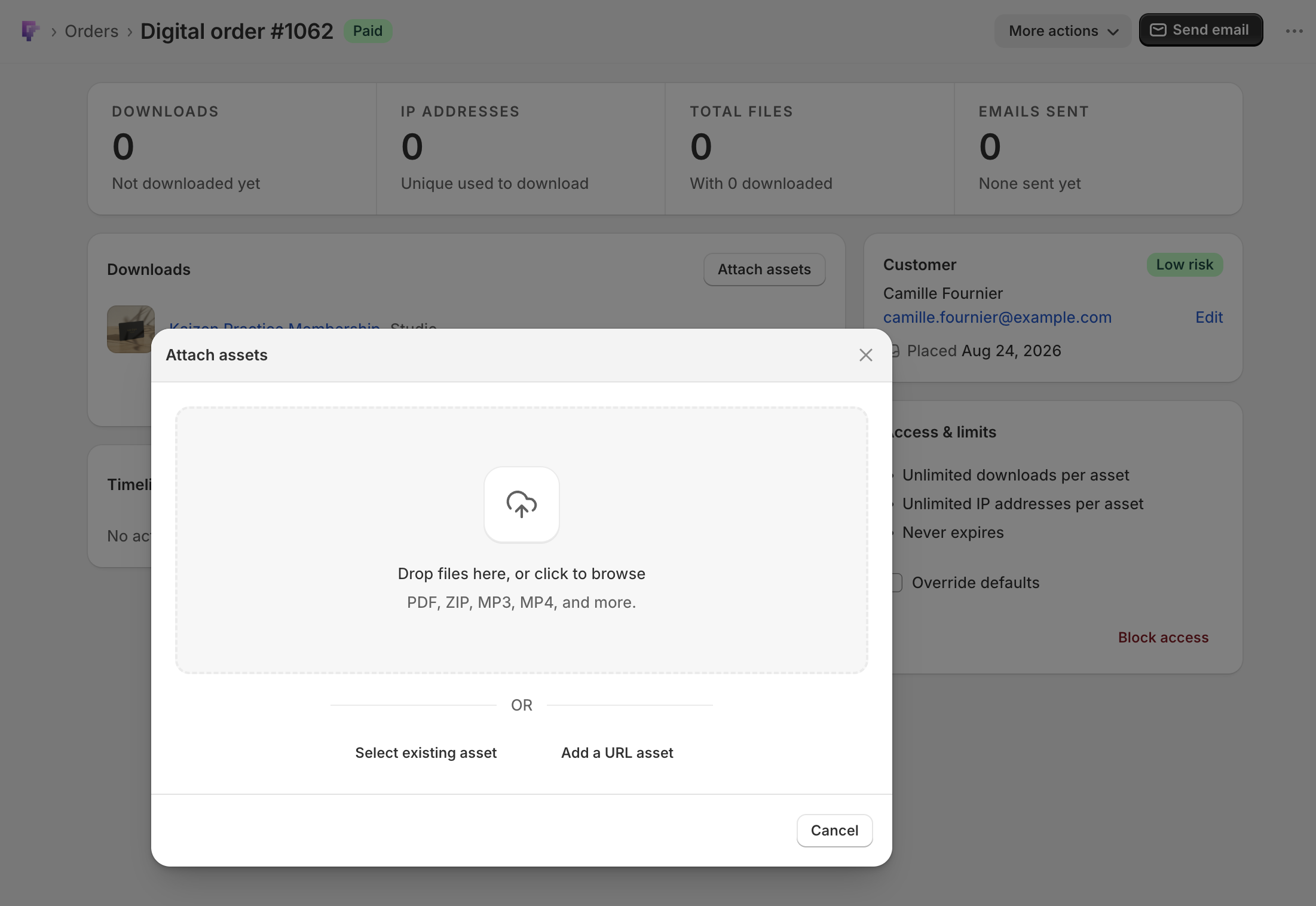
Open the digital order in Fileflare, find the Downloads card, and click Attach assets. You can:
- upload a new file;
- select one or more existing assets from the Fileflare library; or
- add a URL asset.
The same three choices are available from Fileflare’s Digital downloads block on the Shopify order page. New uploads up to 100 MB can go through that window; larger files should use Fileflare’s main uploader.
Order attachments require the Basic plan or higher.
After attaching the asset, click Send email if the order has never received a delivery message, or Resend email if it has. The customer’s current download page and account view will include the added file, too.
The personalized digital file guide walks through the full order-attachment flow.
Test the handoff, not just the checkout
A test order is a rehearsal, not a green checkmark next to “payment accepted.” Use an email address you can open and walk through the purchase as a customer:
- Complete checkout and confirm the order reaches the expected paid or pending state.
- Check whether the thank you page shows the download at the right moment.
- Open Shopify’s order confirmation and the separate delivery email, if enabled.
- Download or view every file, including ZIP archives and URL assets.
- Open the customer account from a new browser session and recover the order there.
- Repeat the download on an iPhone or iPad if your customers commonly use one.
- For a personalized product, attach a new file after checkout and send the first delivery message.
If the order is paid but no file appears, check the attachment before blaming email. If the file appears in the account but no message arrives, work through Fileflare’s email delivery troubleshooting. If the link opens but the customer can’t save the asset, test the file type and device rather than sending the same link again.
The goal is a boring support inbox (beautiful infrastructure often looks like nothing happened). The buyer pays, sees where the file lives, and can find it again without asking you to reconstruct the order. Add Fileflare to Shopify when you’re ready to build that delivery path across checkout, email, and customer accounts.