
If a customer says they didn’t get their download email, the cause is almost always one of a small set of usual suspects. Walk through this list in order — most cases resolve at one of the first three steps.
Email delivery is never 100% reliable, even when everything is configured correctly. If repeated email issues are hurting your store, the most reliable backup is to enable thank-you page downloads or customer account downloads — both bypass email entirely.
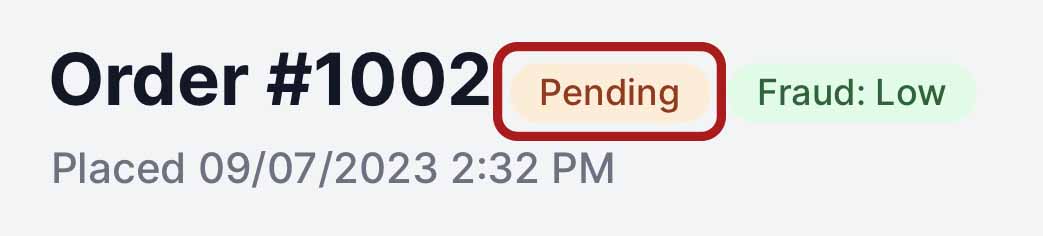
1. Check the order status is “Paid”
Fileflare only sends the download email after the order is marked Paid. If the order is in Pending, Authorized, Cancelled, or Refunded status, no email goes out — by design, so customers can’t get free files by cancelling immediately after checkout. Pending and authorized orders are the exception if you’ve turned on Allow downloads on pending payments, which sends the email and fulfills the order along with releasing the downloads — see Download limitation settings.
Check the order in Shopify. If it’s stuck in Authorized, your Shopify payment capture is set to manual — see the setup checklist for switching to automatic capture.
2. Check that download emails aren’t disabled
If someone has turned off Fileflare’s automated emails, no orders will trigger an email — old or new.
- Go to Fileflare » Settings » Download delivery » Emails.
- Confirm Send Fileflare download emails is enabled.
- If it isn’t, toggle it on and save.
See Disable download emails for full context on this setting.
While you’re on that screen, check for a red banner. If you send through your own SMTP server and a send has failed, Fileflare names the kind of failure — an authentication problem, a rate limit at your provider, a connection error, or a rejected recipient — and tells you what to do about it, along with when it last happened. The same failure raises a critical alert on your dashboard reading “Your order emails aren’t sending”, which stays put until a send succeeds.
An unverified SMTP connection is worth ruling out too: if the SMTP card shows Pending, your emails are still going out from Fileflare’s default address rather than yours. The verification link expires after 30 minutes, so a connection saved days ago and never verified is a common find. Resend it from the same screen.
3. Check the order has an email address
Shopify lets customers check out with either an email or a phone number. If a customer used phone-only, Fileflare has nowhere to send the download email.
Open the order in Shopify and look at the customer details. If the email is missing or wrong, you have two options:
- Fix the delivery address in Fileflare and resend: open the order (Fileflare » Orders » the order number), click Edit next to the address on the Customer card, save, then click Resend email. That changes where Fileflare delivers for this order; update Shopify too if the customer needs Shopify’s own notifications.
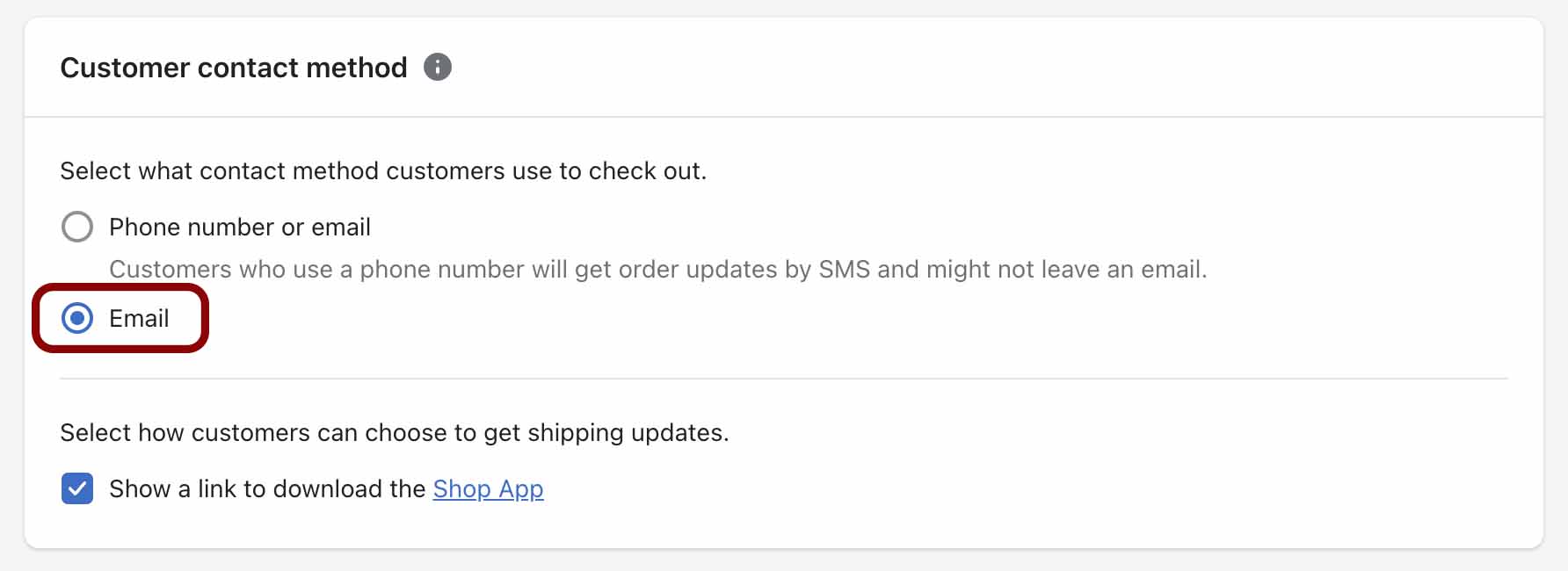
- Make sure all future orders capture an email — Shopify Settings » Checkout » Customer contact method, set to Email.
4. Check the email isn’t in spam
Genuine emails land in spam more often than anyone wants to admit, especially when sending from Fileflare’s default noreply@digital-downloads.com address. Ask the customer to check their spam folder. If this is a recurring issue:
- Connect your own domain via SMTP so emails come from your store address.
- Set up DKIM, DMARC, and SPF on your domain to improve inbox placement.
- Enable thank-you page downloads as a non-email backup.
5. Check for typos in the customer’s email
Customers mistype their own email more than you’d expect. If everything else looks right but the customer never received anything, check the email address on the order. gmial.com, yhaoo.com, missing dots — all common.
Update the email on the Shopify order, then trigger a manual resend from Fileflare.
6. Check the order is actually in Fileflare
If Shopify’s orders/create webhook was dropped, Fileflare never heard about the order — so there was nothing to email about. You can fix that yourself: open the order in Shopify, then More actions » View digital order. Following that link imports the order, generates its download links, and sends the customer their email, then drops you on the order in Fileflare.
One caveat: orders older than 12 hours import and get their links, but no email is sent automatically. Click Send email on the order once it’s in.
7. Shopify or infrastructure outage (rare)
Very occasionally Shopify webhook delivery has issues, which means Fileflare doesn’t get notified about the order in the first place. Shopify’s status page is the quickest check. If there’s an active incident, the order will deliver once Shopify’s webhooks recover.
Check what actually happened
Every order carries an activity timeline — every email and every download, newest first. Before you start guessing, open the order and read it: it’ll tell you whether Fileflare sent the email at all, and on plans with email tracking, whether it was delivered, opened, or bounced (with the reason your provider gave).