
Fileflare sends a download email to every customer after their order is paid — it includes the download links and is enabled by default on all plans. If you’d rather handle delivery another way (customer accounts, thank-you page, your own email tooling), you can turn the Fileflare email off.
Available on all plans. Disabling this turns off all three of Fileflare’s automated emails (fulfillment, file replacement, and pre-order release). It does not affect Shopify’s own order confirmation email.
When you’d use this
- Customers will only access downloads from their customer account or the Shopify thank-you page.
- You’re sending download links manually from your own email platform.
- You’ve embedded a Fileflare download link inside Shopify’s own order confirmation email and don’t want a second email arriving.
- You’re testing your store and want to stop emails from going out while you set things up.
Turn off Fileflare’s download emails
- Open Fileflare from your Shopify Apps menu.
- Go to Settings.
- Open the Emails section.
- Toggle off Send Fileflare download emails.
- Click Save.
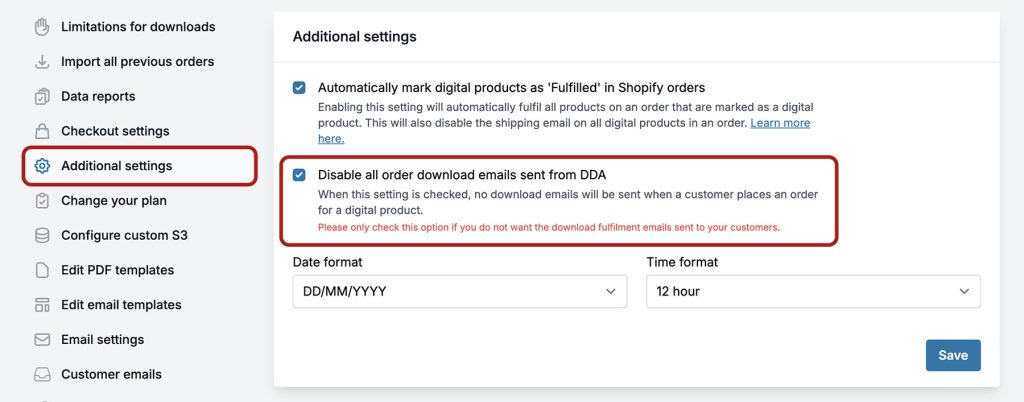
To turn the emails back on later, flip the same toggle back on. Disabling and re-enabling doesn’t resend any old emails — only new orders going forward will trigger delivery.
Common issues
- Customers say they didn’t get an email — if you’ve disabled Fileflare’s emails, expected. Double-check that customers know where to find their downloads (customer account, thank-you page, or wherever you’ve routed them). See Examples of download delivery.
- I disabled emails but want to send a download link manually — go to the order in Fileflare and use Send email (or Resend email if the order was emailed before). The toggle only suppresses automatic sends; manual resends still work.