
Embed a download button or link in Shopify’s order confirmation email — the one Shopify sends automatically — so customers reach their files from the same email they already trust. Pairs nicely with disabling Fileflare’s email if you want to send only one email per order.
Fileflare’s own download button is available on the Lite plan and above, and works on its own. Methods 1–3 link to Shopify’s Order Status page instead, so they need Fileflare’s checkout blocks (Basic and above). Method 3 also uses customer account downloads, which are included from Basic. Always save a backup of your Shopify order confirmation code before editing — it’s easy to break.
When you’d use this
- You want a single email per order rather than two (Shopify’s confirmation + Fileflare’s download email).
- You want to lean on Shopify’s high email deliverability instead of Fileflare’s default sender.
- You’re translating the email per language using Shopify’s Translate & Adapt — that translates this template, not Fileflare’s. See dynamic language by country.
Why Shopify’s email, not Fileflare’s
Shopify can’t add Fileflare’s download links automatically — the order confirmation email is rendered by Shopify, not Fileflare. The trick is: link to a page that does have the downloads. The thank-you page (Order Status page) is hosted by Shopify, has Fileflare’s app blocks rendering download links, and is reachable from the order email via Shopify’s {{ order_status_url }} variable.
Fileflare’s own button is the quickest way. The three methods after it link to the Order Status page, ordered from simplest to most polished.
Recommended: paste Fileflare’s download button
Fileflare gives you a ready-made button to paste into Shopify’s template. It links straight to the customer’s download page for that order, so it works without the Order Status page blocks.
- In Fileflare, go to Settings » Delivery methods.
- In the Where customers get their files panel, select Set up next to Shopify order confirmation. The same Set up button sits next to Shopify order confirmation email in the Emails section.
- Open Shopify’s Order confirmation template from the link in the window.
- Copy the code Fileflare shows, paste it where the download button should appear, and save.
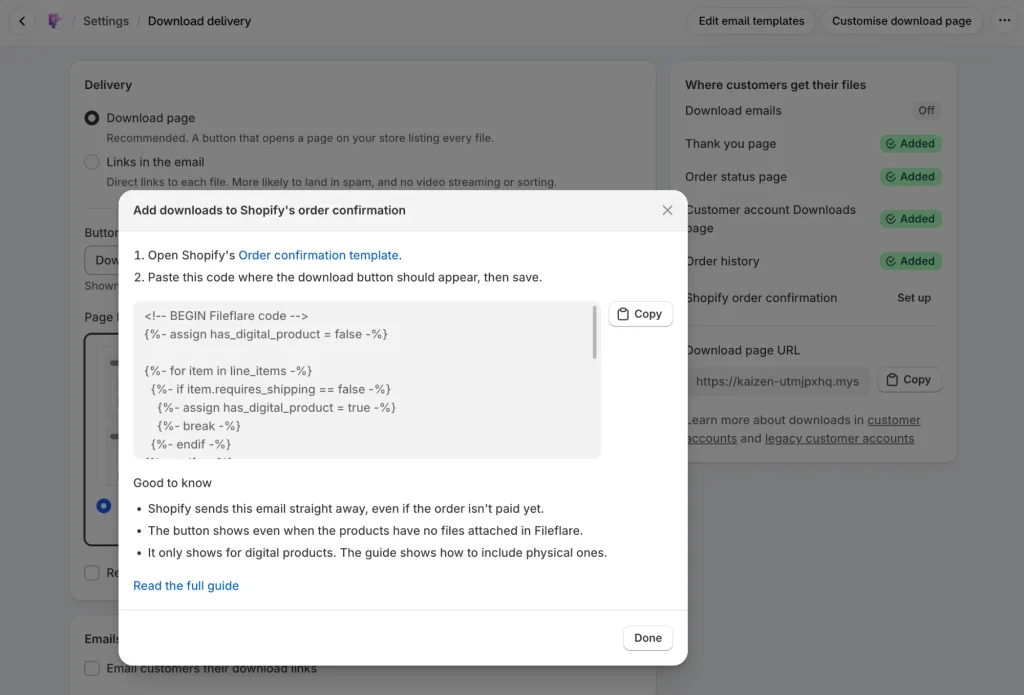
Good to know:
- Shopify sends this email straight away, even if the order isn’t paid yet. A customer who opens the download page before payment sees your Payment pending message until the order is paid, unless you allow downloads before payment is captured.
- The button shows even when the products on the order have no files attached in Fileflare.
- It only shows on orders with a digital product (one that doesn’t need shipping). To show it on every order, delete the
{%- if has_digital_product -%}line and its matching{%- endif -%}line from the code you pasted.
Prerequisites for all methods
These apply to Methods 1–3, which send customers to Shopify’s Order Status page:
- Fileflare on Basic plan or higher.
- Fileflare’s app block added to the Order status page. In Fileflare » Settings » Delivery methods, the Where customers get their files panel shows whether it’s added, with Add in editor if it isn’t. See Thank-you page downloads.
- (Method 3 only) Customer account downloads set up (Basic plan and higher).
Method 1: rename the existing button (simplest)
Shopify’s order confirmation email already has a “View your order” button that links to the Order Status page. The Order Status page is where Fileflare’s downloads show. So all you need to do is rename the button so customers know there are downloads on the other side.
- Shopify admin → Settings → Notifications → Order confirmation.
- Click Edit code.
- Press Ctrl+F (Cmd+F) and search for the existing button text — usually
View your order. - Change to something like
Download your files & view your order. - Save.
That’s it. Customers click the button, land on the Order Status page, see download links. Fastest method, smallest code change.
Method 2: add a separate “Download your files” button
Adds a dedicated download button alongside Shopify’s existing “View your order” button. More visual emphasis on downloads if your customer base often skips emails.
- Shopify admin → Settings → Notifications → Order confirmation.
- Click Edit code.
- Find a placement spot (typically near the existing button — line ~152 historically, but Shopify moves things around). Paste the button code below:
<html>
<head>
  <style>
    button {
      color: #ffffff;
      background-color: {{ shop.email_accent_color }};
      font-size: 16px;
      border-radius: 4px;
      padding: 20px 50px;
      border: none;
      display: block;
      width: 100%;
      text-decoration: none;
      cursor: pointer;
    }
  </style>
</head>
<body>
  <a href='{{ order_status_url }}' style="text-decoration:none">
    <button type="button" name="Fileflare-button" target='_blank'>Download your files</button>
  </a>
</body>
</html>- Save.
Customize the button text by changing Download your files to whatever fits your voice.
Method 3: list with all three access paths
Adds a numbered list explaining the three ways customers can get their downloads — login to account, check email, click the Order Status link. Most useful when customers ask “how do I get my files?” and you want to preempt every common path.
- Add Fileflare’s blocks to the Order status page and to customer accounts (see the prerequisites above).
- Shopify admin → Settings → Notifications → Order confirmation → Edit code.
- Paste the snippet below (recommended around line 152, but flexible):
<br><br><br>
<h2>Download your files</h2>
<p>You can download your files using these three methods:</p>
<ol>
  <li><a href="https://www.yourwebsite.com/account/login"><u>Click here to login</u></a> or <a href="https://www.yourwebsite.com/account/register"><u>create an account</u></a> using the same email that you used for the order. You can access your downloads inside the order page by clicking on the order number.</li>
  <li>An email with the download links will be sent to you alongside this confirmation email (check the spam folder if you didn't receive the email).</li>
  <li><a target='_blank' href='{{ order_status_url }}'><u>Click here</u></a> to view your downloads on the Order status "Thank you" page.</li>
</ol>
<br>- Replace the URLs in the snippet with your store’s login and register URLs (find them by clicking the profile icon on your storefront).
- Save.
Mixed orders (digital + physical)
Whatever method you pick will appear in every Shopify order email — there’s no way to dynamically show/hide based on whether the order has digital products. If you sell mixed orders, write the button or copy generically (e.g., “View order summary & downloads”) so it makes sense for both.
Often paired with: disable Fileflare’s email
Many stores combine this method with disabling Fileflare’s automated email so customers receive a single email per order. See disable Fileflare’s emails.
Common issues
- I can’t find the line to edit — Shopify moves the template structure occasionally. Use Ctrl+F to search for distinctive strings (button text, “{{ order_status_url }}”).
- Saved but the button text didn’t change in test orders — Shopify may have cached the previous template version. Wait 5 minutes or place a new test order.
- Customer clicks the button but the Order Status page is empty — Fileflare app blocks aren’t installed on the Order Status page. See thank-you page downloads.
- I broke the email template editing it — that’s why the backup matters. Click Revert to default in the Shopify template editor to start over.