
Customer account downloads put a “View all downloads” button on the customer’s account page and a download box on each order page, so customers can come back to their files anytime — not just from the post-purchase email. This page covers setup for both Shopify’s New Customer Accounts and the Classic customer accounts, plus troubleshooting and how to integrate with third-party customer account apps.
Customer account downloads require the Basic plan. Setup differs significantly between New and Classic Shopify customer accounts — pick the section that matches your store.
When you’d use this
- Customers frequently come back for the same files (e.g., software updates, recurring subscriptions, course materials).
- You want to reduce “I lost my download email” tickets — customers can self-serve from their account.
- You sell subscription products where customers expect ongoing access.
- You want a unified place for customers to find downloads across multiple orders.
Which Shopify customer accounts do you have?
Shopify offers two flavors. Most stores should use New Customer Accounts; Classic is being phased out. Check Shopify → Settings → Customer accounts to see which you have enabled.
Quick comparison
- New Customer Accounts — modern, app-block-based setup. No code changes. Recommended.
- Classic Customer Accounts — older, requires a small code snippet in your theme. Still works, but Shopify is phasing it out.
Setup: New Customer Accounts (recommended)
- In Shopify, go to Settings → Customer accounts.
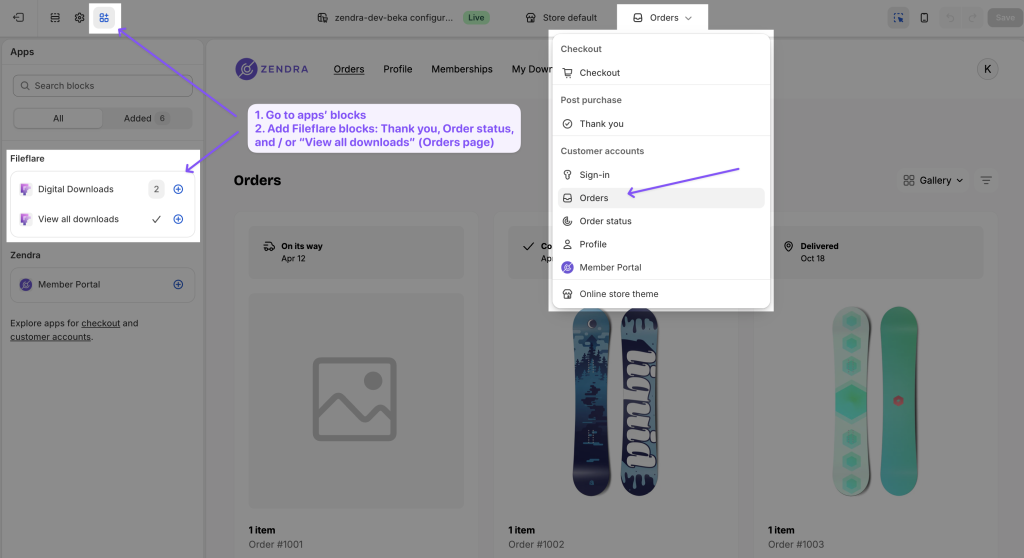
- Click Customize, then under Configurations click Edit on your active account configuration.

- Use the page selector at the top to switch to the Orders page.
- In the left sidebar, click Apps.
- Add every Fileflare app block available — typically the order-page download box and the “View all downloads” button.
- Save.
Optional: add a “My downloads” navigation item
To make the all-downloads page easier to find:
- Go to Shopify → Content → Menus.
- Edit your customer account menu.
- Add a new item — name it My downloads, link to
/apps/digital-downloads/. - Save.
The link is dynamic — when a customer clicks it, Fileflare looks up their orders and shows them their downloads.

Setup: Classic Customer Accounts
Classic accounts require a small code snippet in your theme — there’s no app-block surface available.
Step 1: enable the customer account icon
- Shopify → Settings → Customer accounts.
- Edit the top section.
- Enable Show login link in the header of online store and at checkout.
Step 2: enable the Fileflare setting
- In Fileflare, go to Settings → Checkout settings.
- Enable Display download links on the customer accounts order page.
- Save.
Step 3: place the snippet in your theme
Add this snippet wherever you want the download box to appear on the order page. Common placement is between the order summary and the line items.
<div id='digitalAssets'></div>- Shopify → Online Store → Themes → click the three dots → Edit code.
- Find the customer order template — usually
customers/order.liquid(older themes) ormain-order.liquid(newer themes). If you can’t find it, search for “order” in the file list. - Paste the snippet where you want the download box to appear.
- Save.
The snippet renders the download box only when the customer’s order has digital assets attached. Empty orders show nothing.
Optional: “View all downloads” button
On Classic accounts, you can also add a “View all downloads” button on the main account page. Use either the button code or just the link, placed wherever you want in the customer account template (usually main-account.liquid):
<a href="/apps/digital-downloads">
  <button>View all downloads</button>
</a>
Customer experience
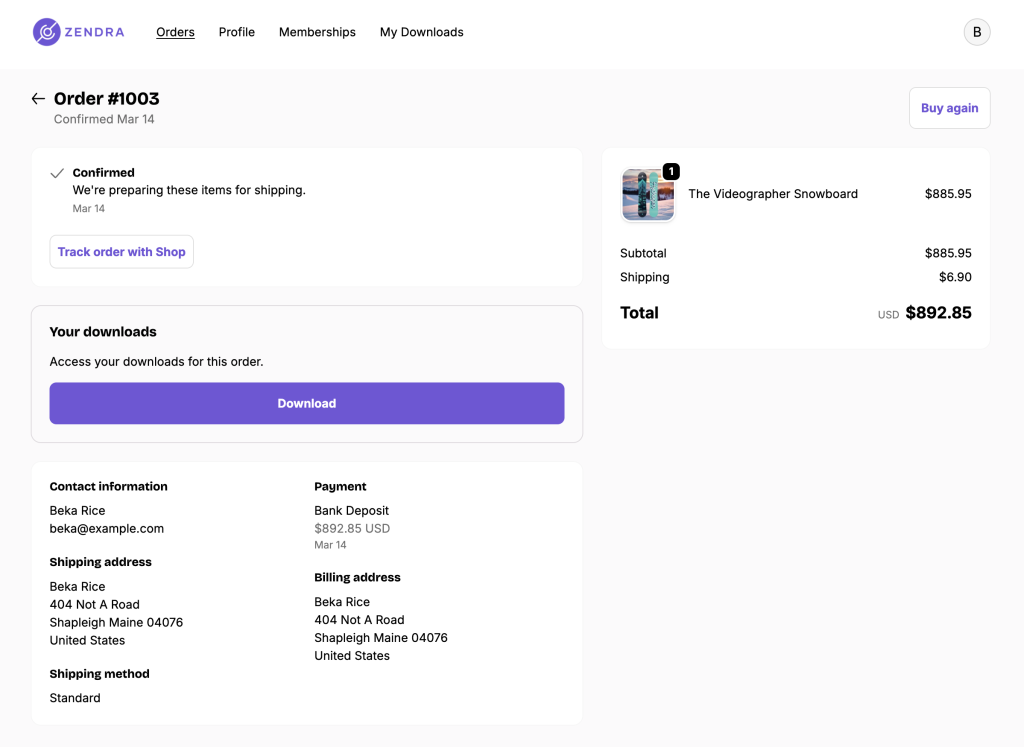
Once configured, customers see their downloads in three places:
- On each individual order page (the per-order download box).
- On the “View all downloads” page if enabled (consolidated list of all their files across orders).

- Optionally, in their main account navigation if you added the menu item.
Third-party customer account apps
If you use a customer account app like CustomerHub or Froonze, Fileflare has dedicated integrations that don’t require any code:
- CustomerHub integration
- Froonze integration
- Other apps (Flits, etc.) — use the “View all downloads” link
/apps/digital-downloads/as a navigation menu item.
Common issues
- Downloads aren’t showing on the order page — work through this list: the order’s payment status must be Paid; the product in the order must have at least one asset attached in Fileflare; for Classic accounts the snippet must be in the right liquid file (
customers/order.liquidormain-order.liquid); for New accounts the Fileflare app blocks must be added in customer account customization; you must be on the Basic (or higher) plan; and the order must be one Fileflare knows about (orders placed before installing Fileflare need to be imported first). - Customer is on the right page but sees nothing — make sure they’re on the order page, not the main account page. Downloads are per-order on the order page; only the “View all downloads” button shows a consolidated list.
- Permission errors when accessing downloads — if a customer changes their email or you migrate stores, the order’s customer association can break. Open the order in Fileflare → check the customer email matches the logged-in account → use Update permissions to refresh the access record.
- Downloads show on Classic but not New accounts — they’re independent. Adding the snippet to a Classic theme doesn’t enable downloads on New Customer Accounts. You need to also add the Fileflare app blocks via the customer account customizer.
- Brave browser blocks the download click — Brave’s “block downloads from non-trusted origins” setting can prevent the download click. Customer needs to enable downloads in Brave settings or use a different browser.
- Custom theme uses a non-standard template name — search the theme files for “order” or “account” — the template name varies by theme (e.g. Craft uses
main-order.liquid). Contact support with your theme name if you can’t find the right file.
Styling the download box
The download box inherits your theme’s typography automatically. To customize the button colors specifically, add this CSS to your theme stylesheet:
#digitalAssets {
    --dda-color-100: #F7F9FC; /* Button background */
    --dda-color-200: #E2E7F0; /* Button border */
    --dda-color-400: #CBD2E0; /* Button hover */
    --dda-color-600: #2D3648; /* Button text */
}
See Customize the download box for the title and supporting text.