
If a customer needs the download email re-sent — they deleted it, never received it, or you fixed a typo in their email address — you can trigger a fresh send from the order in Fileflare or from the Fileflare block on the Shopify order. The same flow works for any of the three Fileflare emails (initial delivery, file replacement, pre-order release).
Available on all plans. Resending sends the same template to the delivery address on the Fileflare order.
When you’d use this
- A customer says they never got the download email — and after troubleshooting, you want to manually re-trigger.
- You corrected a typo in the customer’s email address.
- The customer accidentally deleted the email and wants it again.
- You disabled Fileflare emails (via the Emails setting) but want to manually send for a specific order.
- You replaced a file (via Update files) and want to send a fresh email to one customer rather than triggering the bulk replace email.
- You just attached a file to the order and want the customer to know.
Resend from the Fileflare order page
- Open Fileflare from your Shopify Apps menu.
- Go to Orders.
- Click the order number.
- Click Resend email in the page header. On an order that has never been emailed, the same button reads Send email.
Fileflare sends the email immediately. Each send is recorded in the order’s activity timeline, so you can confirm it went out (and, on plans with email tracking, whether it was delivered and opened).
Resends are capped at 10 emails every five minutes across your whole store — plenty for support work, and enough to stop an accidental double-click turning into a dozen emails. The first send for an order that’s never been emailed doesn’t count toward it, so a batch of genuinely first-time sends won’t run you into the cap.
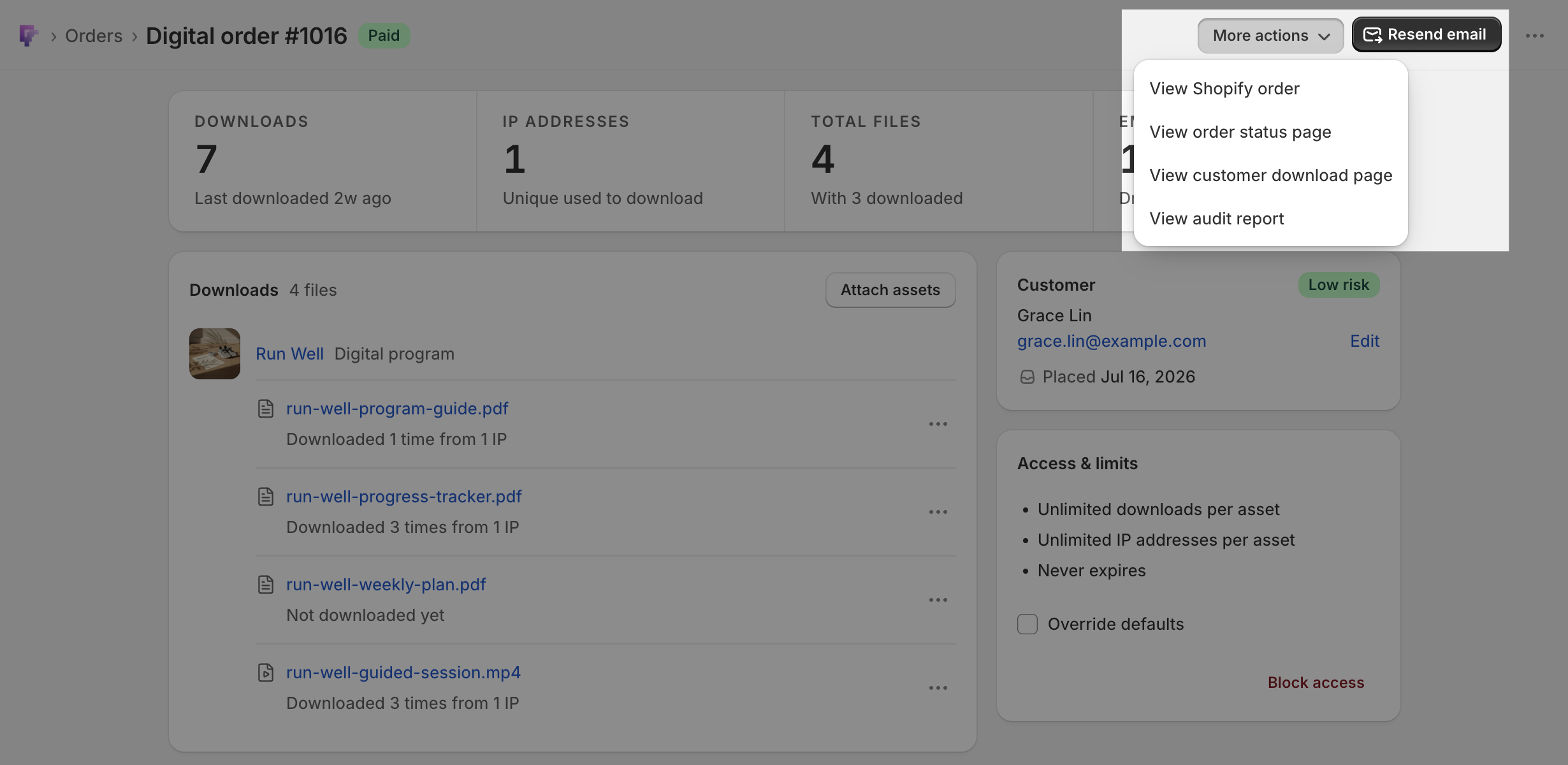
More actions in that same header holds View audit report, a printable record of what was downloaded on the order and the address it went to. See The order audit report.
On mobile, Shopify’s native header renders the primary action as an icon rather than a label, so Resend email shows as a resend icon (an envelope with a follow-up arrow) instead of text. Tap it and the behavior is identical.
Resend from the Shopify order
You don’t have to open Fileflare. The Digital downloads block on the Shopify order page has a Resend email button, and the same action is available from the order’s More actions menu as Resend download email.
Either route opens a short confirmation that names the address it’s about to send to, so you can catch a wrong email before the customer receives a second one. The same 10-per-five-minutes cap applies, and the action is hidden automatically on orders with no digital files. See Fileflare on the Shopify order page.
Change the delivery address first
If the email on the order is wrong, fix it before you resend. On the Fileflare order page, the Customer card shows the delivery address with an Edit action next to it — change it, click Save, then resend.
Editing it there changes where Fileflare delivers for this order. It doesn’t rewrite the email on the Shopify order, so if the customer also needs Shopify’s own notifications (shipping, refunds), update it in Shopify too.
What gets sent
The resend uses the same template you have configured in Settings » Download delivery » Emails. The download links in the email are fresh — they re-resolve to the current asset URLs at send time, so if you’ve replaced a file or updated a URL asset since the original delivery, the customer gets the new version.
The resend does not reset the order’s download counter or expiration. If the order has hit its download limit or expired, the resend email will still arrive, but the links will return your “expired” or “limit reached” message when clicked. To restore access, override the limits on the order first — see Reset download limitations for an order.
Bulk resend
If you need to resend emails to many customers at once — for example, after migrating from another app or after a file update — use the bulk send emails tool instead. It walks through every order matching your criteria.
Common issues
- “This order has no contact email” — Shopify lets customers check out with a phone number only. Add an email to the order (or to the Customer card in Fileflare), then resend.
- “Resend limit reached” — you’ve sent 10 resend emails in the last five minutes. Wait a few minutes and try again.
- “This order isn’t tracked by Fileflare” — open the order from Shopify using More actions » View digital order. Following that link imports the order and generates its download links, and then you can resend.
- The customer still doesn’t receive the resend — the issue isn’t with the resend, it’s with email delivery itself. See Troubleshoot email delivery.
- I disabled Fileflare emails globally — does the resend still work? Yes. The “Disable download emails” setting only suppresses automatic sends. Manual resends always work.