
Sometimes a customer needs a one-off file unique to their order — a customized PDF with their name, a personalized illustration, a contract with their details. Fileflare lets you attach files directly to a specific order so only that customer receives them, without affecting any other order.
Available on the Basic plan and higher. Order-attached files are added in addition to whatever’s attached at the product level — the customer sees both on their download page. Removing an order-attached file doesn’t affect other orders.
When you’d use this
- You sell a personalized product (custom-named PDF, signed certificate, customized course material).
- A customer asked for a specific file as part of their order (e.g., a custom resolution of an illustration).
- You’re delivering a one-time file unique to that order — a contract, a license, a bonus.
- You replaced a customer’s file with a corrected version after the order was placed.
Attach a file to an order
- In Fileflare, go to Orders and open the order.
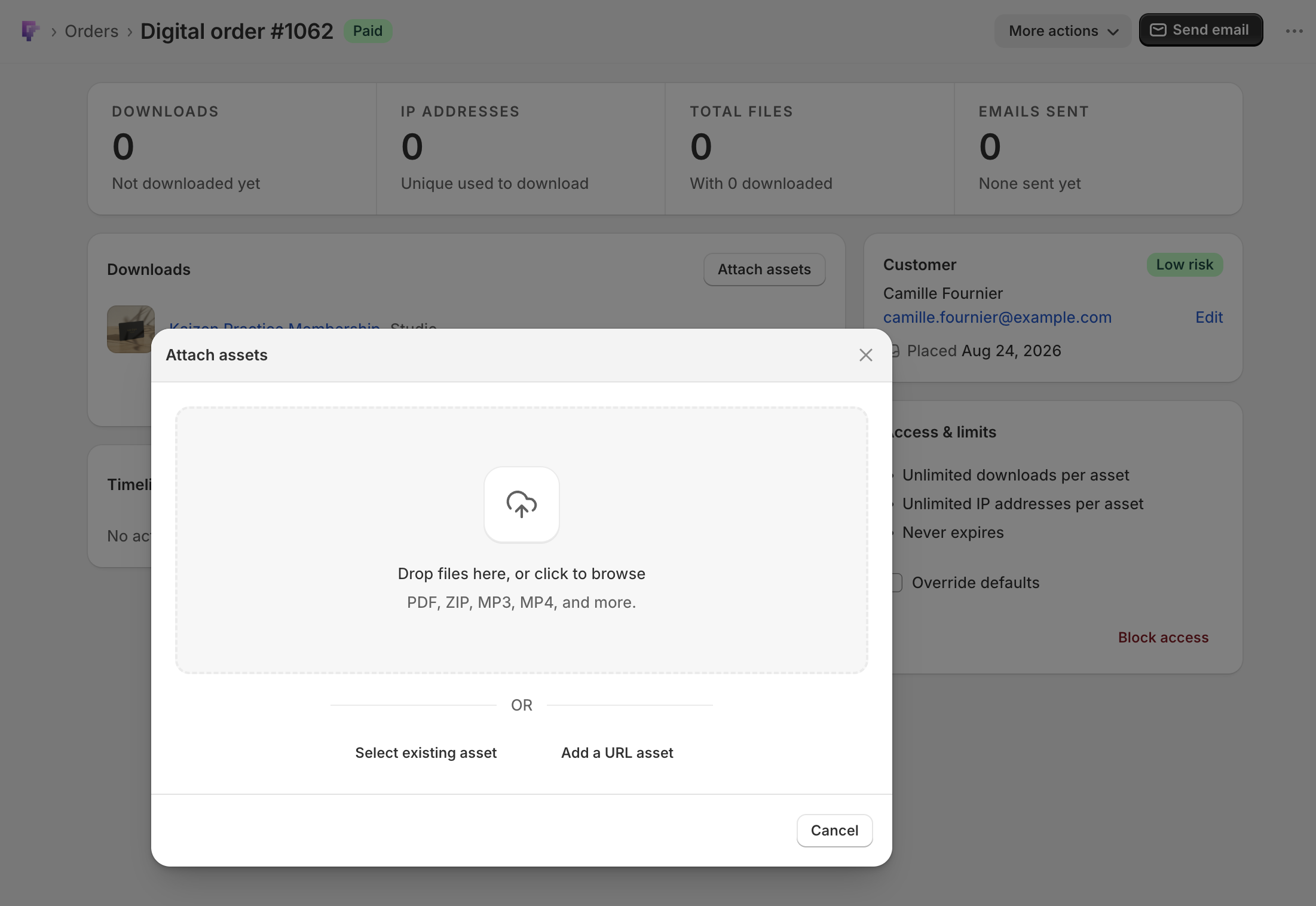
- Find the Downloads card and click Attach assets.
- Pick your method (all three live in the same modal):
- Upload a new file. Drop it on the dropzone, or click to browse. This is the default view.
- Select existing asset. Opens a searchable list of everything in your library, with filters for whether an asset is already attached to an order and when it was uploaded. Tick one or more, then click Attach to order.
- Add a URL asset. Paste a link, give it a name, and optionally a size to display. Click Add asset.
- Close the modal. The files appear in the Downloads card immediately, grouped at the bottom under Additional order downloads.
The asset is now linked to this order specifically. The customer’s download page, customer-account view, and any newly-sent email will include it.
From the Shopify order instead
If you’re already looking at the order in Shopify, you don’t need to open Fileflare. The Digital downloads block has an Upload & attach file button with the same three choices: upload a new file, select one or more assets from your Fileflare library, or add a URL. Fileflare attaches the files and then offers to send the download email in the same flow. New uploads up to 100 MB go through this window; anything larger should use Fileflare’s own uploader. See Fileflare on the Shopify order page.
Notify the customer
Attaching a new file doesn’t automatically send a download email. To let the customer know, click Resend email in the order’s page header — they’ll get a fresh download email with the updated file list.
Cap or remove an order file
Each row under Additional order downloads has a ⋯ menu:
- Set download limit — a per-file download cap for this order. Leave it blank to use the order’s limit.
- View in timeline — filters the activity timeline to this file’s downloads.
- Detach from order — removes the file from this order only. Other orders are unaffected.
Common issues
- Customer didn’t see the new file — they may be viewing an older email. Click Resend email to send a fresh one with the updated file list.
- The Attach assets button shows a lock — attaching files to orders is plan-gated. Click the lock and Fileflare tells you which plan unlocks it.
- The file appears for past customers of this product too — that means you attached it to the product, not the order. Detach it from the product and re-attach it through the order’s Attach assets button instead.
- The upload failed partway through — usually a sleeping browser tab or a flaky connection. Retry from the modal; for large files, use the Fileflare uploader, which can resume.
- I pasted a URL and no file size shows — expected. Fileflare doesn’t host the file, so there’s no size to measure unless you type one in.