
Every digital order in Fileflare has its own page, and it’s where you’ll answer almost every support question a customer sends you: what did they get, did the email go out, did they download it, and why can’t they download it again.
Available on every plan.
The page is organized into cards, each answering one of those questions. This article walks through all of them so you know where to look.
When you’d use this
- A customer says they didn’t get their files and you want to see what actually happened.
- You need to give one customer more downloads, or cut their access off.
- You want to send a customer a file that isn’t attached to the product they bought.
- You’re checking whether the delivery email was sent, opened, or bounced.
Open a digital order
There are two ways in:
- In Fileflare, go to Orders and click the order number.
- On the Shopify order itself, open the More actions menu and choose View digital order.
The second route does something useful beyond saving you a click: if Fileflare doesn’t have that order yet (a dropped webhook, or an order placed while the app was reconnecting), following the link imports it from Shopify on the spot, generates the download links, and emails the customer. Orders older than 12 hours still import and still get their links, but no email is sent — resend it yourself if the customer needs one.
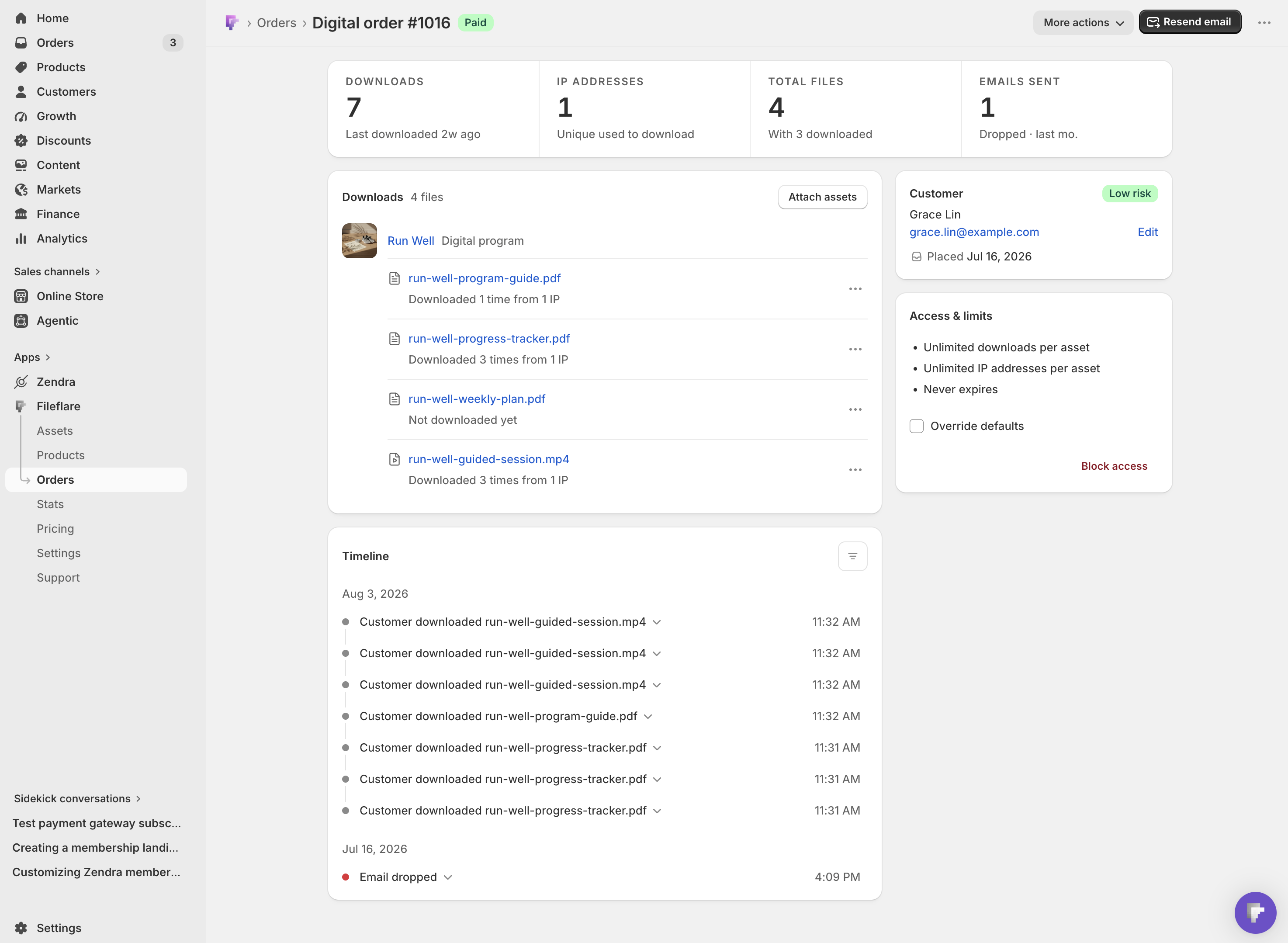
What’s in the title bar
The order name sits at the top next to a payment status badge, with a breadcrumb back to the Orders list you came from (it remembers your page and filters).
- Send email is the primary action on an order that hasn’t been emailed yet; once a delivery email has gone out it reads Resend email, and the icon switches with it. On mobile it renders as an icon rather than a label, so look for it in the header. See Resend a download email.
- More actions holds View audit report, a printable delivery record for the order (see The order audit report), plus three links out of Fileflare: View Shopify order, View order status page, and View customer download page. That last one is the page your customer sees, which is the fastest way to check their experience.
The cards
A strip of figures runs across the top of the page. Below it, on a desktop screen, the page is two columns: Downloads and Timeline run down the wide column, with Customer and Access & limits stacked in a narrower one to the right. On a phone those two right-hand cards come first instead. The tour below starts with the strip, then the two cards you act on most.
The figures strip
Four tiles run across the top of the page:
- Downloads — how many downloads the order has recorded. It reads “Not downloaded yet” until the first one lands.
- IP addresses — “Unique used to download”, which is the point of the tile: it counts distinct addresses rather than visits, so a shared link tends to show up here first.
- Total files — every file on the order. This is a distinct-file count, so a file that appears on three product lines of one order is counted once.
- Emails sent — “None sent yet” until the first delivery email goes out, then the status of the most recent one.
The email figures are there on every plan. It’s the delivery detail — delivered, opened, clicked, bounced — that needs email tracking.
Customer
The customer’s name, the email Fileflare delivers to, and a risk badge carrying Shopify’s fraud assessment for the order. The badge is always there — Low risk on a normal order, Medium risk or High risk on a flagged one, with Shopify’s reason underneath when the order is flagged.
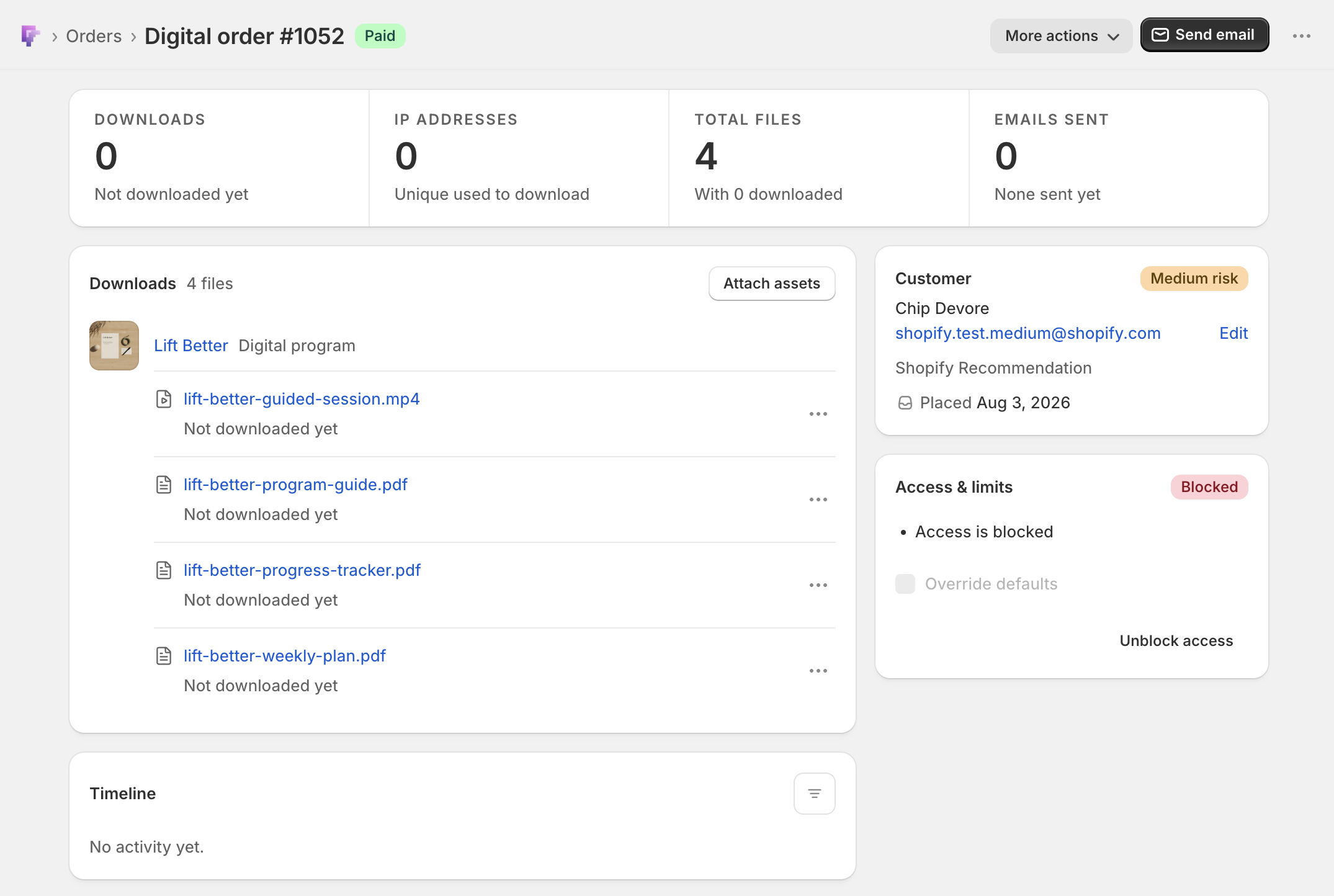
Above, order #1052 came in flagged Medium risk, with Shopify Recommendation as the reason line under the badge. Fileflare’s fraud auto-blocking caught it, so Access & limits shows a Blocked badge and the single line “Access is blocked” in place of this order’s limits, Override defaults is greyed out, and Unblock access is the only control left on that card. Nothing has been delivered or downloaded on this order yet either — the Downloads tile at the top of the page reads “Not downloaded yet” and the Timeline says “No activity yet.”
The delivery address has an Edit action next to it. Editing it changes where Fileflare sends download emails for this order — it doesn’t rewrite the email on the Shopify order, so fix typos in both places if the customer will get other Shopify notifications.
Underneath, Placed and the date the order came in. The download and email figures live in the strip at the top of the page. Hover any relative time (“3m ago”) to see the exact timestamp.
Access & limits
The card opens with a plain-language summary of the limits actually in effect for this order — for example, “Unlimited downloads per asset”, “Unlimited IP addresses per asset”, “Never expires”, or “3 downloads per asset” and “Expires Aug 12, 2026” once you’ve set your own. If access is blocked, the card says so and shows a Blocked badge instead.
Tick Override defaults to edit the limits for this order alone. The fields seed from whatever limits were already in effect, so ticking the box never changes the numbers by itself — it just makes them editable. Full detail in Reset download limitations for an order.
Block access (and Unblock access once it’s on) sits at the bottom of the card. That’s the one-click revoke — see Block downloads.
Downloads
One card holds every file on the order. Files are grouped under the product they came from, and anything attached to this order alone sits at the bottom under Additional order downloads — the personalized PDF, the contract, the replacement file you sent after a support conversation. Each row shows the filename and that file’s download activity (“Downloaded 3 times from 1 IP”). Files nobody has touched yet are listed too, so the card is the order’s full manifest rather than a record of what’s been active. Before anything happens on the order, it reads “No downloads on this order yet.”
Attach assets opens the attach flow — upload a file, pick one from your library, or paste a URL — for files that belong to this order and nothing else. See Deliver personalized digital files.
Every row carries a ⋯ menu:
- Set download limit — a per-file limit for this order. Leave it blank to fall back to the order’s limit.
- View in timeline — narrows the timeline card to that one file’s downloads.
Rows for files that came from a product also offer Remove, and rows under Additional order downloads offer Detach from order.
Files with a future release date show an Available from note and a badge, so a pre-order that hasn’t unlocked yet is obvious. See Pre-order digital products.
Timeline
Every download and every delivery email for the order, newest first, grouped by day. This is the card that answers “what actually happened here?” — see Order activity timeline for what each row means and how to filter it.
Common issues
- The order isn’t in Fileflare at all. Open it from the Shopify order using More actions » View digital order — the link imports the order and generates its links rather than sending you back to the orders list. If Shopify doesn’t have the order either, you’ll land on the Orders list.
- A limit field is greyed out with a lock. IP limits and expiration dates are plan-gated. The lock opens an upgrade prompt naming the plan that unlocks that field. See Download limitation settings.
- The customer’s email looks right but nothing arrives. The order page tells you whether Fileflare sent it; if it did, the problem is downstream. Work through Troubleshoot email delivery.
- The card layout looks different on my phone. By design — the Customer and Access & limits cards come first on narrow screens, since those are the two you act on most.