
If a customer hits a download limit (count, IP, expiration) and you want to give them access again, you can override the global limits on a single order without changing the global setting for everyone else. Useful for one-off “I lost my files” or “my IP changed” support cases.
Available on all plans. Per-order overrides apply to all download links on that specific order — they don’t affect any other order or change your global defaults.
When you’d use this
- A customer hit the download limit and you’ve verified they’re legitimate.
- A customer’s IP changed (mobile network, VPN) and they hit the IP limit.
- An order expired before the customer could download, but you want to extend access.
- A bot or virus scanner pre-clicked the link and consumed the customer’s limit.
Reset limits for one order
- Open Fileflare from your Shopify Apps menu.
- Go to Orders and click the order number.
- Find the Access & limits card. It opens with a summary of the limits actually in effect for this order — for example, “2 downloads per asset”, “Unlimited IP addresses per asset”, “Never expires”.
- Tick Override defaults. Three fields expand below, starting from those same effective limits: Downloads per asset, IP addresses per asset, and Expires on. Where a limit is unlimited the field is simply empty and reads Unlimited; where there’s a number in effect, that number is in the field.
- Adjust what you need: a higher number in Downloads per asset, more slots in IP addresses per asset, or a date in Expires on (typed as
YYYY-MM-DD). - Click Save in the save bar that appears at the top of the page.
The customer’s existing download links work again immediately — no need to resend the email. The new limits override the global limits for this order only.
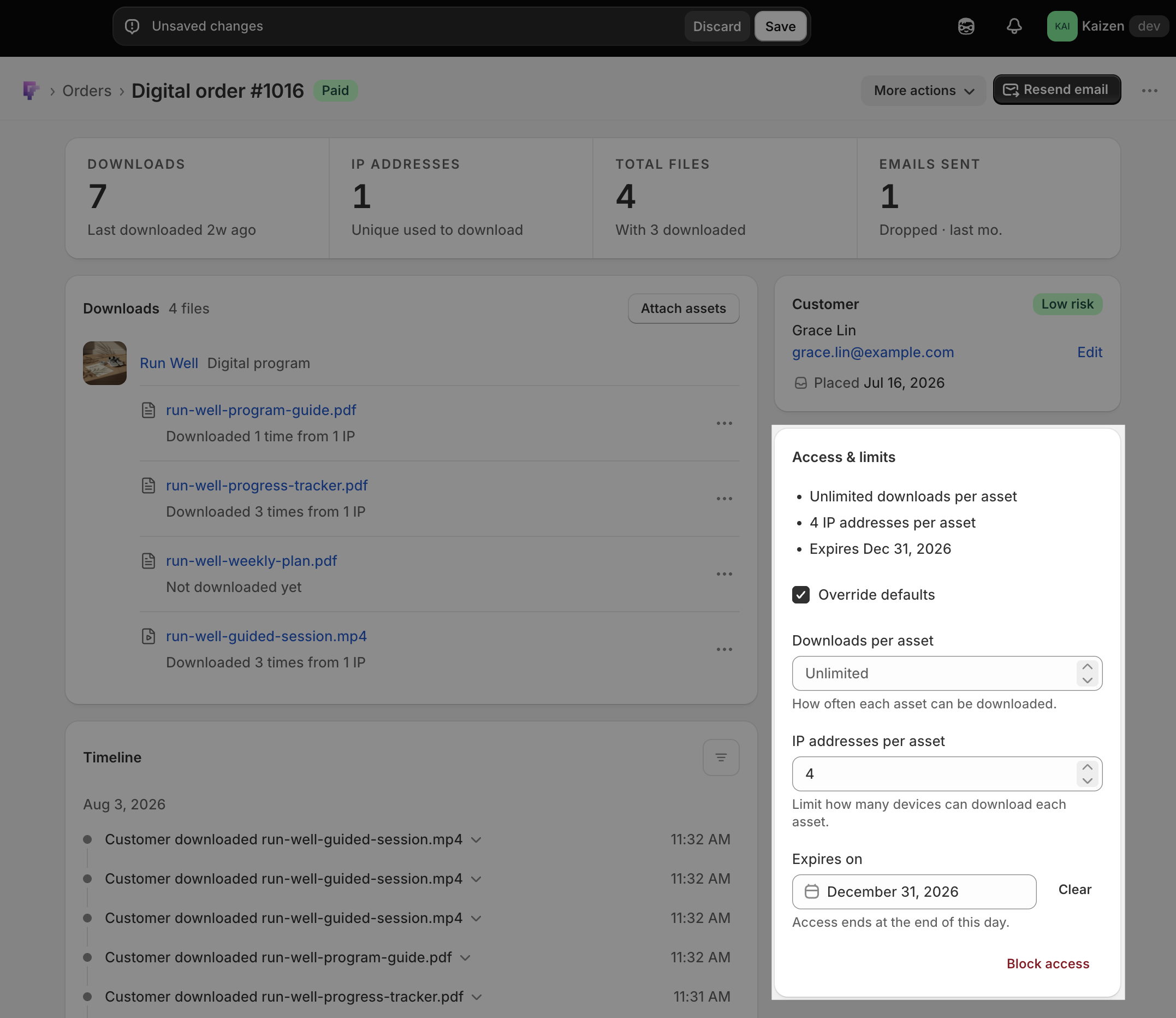
The override never changes your limits on its own
The fields seed from whichever limits are actually in effect, so ticking Override defaults never changes what the customer can do — it only makes the numbers editable. If your store’s global limit is 10 downloads, the field starts at 10. If the order already carried a custom limit, that’s what you’ll see.
This is worth knowing if you use overrides regularly: the box is safe to tick while you think about it, and safe to untick again to fall back to your global defaults.
Clear an expiration date
Once there’s a date in Expires on, a Clear button appears beside the field. Clearing the date removes the expiry for this order, so its links never go cold — handy for a press link or a partner file you want to stay live. (With no date in the field there’s nothing to clear, so the button isn’t there — the order simply never expires.)
Set a limit on one file
Overrides in the Access & limits card apply to every file on the order. To cap a single file instead, open the ⋯ menu on its row in the Downloads card and choose Set download limit. Leave that field blank and the file falls back to the order’s limit.
Fields you can’t edit
IP addresses per asset and Expires on are plan-gated. If your plan doesn’t include one, the field shows a lock — click it and Fileflare tells you which plan unlocks it. Downloads per asset is editable on every plan. See Download limitation settings for what each limit does.
What customers see when they hit a limit
When a customer hits any limit, they see a page (styled to your Shopify theme) explaining why they’re blocked. The message text is configurable — see Customize restriction messages.
Blocked orders are different: those customers see no download links at all, just your “access restricted” message. Use block and unblock downloads if you’ve verified the order is genuine.
Common issues
- The override fields are greyed out even though the box is ticked. Access is blocked on this order. Unblock it first (Unblock access, at the bottom of the same card), then edit the limits.
- I ticked the box and my numbers didn’t change. That’s the intended behavior — the fields start from the limits already in effect.
- I want the order back on my global defaults. Untick Override defaults and save.