
Fileflare gives you several ways to revoke a customer’s download access — automatically when an order is cancelled or refunded, automatically when Shopify flags an order as fraudulent, or manually one order at a time. This page covers all of them, plus how to unblock when a flagged order turns out to be genuine.
Manual blocking on a single order is available on every plan — it’s a one-click control on the order, not an expiration-date workaround. Automatic fraud blocking requires the Growth plan, and setting expiration dates requires Basic. The auto-block on cancelled or voided orders is on every plan.
When you’d use this
- A customer was just refunded or charged back, and you don’t want them keeping the files.
- A customer is sharing their download links, and you want to revoke just that order.
- Shopify flagged the order as high-risk fraud, and you want to hold delivery until you investigate.
- You need to deactivate every download in your store at once — for example, mid-migration to another platform.
Automatic blocking
Cancelled or voided orders
Fileflare automatically blocks downloads on any order that’s cancelled or voided in Shopify. No setup required, available on all plans. The customer’s download links return a “restricted” message instead of the file.
Fraud auto-block
When Shopify’s fraud analysis flags an order as medium or high risk, Fileflare can automatically block the order and skip the download email + Shopify fulfillment. This gives you time to review before the customer gets the files.
- Go to Fileflare » Settings » Global limitations.
- Find Block fraudulent orders and toggle it on.
- (Optional) Customize the message customers see when they hit a blocked link, in the same Global limitations page » Access restricted message.
- Save.
When a flagged order comes in: the download email won’t send, the products won’t fulfill in Shopify admin, and the download links will show your custom restricted message. You decide whether to release access from the order page (next section).
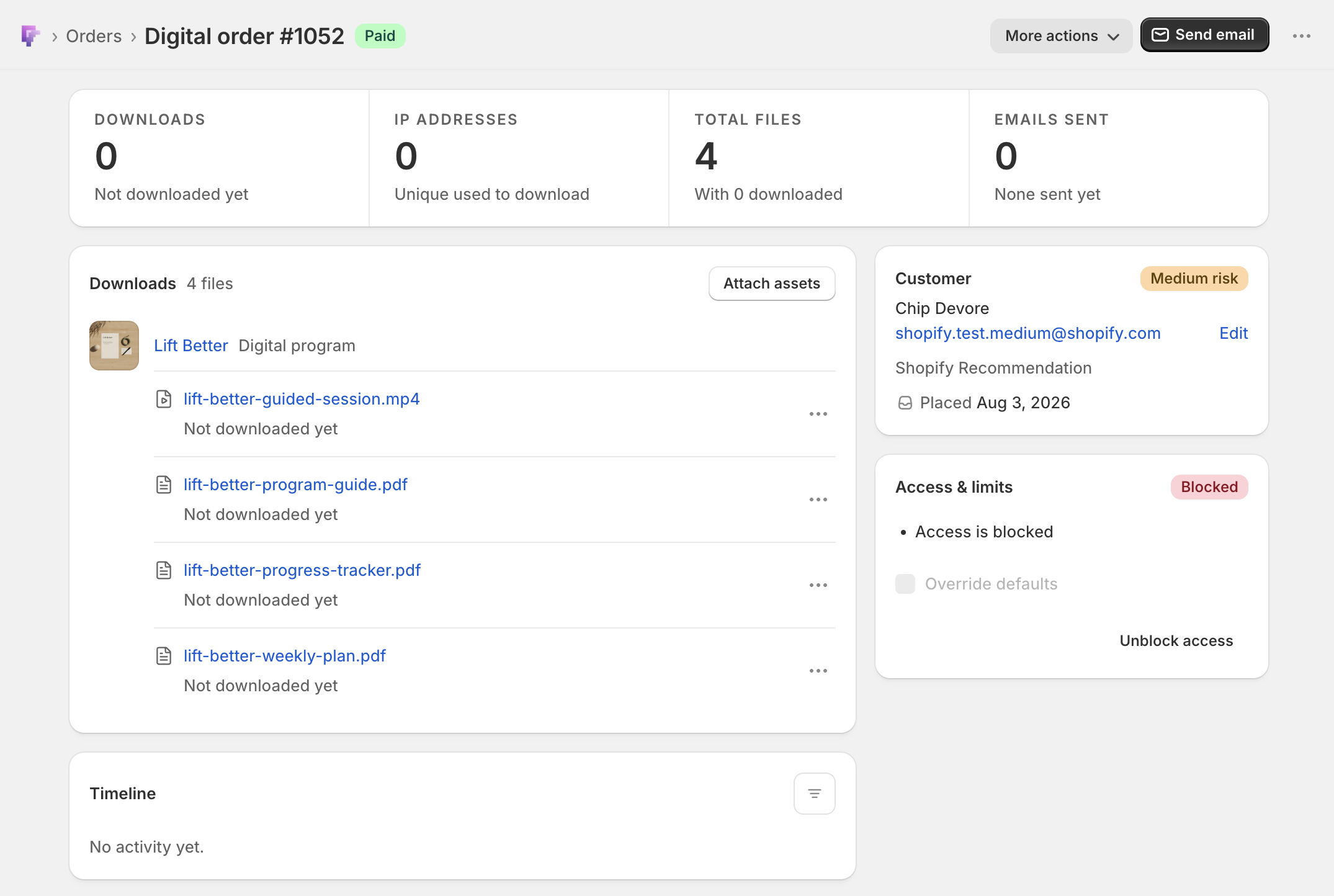
Here is what that looks like on the order itself. Order #1052 arrived flagged Medium risk — the Customer card carries the badge with Shopify Recommendation as the reason — and Fileflare blocked it on arrival: Access & limits shows a red Blocked badge and the single line “Access is blocked”, Override defaults is greyed out, and Unblock access is the only control left on the card. Because the block landed before delivery, no email went out and nothing was downloaded — the Customer card reads “Not yet downloaded” and the Timeline says “No activity yet.”
The card ends up in the same state a manual block produces (next section). What differs is the timing: an automatic block lands as the order arrives, before the customer has ever had a working link, so there is typically nothing on the order to show yet. A manual block is one you apply after the fact, usually to an order that has already been delivered.
Manual blocking — single order
To block a specific order without affecting anyone else:
- Go to Fileflare » Orders.
- Click the order number.
- In the Access & limits card, click Block access.
That’s it — no save step. The card picks up a Blocked badge, its summary changes to “Access is blocked”, and the customer’s links immediately return your “access restricted” message. The order’s limits and expiry are left alone, and Override defaults is greyed out while the block is on, so unblocking restores exactly the access the customer had before.
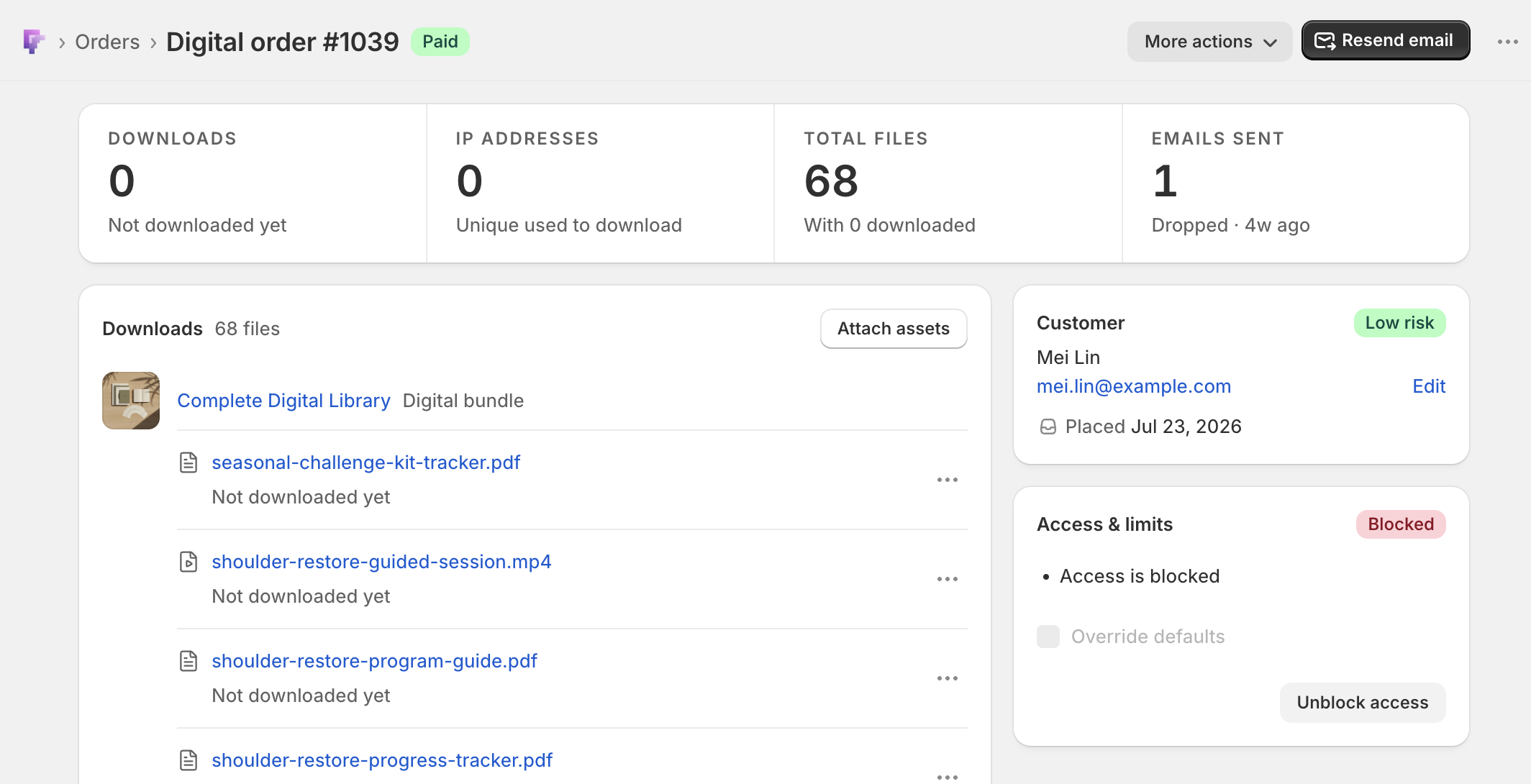
This is the same card state that fraud auto-blocking produces above — the difference is that you chose it, on an order the customer has usually already been able to download. Blocking is reversible and leaves no mark on the customer’s order in Shopify — it’s a Fileflare-side access control, not a Shopify cancellation.
Manual blocking — every order in the store
If you need to deactivate every download across every order — for example, during a migration to a new platform or a temporary takedown — set the global expiration to a negative value:
- Go to Settings » Global limitations.
- In Order expiry, enter
-1. This expires every order’s links immediately. - (Optional) Customize the expired message in the same page so customers see something useful instead of a generic error.
- Save.
To restore access later, set the value back to a positive number (or 0 for no expiration).
Unblock an order
If you’ve reviewed a fraud-flagged (or manually blocked) order and confirmed it’s genuine:
- Go to Fileflare » Orders.
- Click the order number.
- In the Access & limits card, click Unblock access.
The customer can now reach their downloads. You may want to send a download email so they know — click Resend email in the page header.
Common issues
- Customer says their download stopped working after a partial refund — when Shopify partially refunds an order, it briefly reports the order as fully refunded for several days before reconciling. Fileflare blocks downloads in that window. Workaround: in Shopify admin, create a new $0 order (use a 100% discount) for the same customer with the same products. The new order will deliver fresh download links.
- I unblocked the order but the email never sent automatically — by design. Auto-block also disables the auto-email. After unblocking, click Resend email on the order to send the download email manually.
- The limit fields are greyed out on a blocked order — expected. Unblock first, then edit the limits.
- Cancelled order links still work briefly — Shopify webhooks can take a few seconds to a minute to deliver. If you need an instant block, click Block access on the order rather than waiting on the cancellation webhook.
- I want to block downloads for one product across all orders — not currently supported as a one-click setting. Workarounds: delete the asset (revokes access for everyone, including past customers — use carefully), or set very low download limits and IP limits at the global level.