
PDF stamping watermarks every PDF Fileflare delivers with the buyer’s details — name, email, order number, billing address, or any combination — so a leaked file is traceable back to the original customer. Combined with print and annotation locks, it’s the strongest deterrent in Fileflare for stopping casual file sharing.
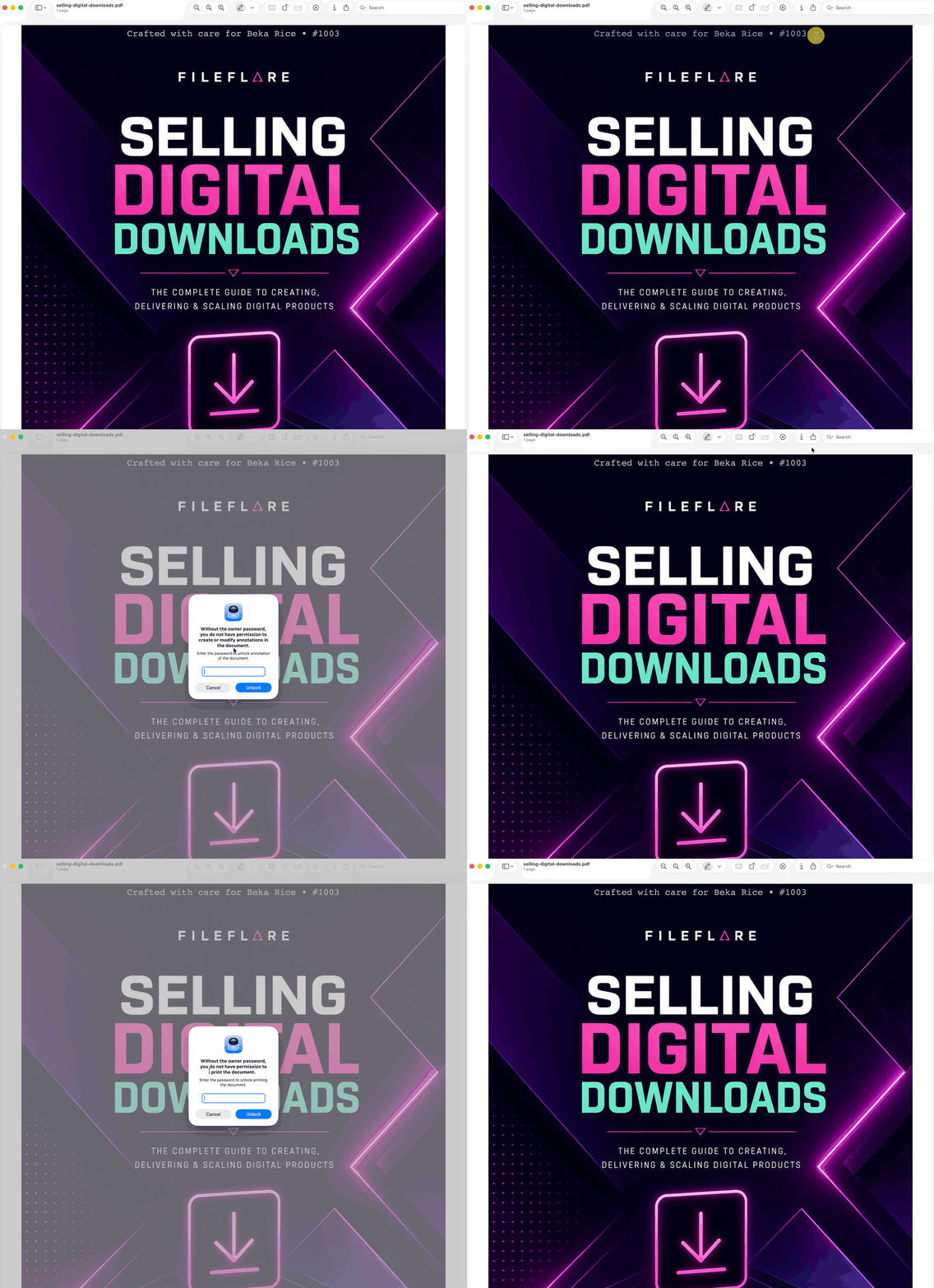
Available on the Basic plan and higher. Multiple stamp templates per store require Growth or higher. Stamping only works on PDFs you upload directly to Fileflare (not URL assets hosted elsewhere) and the file must be under 100 MB.
When you’d use this
- You sell ebooks, manuals, patterns, sheet music, or any PDF you don’t want resold or freely shared.
- You want each delivered PDF to carry the buyer’s identity — useful for licensed content, professional reports, or anything where attribution matters.
- You want to lock printing or editing on top of stamping so the buyer’s name can’t be removed or stripped.
How to use it
1. Create a stamp template
Stamp templates live separately from your assets — create one template and apply it to as many PDFs as you want.
- In Fileflare, go to Settings » Branding » PDF stamp templates.
- Click New template.
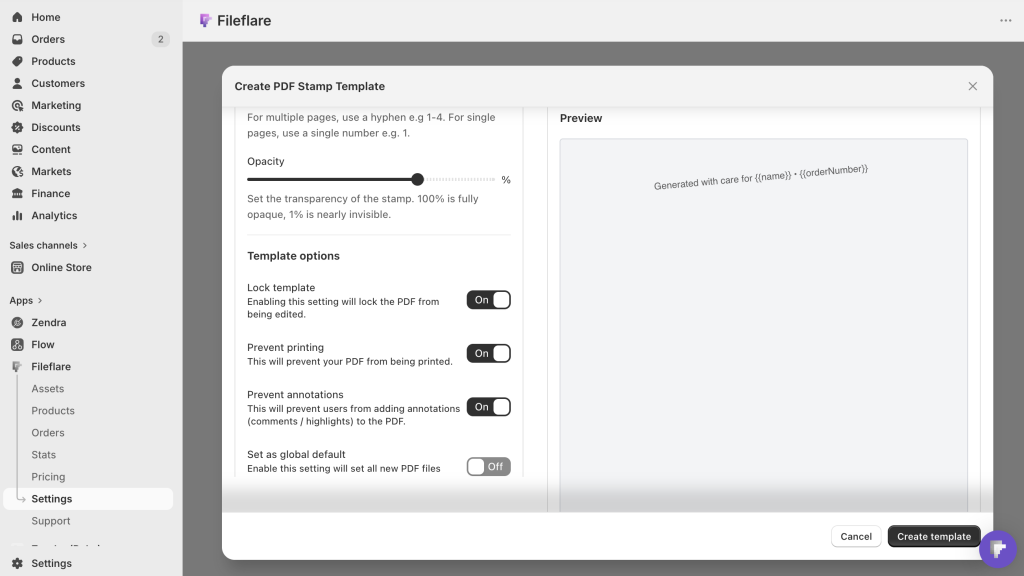
- Write your stamp text using any combination of plain text and merge variables (full list below).
- Set the styling — choose a font (including Open Sans), color, opacity, size, position on the page, and rotation.
- Choose which pages get stamped (all pages, or a specific range).
- Optionally enable print lock and annotation lock to prevent the customer from printing or editing the stamped output.
- Save the template.

Available merge variables
{{name}}— customer’s full name{{email}}— customer’s email{{orderNumber}}— Shopify order number (e.g.#1042){{orderId}}— numeric order ID only{{orderDate}}— date the order was placed{{orderExpiry}}— order expiration date if you’ve set one{{company}}— company name on the order, if provided{{billingAddress}}— full billing address{{shippingAddress}}— full shipping address{{orderIp}}— IP address Shopify recorded for the order{{phoneNumber}}— customer’s phone number, taken from their customer profile, then the order itself, then the billing and shipping addresses, and blank only when the order has no phone at all{{orderProductQuantity}}— quantity of this asset’s product(s) in the order{{lineItemProperty[Key]}}— value of a line item property, e.g.{{lineItemProperty[Recipient]}}
Address, company, phone, quantity, and line-item-property values are read from Shopify at the moment a stamp is generated rather than stored by Fileflare, then cached for a day. If the order can’t be read from Shopify, those variables render blank and the rest of the stamp still applies — stamping never blocks a download.
Line item properties are the custom fields Shopify captures on individual items at checkout — a gift recipient, an engraving note, or a chosen format. When you build a stamp template, Fileflare suggests the property keys your store has used on recent orders as click-to-insert chips, and you can type any other key by hand with {{lineItemProperty[Key]}}. Hidden Shopify properties (keys beginning with _) are skipped, and each property resolves against the line items for the stamped asset’s product.
A common pattern: Licensed to {{name}} ({{email}}) — Order {{orderNumber}}. Subtle enough not to ruin the reading experience, identifiable enough to deter sharing.
Position the stamp
Pick one of nine anchor positions — left, center, or right across the top, middle, and bottom of the page — then fine-tune with the X and Y offsets.
- Offsets are measured in points and add to the anchor’s own position, so leaving both at 0 puts the stamp exactly where the anchor puts it. Edge anchors sit 30 points in from the left or right edge and 10 points from the top or bottom.
- Positive X moves the stamp right and positive Y moves it down. Both accept values from -200 to 200.
- Offsets can’t push a stamp off the page. If a value would carry the stamp past an edge, Fileflare pins it flush to that edge instead.
- Rotation turns the stamp around its own center, so a rotated stamp stays anchored on the page even if its corners overhang slightly.
Languages and scripts
Stamps embed their own fonts, so a buyer’s name renders as the name they typed — not as a row of question marks, and not as whatever the reader’s machine happens to substitute.
Renders today: Latin and Latin-Extended (including accented characters), Cyrillic, Greek, Vietnamese, and Hebrew.
Font fallback: If the selected font lacks Japanese or Korean characters, Fileflare uses a matching fallback font for those characters. For Arabic or other scripts, choose a font that contains the characters you need, or stamp {{email}} or {{orderNumber}} instead of {{name}}.
Because the fonts travel inside the file, stamped PDFs also pass the PDF/X preflight checks print shops run on incoming artwork. If you sell print-ready templates or artwork, a stamped copy goes to the printer as-is.
2. Apply a template to a PDF asset
- Go to Assets and click on a PDF asset.
- Find the PDF stamping section.
- Choose a template from the dropdown. You can also override page targeting per asset (handy if a particular PDF only needs stamping on the title page).
- Save the asset.
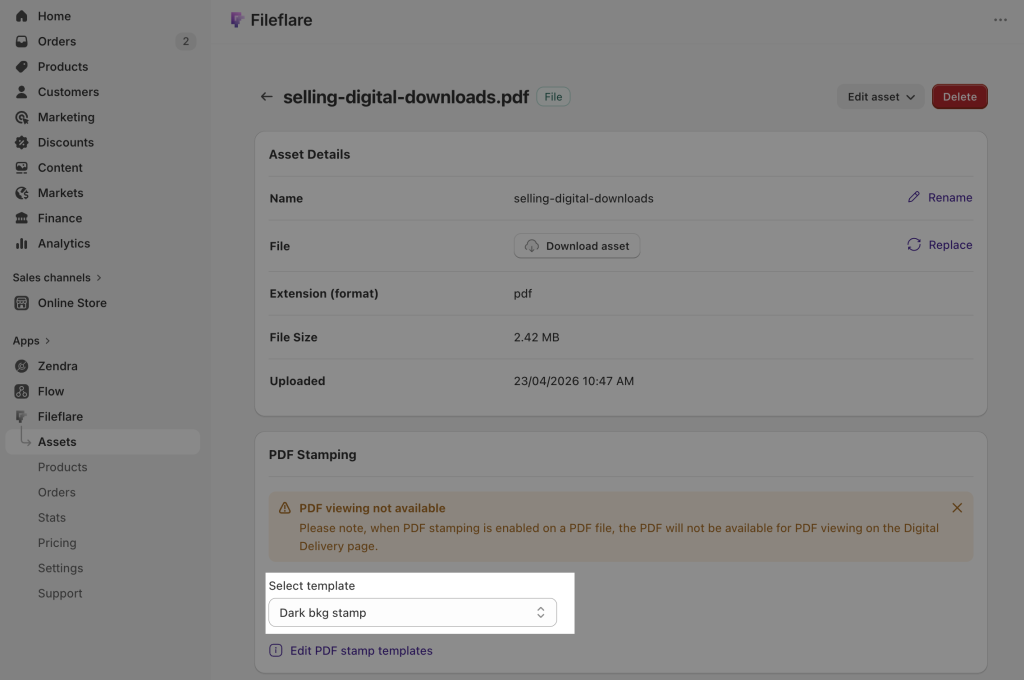
The same template can be applied to as many assets as you want. If you want every PDF in your store stamped the same way, set up one template and apply it to all PDFs in bulk.
3. Test the output
Before turning customers loose, you can preview a stamped PDF without placing a real order:
- From the asset page, click Download asset. Fileflare will generate a stamped copy with placeholder data so you can review the placement, color, and readability.
- For an end-to-end test, place a test order on your store using one of the stamped PDFs — the delivered file uses your real buyer info.
4. Add an image stamp (logo overlay)
In addition to text, you can overlay an image — typically a logo — on every page of the PDF. Set this up in the same template editor: upload an image, position it, and set its opacity. Image stamps and text stamps can be combined on a single template.
5. Apply stamping retroactively
If you turn on stamping after customers have already purchased a PDF, you can backfill the stamps so even past buyers receive a stamped copy on their next download. The stamp is generated at download time, so as soon as the template is applied to the asset, every download from that point forward — including from old orders — will be stamped.
No reupload, no manual reprocessing. Just attach the template to the asset.
Common issues
- Stamp doesn’t appear on the downloaded PDF — first, confirm a template is selected on the asset (Assets → click the PDF → check the PDF stamping section). Most “missing stamp” reports are from this step being skipped.
- The stamp isn’t sitting where you expected — offsets add to the anchor’s position rather than replacing it, so a template whose offsets were tuned earlier in 2026 may now sit a little further in from the edge. Click Download asset to preview the current placement, then adjust the offsets to taste. Stamps are always held on the page, so nothing can drift out of view.
- The
{{phoneNumber}}stamp is blank — Fileflare checks the customer’s profile phone first, then the order phone, then the billing and shipping address phones, so a blank stamp means no phone exists anywhere on the order or the customer record. That happens most often on digital orders, where checkout never asks for a phone number. Collect a phone number at checkout if you want it on the stamp, or stamp a different identifier like{{email}}. - The buyer’s name renders as boxes or question marks — check the selected font. Fileflare uses a matching fallback for Japanese and Korean characters the font lacks. For Arabic or another script, choose a font that includes those characters, or stamp
{{email}}or{{orderNumber}}instead. - An address or line-item variable is blank — those values are read from Shopify at stamp time. If the order can’t be read (a deleted order, for example), the variable renders empty while the rest of the stamp applies as normal.
- The file is over 100 MB — stamping has a 100 MB limit. Compress the PDF (Adobe’s compressor is reliable) and replace the asset. As a guide: a 100 MB PDF is roughly several hundred pages of high-resolution, image-heavy content — most ebooks and manuals are well under 5 MB.
- The file extension isn’t
.pdf— Fileflare detects PDFs by extension. If the file is named.PDF,.pdf.txt, or anything other than.pdf, stamping won’t apply. Rename and reupload. - You’re using a URL asset — stamping requires Fileflare to host the file directly. If the PDF is delivered as a URL (e.g. linking to Dropbox or Google Drive), there’s no way to stamp it. Upload the PDF to Fileflare instead.
- The PDF has thousands of pages — large, page-heavy documents stamp reliably, but they take longer to process. If one particular document gives you trouble, restrict the stamp to the pages that matter — the title page or first chapter — using the Pages field on the template (formats:
4for a single page,2-4for a range). - The stamp is there but invisible — check the color contrast against the page (a light gray stamp on a white page is easy to miss), the opacity (set above ~30% to be readable), and the font size (≥10pt for body pages, ≥18pt for cover pages).