
Fileflare adds a Digital downloads block to the Shopify order page, so you can see what an order delivered — and fix the common problems — without leaving Shopify.
Available on every plan. The block ships with the app, but Shopify requires you to add it to the order page and pin it once.
When you’d use this
- You’re already in the Shopify order (working a refund, a fraud review, a customer email) and want to know whether the files went out.
- A customer wrote in and you want to resend their download email in one click.
- You need to attach a one-off file to the order you’re looking at.
- You’re checking whether an order is even tracked by Fileflare.
Add the block to your order page
Shopify doesn’t place app blocks on the order page automatically — you add Digital downloads once, pin it, and it appears on every order after that.
- In Shopify admin, open any order and scroll to the Blocks section at the bottom of the page.
- Click + Block and choose Digital downloads from the list of available blocks.
- The block is added in preview. Use the pin control in its header to pin it in place, so it’s there on every order from now on.

What the block shows
Collapsed, the block shows a one-line summary — the healthy version reads something like “3 files · 5 downloads”, counting each file once even when it arrived on more than one product line, and a problem takes priority over the count: Downloads blocked, Access expired, Refunded, Email not sent, Email not delivered, or Email delayed.
Expand it and you get the glance view, reading top to bottom in the order you’d actually ask the questions:
- An access warning, but only when there is one. A short line above the file list when something needs your attention — downloads are blocked, access has expired, the order was refunded, or some files are withheld until unpaid items are paid. On a healthy order there’s no line here at all.
- The files on the order. Each filename is a link through to that file in Fileflare. Download activity and a per-file limit sit alongside a file once there’s something to show, and files that haven’t been released yet carry a Scheduled marker. Long lists are trimmed, ending in a + N more in Fileflare link.
- The email line. The delivery status of the download email, the address it was sent to, and when it was last attempted — for example “Not delivered sending to customer@example.com · attempted 2w ago”, with your provider’s reason on the line beneath it.
- The download line. How many times the customer has downloaded, or Not downloaded yet if they haven’t.
- The actions. View in Fileflare opens the full digital order page. The email action reads Send email until the customer has received it once, then Resend email. Upload & attach file lets you upload a new file, select one from your library, or add a URL without leaving Shopify.
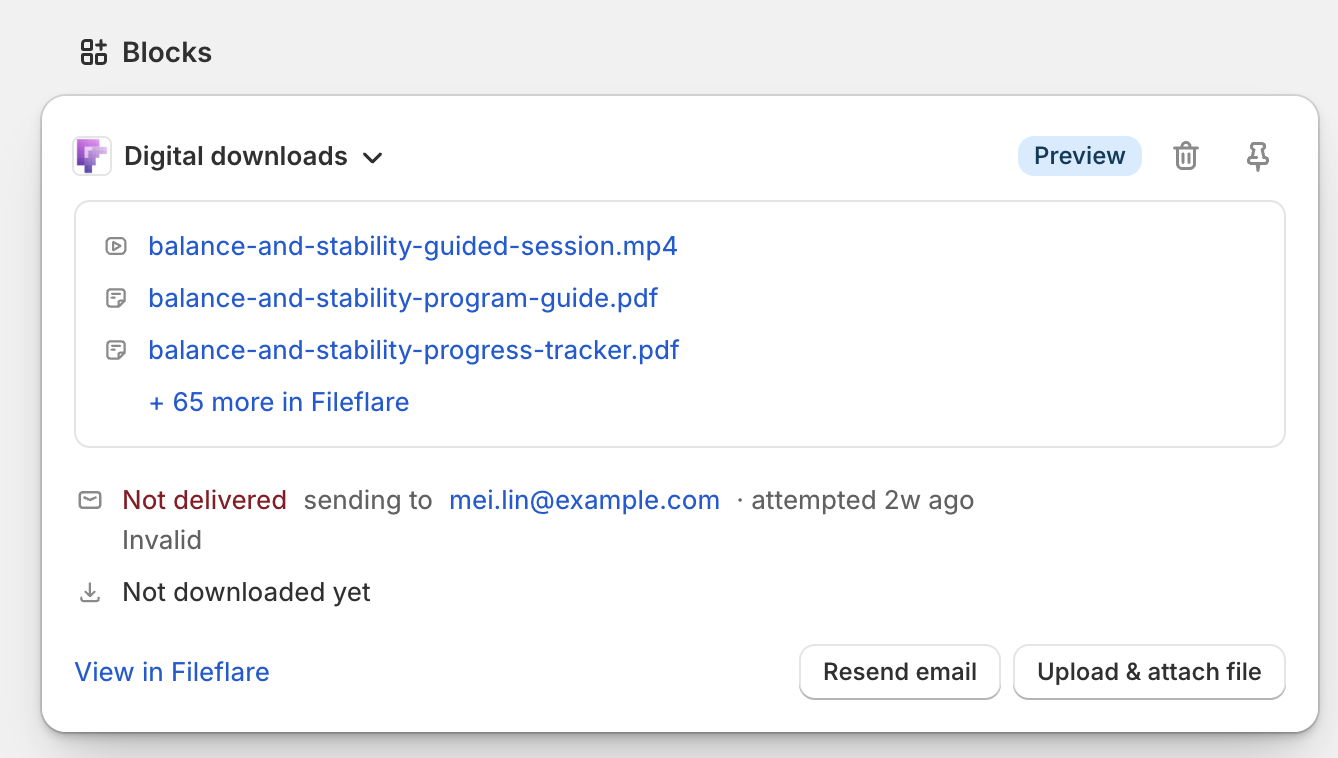
Color is reserved for things that need you: healthy states are plain text, and only failures and access problems get a warning or critical tone.
Send or resend the download email
Click Send email if the order has never been emailed, or Resend email after the first send. Fileflare confirms the delivery address before it sends, so you can catch a typo first. Resends are capped at 10 emails every five minutes across your store, and the first send for an order that’s never been emailed doesn’t count toward that.
The action also lives in the order’s More actions menu, and it’s hidden automatically on orders with no digital files. See Resend a download email.
Upload and attach a file
Click Upload & attach file to add files to this order only — a personalized certificate, a corrected version, or a bonus you promised in a support reply. Choose one of three paths in the window:
- Upload a file: drop a file in or browse from your device.
- Select existing asset: search your Fileflare library, select one or more files, then click Attach to order.
- Add a URL asset: paste a Drive, Dropbox, or other hosted link, give it a name, and optionally add the size customers should see.
After Fileflare attaches the files, it offers to send the download email so the customer knows they’re there.
Files up to 100 MB go through this modal, and the size is checked before the upload starts, so an oversized file is caught in front of you rather than partway through. Anything larger should go through the app’s own uploader, which handles bigger files and can resume if the connection drops — the modal links you straight there, with the attach window already open. Attaching files to an order requires the Basic plan or higher, and the block names the plan that unlocks it rather than leaving you with a control that does nothing; see Deliver personalized digital files.
Common issues
- The block says “No digital assets are attached to this order.” The products on the order don’t have files attached in Fileflare. Attach them to the product (Mark products as digital) so future orders deliver automatically, or use Upload & attach file for this one order.
- The block says the order isn’t tracked by Fileflare. The order predates your install, or its webhook was dropped. Click View in Fileflare — opening the order from Shopify imports it and generates the download links. For a whole back catalogue, use Import all orders from history.
- “We couldn’t load this order’s downloads.” A transient network or connection problem. Click Try again; if it keeps failing, contact support.
- “Resend limit reached.” You’ve hit 10 resend emails in five minutes. Wait a few minutes and try again.
- “Your file upload did not complete.” The file is too big for this window — the limit here is 100 MB, and very large files (roughly 512 MB and up) trip the same check even before the size is read. Use the advanced uploader link in the message; it handles bigger files and resumes if the connection drops. See Upload files to Fileflare.
- I don’t see the block on my orders. It has to be added and pinned once per shop. Reload the order page and check the Blocks section at the bottom.