
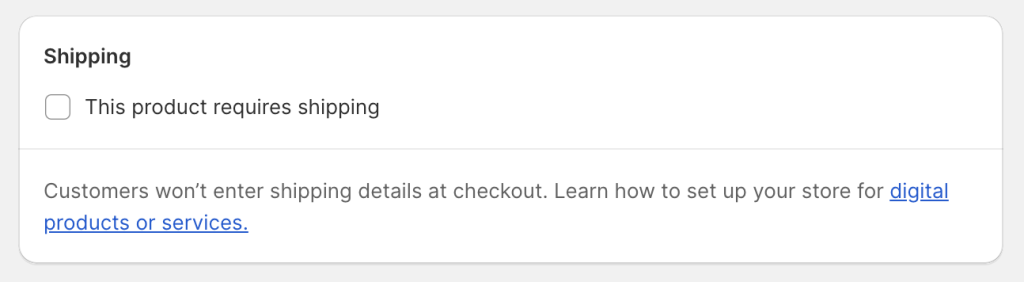
Marking a product as digital in Shopify is the prerequisite for Fileflare to auto-fulfill it and skip shipping. It’s a single setting per product (or variant): uncheck This is a physical product in the Shipping section.
Required for auto-fulfillment. If a product isn’t marked digital, Shopify keeps prompting customers for shipping addresses and Fileflare can’t auto-fulfill the line item. If you sell variants, mark each variant individually.
When you’d use this
- You’re adding a new digital product to your store.
- You converted a physical product to digital-only and need to update Shopify’s settings.
- Fileflare isn’t auto-fulfilling a product and you suspect it’s not marked digital.
What “marked digital” actually does
- Skips the shipping address prompt at checkout.
- Suppresses Shopify’s shipping confirmation email for that line item.
- Tells Fileflare it’s allowed to auto-fulfill — Fileflare won’t fulfill physical products.
Mark a product digital
- In Shopify admin, go to Products and open the product.
- Scroll to the Shipping section.
- Uncheck This is a physical product.
- Save.
Variants
If your product has variants and only some are digital (e.g., a “paperback” + “ebook” variant on the same product), the setting lives on each variant, not on the parent product. Click into the variant first, then scroll to Shipping.
Common issues
- I marked it digital but Shopify still asks for shipping — clear your browser cache or test in incognito. Shopify caches checkout aggressively.
- I have variants and some still ask for shipping — each variant has its own setting. Click into the variant directly and uncheck the box.
- Fileflare still isn’t auto-fulfilling — confirm you also have at least one asset attached to the product in Fileflare. Marking digital is necessary but not sufficient. See auto-fulfillment troubleshooting.