
Run through this before you go live with digital products on Shopify. These are the Shopify-side configurations Fileflare relies on — products marked digital, emails captured, payments captured, products available everywhere. Skipping any of them tends to surface as “Fileflare isn’t working” support tickets later.
Walk through this before launch and any time you add a new digital product. Most “Fileflare isn’t delivering” issues trace back to one of these settings being off.
When you’d use this
- You just installed Fileflare and want to make sure your store is set up before the first real order.
- Customers report missing downloads or unfulfilled orders.
- You’re adding a new digital product and want to validate the configuration.
The checklist
1. Products marked as digital in Shopify
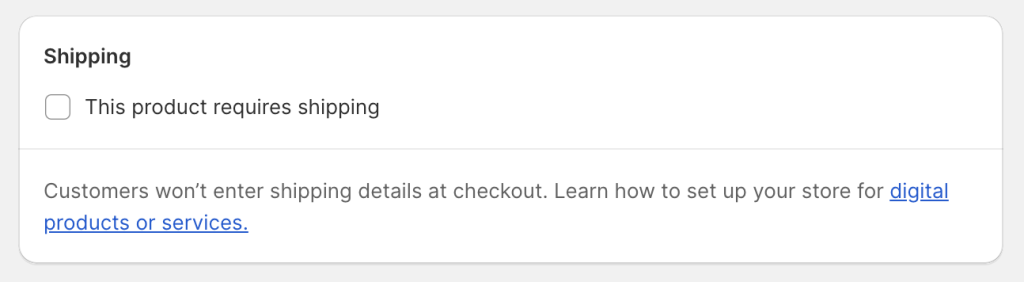
Each digital product needs This is a physical product unchecked in the Shipping section. Variants need it set per variant. Without this, Shopify keeps prompting for shipping and Fileflare can’t auto-fulfill.
2. Emails captured at checkout (not just phone)
Shopify lets customers check out with phone-only by default. If a customer doesn’t enter an email, Fileflare has nowhere to send the download email.
- Shopify admin → Settings → Checkout.
- Find Customer contact method.
- Set to Email (or “Email or phone” with email required).
If you must allow phone-only orders, enable thank-you page downloads as a fallback so phone customers can still get their files.
3. Files attached to products in Fileflare
Each digital product (or variant) needs at least one asset attached in Fileflare. No asset = no fulfillment, no delivery email.
- Open Fileflare → Products.
- Click into each digital product and confirm an asset is attached.
- For variants, click into the variant — assets attach per variant, not at the parent level.
4. Payment capture set to automatic
Fileflare only delivers on Paid orders. If your Shopify payment capture is set to manual, every order sits in Authorized status until you manually capture, and downloads don’t get sent — unless you’ve turned on Allow downloads on pending payments, see Download limitation settings.
- Shopify admin → Settings → Payments.
- Scroll to Payment capture method.
- Set to Automatically at checkout.
- Save.
Why automatic capture matters: with manual capture, customers can place an order, get download access, then cancel before the charge processes — free files. Automatic capture closes that gap.
5. Digital products available at all locations
If a digital product isn’t enabled at the location Shopify routes the order to, Shopify won’t let any app fulfill the line item — Fileflare included.
- Shopify admin → Products → click a digital product.
- Scroll to Inventory (click into a variant first if you have variants).
- Click Edit locations.
- Enable every location, save.
If you only have one Shopify location, this is probably already correct.
6. Auto-fulfillment setting on in Fileflare
Fileflare’s Automatically mark digital products as Fulfilled in Shopify orders is on by default. Confirm:
- Open Fileflare → Settings → Additional settings.
- Find Automatically mark digital products as Fulfilled in Shopify orders.
- Make sure it’s on.
See Auto-fulfillment for the full set of configuration scenarios (mixed orders, fulfill-without-files, etc.).
7. Place a test order
Once 1–6 are done, run a test order end-to-end. Check that the digital line auto-fulfills, the download email arrives, and the link works. If anything fails, the issue is almost always one of items 1–6.
Common issues
- I checked everything but Fileflare still isn’t delivering — see email delivery and auto-fulfillment troubleshooting.
- I have a multi-location store with different fulfillment apps — Shopify recently restricted which apps can fulfill which locations. You may need a Fileflare-specific location. See auto-fulfillment for details.
- I want to fulfill digital products without delivering files — supported. Attach a placeholder asset and disable email delivery. See auto-fulfillment.