
Attach uploaded files to Shopify products in bulk by uploading a CSV that maps SKUs to filenames. Faster than clicking through each product when you have hundreds or thousands of digital files. For uploaded files, the CSV matches names already in your Fileflare library. The template also supports URL assets when you provide their URL and size.
Available on the Growth plan and higher. The import matches rows by Shopify SKU. For uploaded assets, the Fileflare filename must match exactly, including its extension. 30 MB CSV upload limit.
When you’d use this
- You have hundreds of products and dozens-to-thousands of files to attach.
- You’re migrating from another digital-downloads app and want to recreate attachments quickly.
- Your filenames map predictably to your SKUs and you can generate the CSV programmatically.
Prerequisites
- Assets ready to attach — upload files to Fileflare first (see upload methods), or gather the URL and size for each hosted file.
- SKUs on every Shopify product or variant — Fileflare uses the SKU to match. If your products don’t have SKUs, see bulk-add SKUs first.
Set up the CSV
Get the template
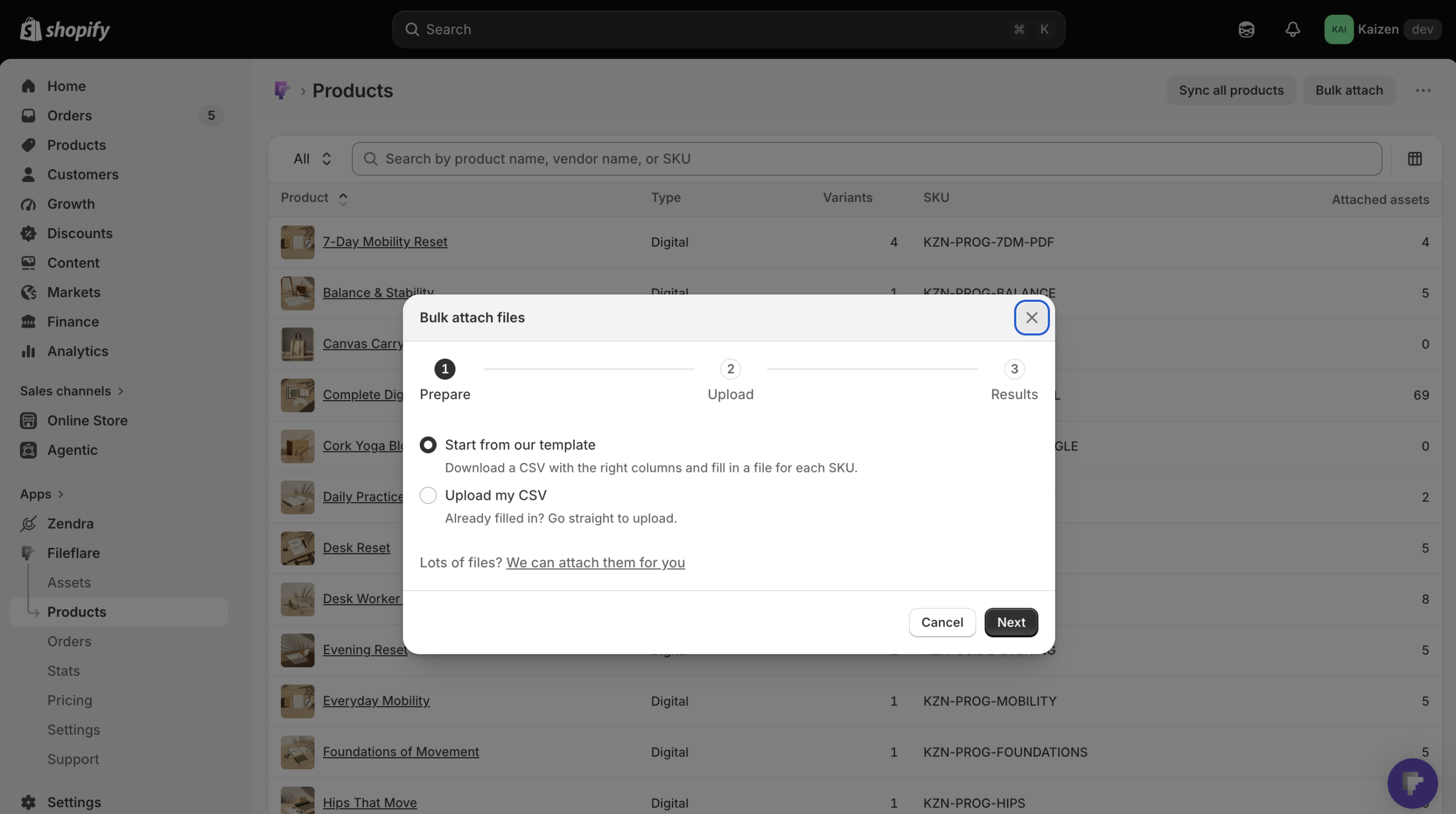
- In Fileflare, open Products and click Bulk attach.
- Choose Start from our template, click Next, then click Download template. You can choose Upload my CSV instead if your file is ready.
- Add one row per SKU. For an uploaded file, enter its name exactly as it appears in Fileflare, including the extension. For a URL asset, fill in its URL and size in the template.
Keep the template headers and column order. SKU and file names must match exactly, including case and spaces.
Multiple files per product
To attach multiple files to the same product, repeat the SKU on multiple rows with different filenames.
Parent products vs. variants
If a SKU in your CSV matches a parent product, the file attaches at the product level and delivers for every variant of that product automatically. If the SKU matches a variant, the file attaches to that variant only and won’t deliver for siblings.
For shared files (the same PDF on every license tier, for example), matching the parent SKU is usually the simpler choice — new variants you add later inherit it without re-running the import. See Variants and file delivery for the full model.
Upload the CSV
- Click Next, drop in your CSV, and click Attach files.
- Follow progress in the modal. You can close it while Fileflare continues attaching files; the latest result remains on the Products page.
- If any rows fail, click Download rows to fix, correct the rows, and choose Upload fixed file. Successful rows do not need to be imported again.
Common issues
- The CSV is rejected. Start with the current template, keep its headers, and save the file as CSV.
- The CSV has headers but no rows. Fileflare rejects it before the import starts. Add at least one row below the headers and upload it again.
- A row fails to attach. Check the product or variant SKU and the uploaded file name, including case, spaces, and extension. For URL assets, confirm the URL and size are filled in.
- The file is missing. Upload the file to Fileflare first, or provide a URL and size in the current template.
- The CSV is over 30 MB. Split it into smaller files. You can run more than one import.