
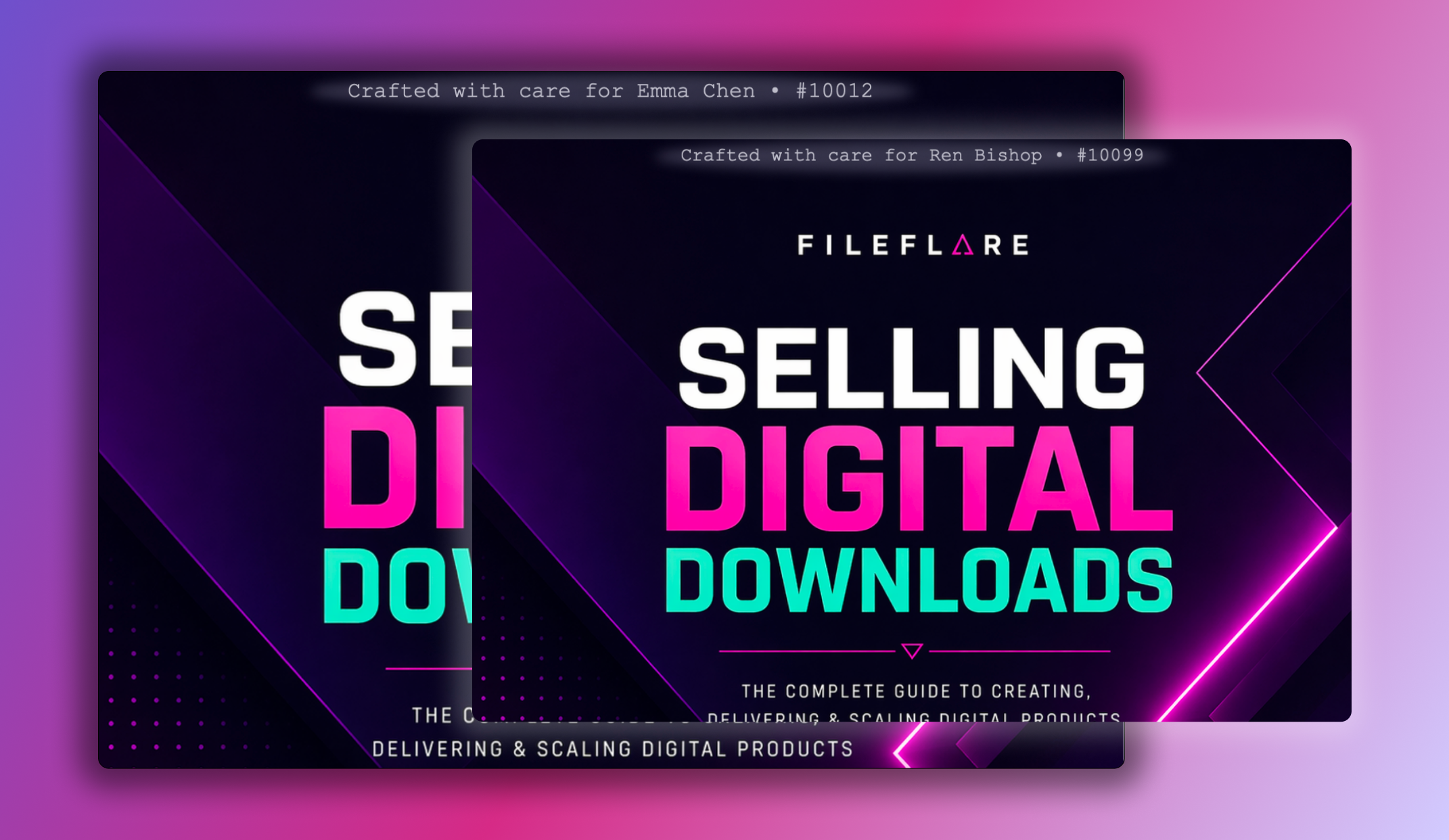
Someone buys a certificate from your store. They type “Alex” into a field on the product page, and the PDF they download has Alex’s name in the space you left for it.
You didn’t open a design file. You didn’t copy a name into a text box at 11 p.m. You didn’t send an “I’ll get that over to you shortly” email and then have to honor it on a Sunday.
The outcome is mail merge, more or less, except the merge runs at download time and the output is the thing the customer paid for. (Fileflare could always embed buyer information on a PDF, but picking up customer-entered details? That’s new — and pretty cool.)
This is the workflow we helped Polar Bears International bring to Shopify. Its eco-adoptions let supporters buy a personalized digital certificate to give as a gift. Working with PBI pulled forward a Fileflare feature we’d had on the board for a while: reading Shopify line item properties into PDF stamps.
-

Case study
The easy part of a hard migration: how Polar Bears International brought eco-adoptions to Shopify
Polar Bears International moved its personalized eco-adoptions from WooCommerce to Shopify — and made Fileflare the part it didn’t have to worry about. Keep reading
It’s a small feature with a large surface area: adoption certificates, named workbook covers, commemorative printables, ebook dedications, the “this copy belongs to ______” plate inside a zine — anything where the design is fixed and what goes in the blank isn’t.
The setup below uses one recipient field and one certificate. A product options app collects the name, and Fileflare puts it on the PDF.
How the name gets from the product page to the PDF
A Shopify line item property is extra information attached to one item in the cart and order — a labeled note that travels with the product rather than with the order as a whole. For this certificate, it’s Recipient: Alex.
“Recipient” is the key, “Alex” is the value. Fileflare’s stamp template asks for the value under that key and draws it onto the PDF when the customer downloads. The field belongs on the product page, before the buyer adds the certificate to their cart, so the name stays attached to the right line instead of floating loose in a general order note.
One design goes in. One file per order comes out, generated on demand, with your artwork untouched in storage.
It’s the same mechanism as dynamic PDF watermarking, aimed at the part of the file the customer wants personalized rather than the part that discourages sharing.
This covers text dropped onto a finished design. If every buyer needs a different layout, or you’re painting a portrait, that’s a different job — our personalized digital products guide covers making the file yourself and attaching it to the individual order.
What you’ll need
- A Shopify product and its PDF design. Leave a blank space for the name, and keep the fixed artwork and wording in the PDF.
- A product field that saves the name to the order. We’ll use Easify Custom Product Options, whose free plan includes text fields. Any options app works as long as it saves the answer as a (preferably visible) line item property. Confirm that with a test order rather than a feature list.
- Fileflare Basic or above. PDF stamping is available on Basic, which includes one stamp template; Growth adds unlimited templates. Our pricing page has the current plans.
1. Add the recipient field
Install Easify, then activate its app embed for your theme. From the dashboard, open the theme editor, enable the embed, and save. Easify’s activation guide shows the screens.
In Easify, choose Create Option Set, then Add Option » Text Box. An option set holds the fields attached to a product; ours needs exactly one.
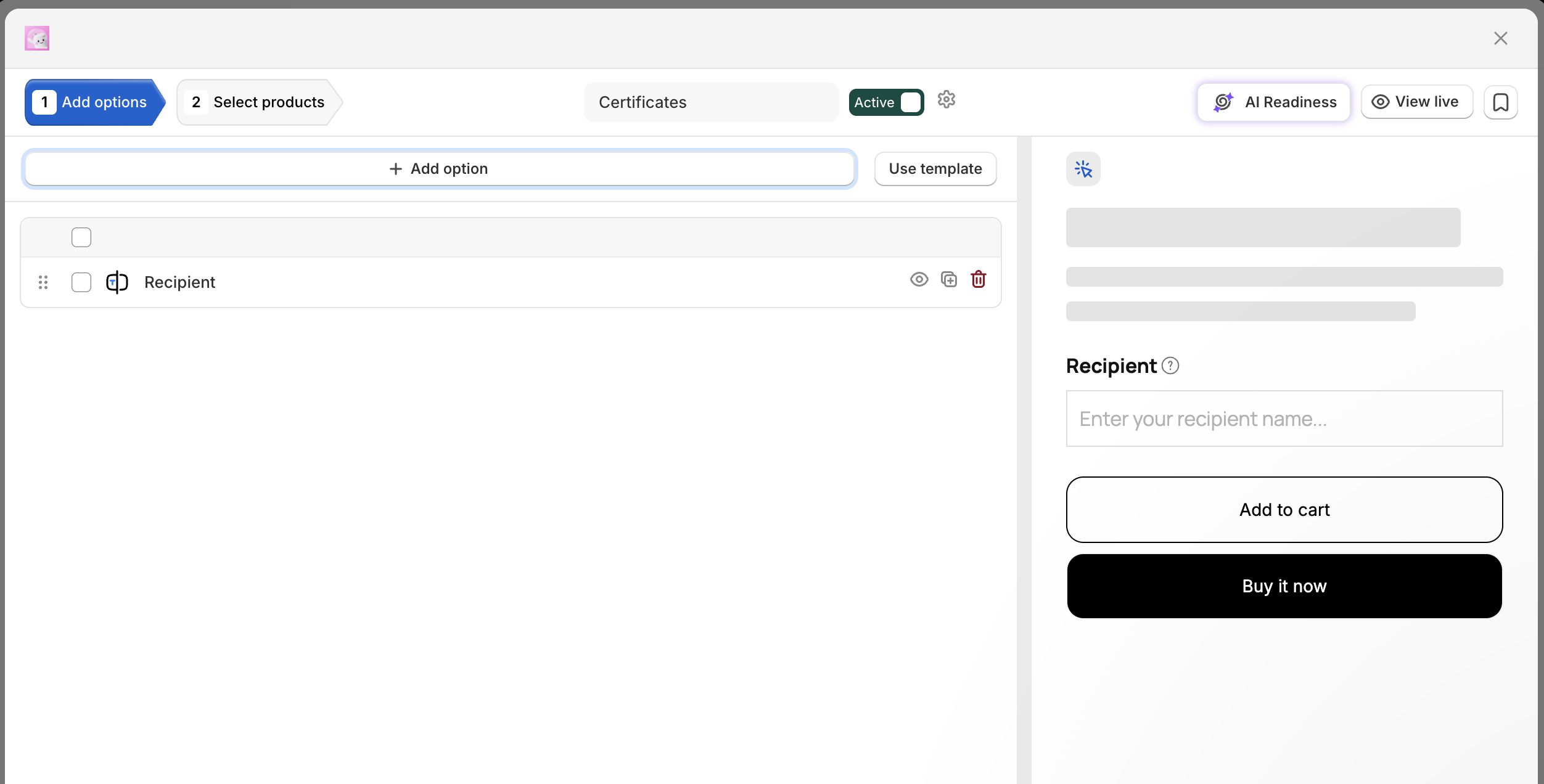
Configure the Text Box settings like this:
| Setting | Example value |
|---|---|
| Option name | Recipient |
| Option label | Name to print on the certificate |
| Required | Enabled |
| Maximum text length | 40 characters |
| Help text | Enter the name exactly as you’d like it to appear on your certificate. |
The option label explains the field to the shopper; the option name is what identifies the answer in the cart and order. Keep the name Recipient consistent with the key you’ll use in Fileflare. (Forty characters is a starting point for this particular design, not a Fileflare limit. Revisit it if you seen a long name land in the space.)
Assign the option set to your certificate product and save. Then go to the storefront, type “Alex,” add the certificate to your cart, and complete a test checkout. In the Shopify order, confirm that Recipient: Alex appears under the certificate product.
A field can look lovely on the product page and still fail to save its answer. This check is what confirms Fileflare will have something to read.

2. Upload the certificate design
Build the certificate in your usual design tool and export it as a PDF. It might already read “This certificate celebrates,” with clear space underneath. Fileflare overlays text into that space, so the original file needs no special placeholder, marker, or form field.
In Fileflare, open Assets » Add assets and upload the PDF. Then open Products, choose the certificate product, and attach the asset. Our upload and attachment guide covers both steps.
Use a PDF under 100 MB, uploaded directly to Fileflare. Stamping rewrites the file as it’s served, which means Fileflare needs to hold the file — a URL asset pointing somewhere else can’t be stamped.
3. Put the recipient’s name in the stamp
Open Settings » PDF stamping, choose New template, and enter this as the stamp text:
{{lineItemProperty[Recipient]}}
Use the exact key from your test order, capitalization included. Fileflare suggests property keys from recent orders, and you can type one yourself. Use the visible Recipient property here rather than an underscore-prefixed hidden one.
Choose the position, then adjust font size, color, opacity, and offsets until the name sits in the blank space. Target the certificate page. For something meant to be printed, leave print lock disabled, so customers can print the gift you sold them.
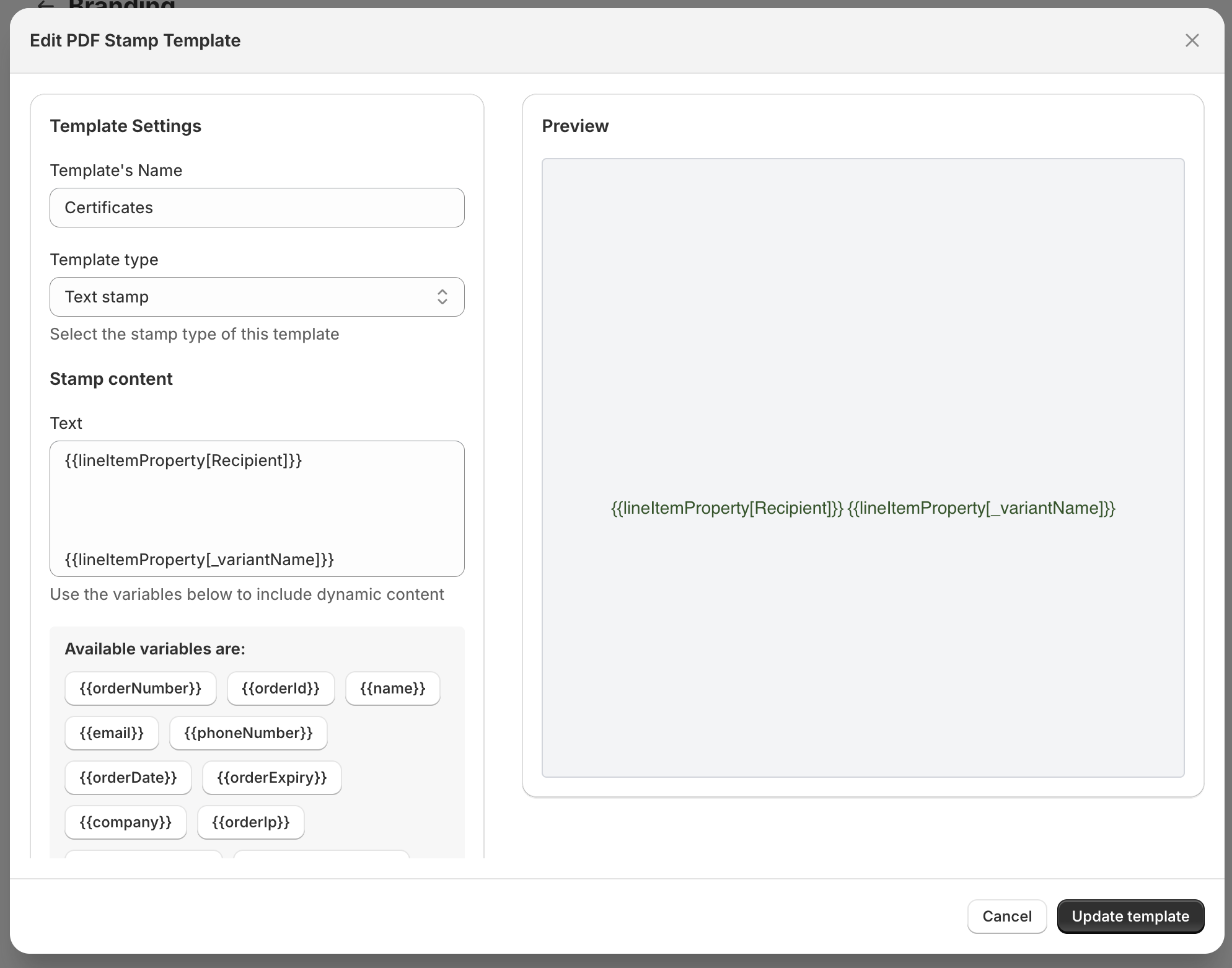
Save the template, open the PDF under Assets, select the template in its PDF stamping section, and save the asset. The PDF stamping documentation covers positioning, page selection, and the rest of the controls.
Names are longer than you think. Set the type at full opacity, readable, with room on either side. “Alex” is wonderfully cooperative. “Alexandra Montgomery” is the test that tells you if your stamp will work when it encounters the real world.
Check the alphabet you’re selling into. Fileflare currently renders Latin and Latin-Extended, Cyrillic, Greek, Vietnamese, and Hebrew. Japanese, Korean, Tamil, and Arabic names render through fallback fonts when your chosen stamp font doesn’t have those characters, and Arabic and Hebrew are drawn right to left. Other scripts, such as Chinese, need a stamp font that contains the characters. If your customers’ names live in those scripts, talk to us before you launch — a certificate that swaps someone’s name for an order number is not a gift.
One more constraint (and it might decide how you package the product): Fileflare takes the properties from the first line item matching a product attached to the asset. Two lines of the same product with different recipients won’t produce two differently personalized copies. Different variants don’t change the matching rule, and bumping the quantity to two doesn’t prompt for a second name.
So, it’s worth starting with one certificate, one asset, one recipient per order to make sure you deliver an accurate product.
4. Buy one yourself
Place a fresh order through the storefront and follow the delivery link like a customer would. Use a recipient name different from the buyer name, so an incorrect variable announces itself instead of hiding. The asset preview won’t do for this: it renders the template without going out to Shopify for the order, which is the half you’re trying to test.
Check the whole journey:
- The answer survives checkout. The right recipient appears under the certificate product in the Shopify order.
- The PDF uses that answer. The name lands in the intended space, with room for long names and the accented characters your customers have.
- Every purchase route collects the name. Test mobile, quick-add buttons, and Buy it now. If a route skips the field, remove that route for this product or ask the options app’s support team about it.
- The file works as promised. Download it, and print it if you’re selling a printable.

If the name comes back blank, check the Shopify order first, then the key in your stamp. Fileflare reads these values from Shopify when it generates the stamp and caches them for a day, so a failed read gives you a blank name on a download that otherwise succeeds.
Test any correction with a fresh order rather than re-downloading the old one. If the order has the right name and the PDF doesn’t, that’s one for support. If no stamp appears at all, the template probably isn’t selected on the asset.
Tell buyers how to hand over the gift
Personalizing a PDF and emailing its recipient are two different jobs, and this setup only does the first one. The name changes the text inside the file. Collecting a recipient’s name — or even an email address, in another field — doesn’t redirect Fileflare’s delivery email. The download goes to the buyer.
So tell buyers where their file will arrive and how to pass it on. PBI’s eco-adoption collection says plainly that you’ll receive a personalized certificate to email to someone special, which sets the expectation before anyone reaches checkout rather than after.
Your version might be an adoption certificate, a classroom printable, or a dedication page in an ebook. Start with one product, one field, one test order. And if the name ends up two millimeters left of where it should be and it’s driving you up the wall, get in touch — that’s a reasonable thing to care about and we’re happy to help.