
Storage is one of those things you never think about until you think about it constantly. For a catalog of PDFs and presets, it’s a number in a settings page you’ve never opened. Then the back catalog crosses 800 GB, or a video bundle lands, or someone on the team needs the same master files in a second tool — and suddenly where your files live is an actual decision with an actual bill attached.
That’s the point where using your own S3 or R2 storage for Shopify digital downloads could have value. Fileflare connects to an Amazon S3 bucket, or any S3-compatible bucket including Cloudflare R2, and uses it as the storage behind your asset library. The files sit in infrastructure you own. Fileflare remains the delivery layer: attaching assets to Shopify products, handling access rules, and serving signed download links when an order is fulfilled.
That’s a real option, but it isn’t automatically an upgrade. You’re trading a managed system somebody else keeps running for a system you keep running. That’s a fine trade when you get something real for it, and makes for a worse Tuesday when you don’t.
Use your own bucket when ownership or scale solves a real problem, not because cloud storage sounds more serious.
Decide whether custom storage solves a real constraint
Fileflare’s managed storage is the right default for most stores. There’s no bucket to configure, no second bill to reconcile at the end of the month, and no access key sitting in a password manager waiting to be rotated by whoever remembers it exists. Storage runs from 1 GB on Free up through 1 TB on Premium and 5 TB on Scale, and bandwidth is unlimited on every plan including the free one. So before we talk you out of managed storage, remember its benefits!
A custom bucket earns its place when it changes the work or the economics. Usually one of these is true:
- The catalog is bigger than the tier you want to pay for. Course archives, raw footage, 3D libraries, and lossless audio go through an included quota fast. A single client’s worth of 4K masters can do it.
- The files already live in object storage. If your build pipeline or your editor already writes finished masters into S3, a second permanent home for the delivery copy is one more thing to keep in sync, and the two copies will drift eventually.
- You need real bulk tooling. Moving several thousand objects with the provider’s own CLI, then syncing them into Fileflare, beats keeping a browser tab alive all afternoon and hoping your laptop doesn’t sleep.
- You want infrastructure-level control. Teams already in AWS tend to have opinions — and policies — about retention, versioning, replication, and which region the bytes sit in.
- You want the storage bill separate from the delivery app. Easier to measure capacity, easier to shop the provider against your own workload.
Programmatic access to your files is not necessarily a reason to use custom storage. Fileflare’s assets API can let you easily manage your files through custom code or third-party apps.
Custom S3 storage is available on Fileflare’s Growth plan and above, and files in your connected bucket don’t count against the plan’s managed storage quota. But there’s always a tradeoff: the bucket is now part of your operation. If its permissions break, or the card on the provider account expires, customer delivery loses its source — and it’ll go wrong on a weekend, because that’s always when these things go wrong.
Choose R2 for predictable download costs or S3 for AWS alignment
Cloudflare R2 speaks S3 (with a compatible API), so Fileflare talks to it through the same custom storage connection — from our side there’s no difference worth mentioning. The two services do the same job. Where they part company is the bill and the neighborhood your other tools already live in.
| Cloudflare R2 | Amazon S3 | |
|---|---|---|
| Best fit | Download-heavy stores that want straightforward internet egress costs | Teams already working in AWS or needing its storage policies and ecosystem |
| Storage pricing | Standard storage is currently $0.015 per GB-month after the free allowance | Varies by region and storage class |
| Outgoing transfer | Direct downloads from R2 don’t incur egress charges | Internet data transfer is a separate cost after AWS’s free allowance |
| Requests | Class A and Class B operations are metered, with monthly free allowances | Requests are metered by type |
| Fileflare guidance | Usually the simpler choice for a new custom storage setup | The natural choice when the rest of your file operation already runs in AWS |
The free-egress part matters more for digital products than it does for most workloads, because stored bytes sit still and downloaded bytes don’t. A 10 GB archive parked for a month is 10 GB-months of storage no matter what. Sell it to 2,000 people and you’ve moved 20 TB. On R2 that transfer doesn’t become an egress line item, though Class A and Class B operations are still metered. Cloudflare publishes the current R2 storage, operation, and retrieval rates, and they’re worth a skim before you commit.
S3 wins when picking AWS removes more complexity than it adds. If your release process already writes there, if someone on the team can write an IAM policy without opening three tabs, if lifecycle rules and versioning are already part of how you work — then one familiar system is worth a slightly fiddlier bill. AWS breaks S3 pricing into storage, requests, retrieval, and data transfer as separate components, and the rates move with region and storage class, which is why you won’t find a single headline number for it here.
Calculate the full monthly cost
A per terabyte storage price is useful, but it isn’t the bill. The useful equation is:
Fileflare plan + stored data + provider requests + data transfer or retrieval + backup copies = monthly custom storage cost
Writing it out that way heads off the comparison everybody makes by accident, which is cheap-sounding storage against an all-in plan price. Run the real numbers at 1 TB. Cloudflare’s own worked example puts 1,000 GB-months of R2 Standard at $14.85 after the 10 GB monthly allowance, with request volume staying inside the free tier. Add Fileflare Growth at $29 and you’re at $43.85 a month, before tax. Fileflare Premium includes 1 TB of managed storage for $39.
So at 1 TB, the bucket loses. Managed Premium is cheaper on list price and it’s one fewer system with your name on it. That flips above 1 TB, where managed storage steps up to Scale and a bucket you fill yourself keeps charging by the gigabyte — but it’s worth knowing the crossover is real and it isn’t where most people assume. Ownership is still a perfectly good reason to bring your own bucket at any size. It’s just not a discount below the line.
Model download volume as its own number, separately from storage. R2 Standard currently includes 10 million Class B operations a month (reads included) and charges nothing for retrieval or direct egress. S3 prices outgoing internet transfer on its own meter, so one popular 5 GB product can matter more to that bill than your entire resting catalog. Fileflare’s unlimited bandwidth means we never add a per-GB delivery charge on top — we’re not going to fine you for a good launch week — but it can’t do anything about what your storage provider charges on their side.
Set ownership rules before connecting the bucket
“We own the files” sounds like a position. It’s five small decisions, and the time to make them is while the bucket is still empty — not at 11pm with a customer waiting on a download.
- Give Fileflare only the access it needs. Use a dedicated bucket and the provider-specific permissions in the setup docs. Nothing that can reach the rest of your company’s data — this is a good habit generally, but it’s a much better habit before you need it.
- Decide whether deletion syncs. The option to delete the S3 object when you remove a file from the app is off by default, and off is the safer place to start: removing an asset from Fileflare leaves the source file sitting where it was. Turn it on once you trust your own housekeeping.
- Pick a naming policy. Fileflare can rename uploads to unique UUID4 names so two files called
final-v2.zipdon’t quietly overwrite each other. It’s one-way, though, so leave it off if anyone on your team ever goes looking through the bucket by eye. - Give backups an owner. Versioning, replication, something else, nothing at all — any of those can be the right answer, but “we assumed the other person had it” isn’t. Decide who checks it and how a deleted object comes back.
- Keep experiments away from production. A separate bucket or at least a separate prefix, so a test upload can’t land in the middle of the live catalog.
A custom bucket is still a different thing from a Fileflare URL asset. With a URL asset, Fileflare redirects the buyer to an external link and control passes to that destination. A connected S3 or R2 bucket backs files in the Fileflare asset library instead, so Fileflare keeps handling the Shopify attachment and the customer delivery flow.
Connect the bucket without rebuilding delivery
The provider screens differ and change more often than we’d like. The Fileflare side is five steps and stays put:
- Confirm your store is on Growth or above, then create a dedicated S3 or R2 bucket.
- Create the access key or token required by the provider guide.
- Open Fileflare and go to Settings » Configure custom S3.
- Add the endpoint, bucket, region, and credentials, then apply the CORS policy Fileflare provides.
- Save the connection and upload one non-critical file as a test.
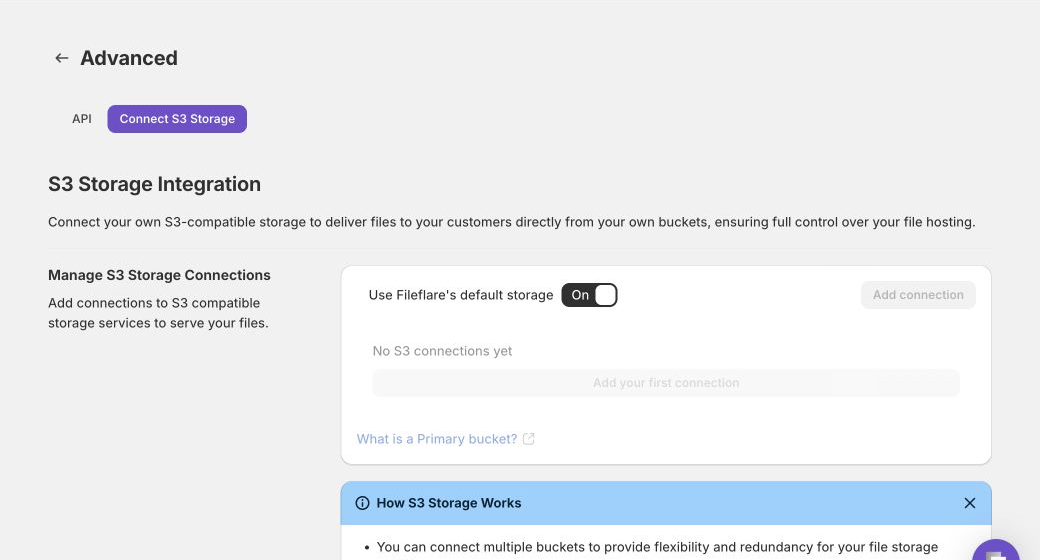
Use the dedicated Cloudflare R2 setup guide or Amazon S3 setup guide for the current provider fields, CORS steps, and troubleshooting. Keeping those details in the docs matters: a region code or provider screen can change without changing the decision framework in this article.
Then go buy something from yourself. Upload or sync an asset, attach it to a low-stakes product, and place a Shopify test order. Watch the order fulfill, the delivery email land, the customer page open, and the file come down with the right name on it. A green checkmark on the settings screen only proves your credentials are valid; the test order is the part that proves delivery works.
Move a live catalog in controlled batches
One thing to be clear about before you start moving things: connecting a bucket changes where new uploads go. It doesn’t reach back and move files Fileflare already hosts. Same story if you switch the primary bucket later — existing assets stay where they are, new uploads go to the new address. Nothing breaks, but nothing migrates itself either.
The migration path depends on where the files begin:
- Files already in S3 or R2: connect the bucket, then use Fileflare’s S3 import to sync them into the asset library.
- Files currently in Fileflare managed storage: use Replace asset to re-upload each file to the active bucket. The asset keeps its identity, so existing attachments and customer download links continue pointing to the current file.
- A catalog moving from another delivery app: stage Fileflare alongside the old app, load and attach the assets, run test orders, and only then switch delivery. The Fileflare migration guide covers that broader handoff.
Start with a small batch chosen to represent the messy parts of your catalog, not the easy ones: one enormous ZIP, one PDF, one file whose name collides with another, and one product with four assets hanging off it. Test a fresh purchase and an old order, if past customers still need access. And keep the old copies until that batch has passed every check — deleting the only known-good source is not a migration milestone, however satisfying it feels.
The Fileflare upload guide covers direct upload, S3 sync, the API, and CSV paths. For large catalogs, treat “get files into the library” and “attach files to the right products” as two separate jobs, and verify both before changing the live delivery route.
Pick the storage that fits your catalog
It comes down to three cases:
- Stay on Fileflare managed storage when the catalog fits, one bill is worth something to you, and nobody on the team is volunteering to own a bucket.
- Go with Cloudflare R2 when downloads are heavy or spiky and free direct egress is what makes the bill predictable.
- Go with Amazon S3 when you’re already in AWS and its regions, lifecycle rules, replication, and tooling are reasons to stay put.
If managed storage is just getting tight, check the tiers on the pricing page before you build anything. Sometimes the cleanest infrastructure project is a plan upgrade, which frees up the afternoon to go make the next strange, delightful, inexplicably 14 GB thing instead.
And if ownership is the actual point — not the savings, the ownership — then add Fileflare to your store, get on Growth or above, and connect a dedicated R2 or S3 bucket. One asset, one test order, then scale the boring proven path. Boring is the goal here. Boring means nobody emails you about a broken download link.
If you’re earlier than all this and still getting delivery working in the first place, our complete guide to selling digital products on Shopify covers the whole stack from product setup through customer delivery.