
Moving a digital store isn’t mainly a file transfer job. Your PDFs, presets, audio, videos, templates, and the inevitable final-final_REALLY-done-v7.zip are the easy part: you can copy them. The harder part is preserving the promise attached to every old sale.
A buyer who paid two years ago may still expect to sign in and download the latest version today. Another buyer may have purchased access for 30 days and shouldn’t regain it forever just because you changed platforms. A safe migration keeps both promises intact.
Plan the move in layers: products, files, orders, customer access, and communication. Test each layer before turning the old system off.
A migration is finished when new orders work and old buyers can still get the access you promised them.
Decide what “customer access” means for your store
Digital products don’t all come with the same after-purchase promise. Write yours down before moving anything.
- Permanent access: the buyer can return for the file later, including replacement files you publish after the sale.
- Time-limited access: links expire after a set number of days.
- Limited downloads: the file remains available, but each order has a download cap.
- Ongoing updates: a buyer receives new editions or files for a defined period.
- One time delivery: the original email was the product, with no continuing account access promised.
This inventory prevents two mistakes: locking out customers who should retain access, and reopening files whose access should’ve ended. It also identifies which historical orders belong in Shopify and which can stay in the old system.
Keep the old and new delivery systems running in parallel
Don’t make launch day the first time a real order touches your new setup. If you’re moving from another Shopify downloads app, Fileflare can run beside it while you build. Pause Fileflare’s delivery emails and checkout links during setup so buyers don’t receive two sets of links, then leave the old app handling live orders until testing is complete.
If you’re moving from another commerce platform, keep that storefront or its delivery system available long enough to resolve old-order questions. Fileflare doesn’t reach into an external platform and copy its orders; historical access begins with orders that exist in Shopify. Shopify recommends moving products first, customers second, and historical orders third so the records can connect correctly. A migration app or partner can bring historical orders into Shopify; a standard customer CSV can’t.
If Etsy is the platform you’re leaving, our Etsy-to-Shopify migration guide covers the marketplace-specific export, catalog, and launch work around this process.
Our app migration checklist covers the Fileflare settings for a parallel setup.
Move the catalog before the customer history
An order regains useful download access only after its Shopify products point to the right files. Build that relationship first.
- Create or import the products in Shopify. Preserve SKUs where possible; they’re the cleanest bridge between a catalog spreadsheet and the file library.
- Upload the files to Fileflare. You can upload files directly, connect your own S3-compatible storage, or create URL assets for files hosted elsewhere.
- Attach each asset to its Shopify product or variant. For a large catalog, stores on the Growth plan or higher can use the bulk attachment CSV to map exact Shopify SKUs to exact Fileflare filenames instead of opening products one at a time.
- Check the exceptions. Personalized products, variant-specific editions, bundles, and files with scheduled releases deserve a separate pass. They’re where a tidy spreadsheet tends to stop being tidy.
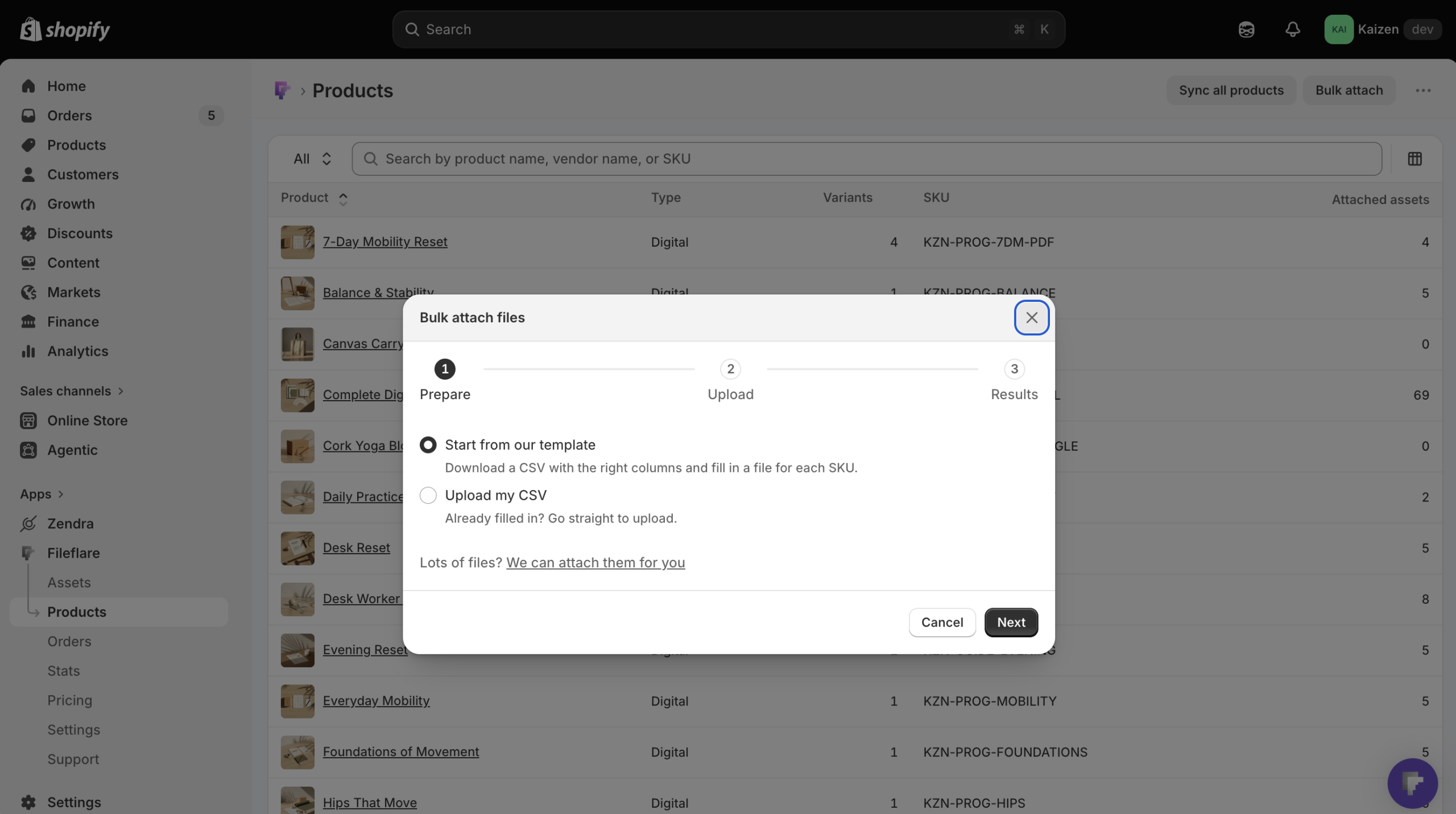
Test each catalog pattern: one single file order, one multi-file order, one variant, and one unusual fulfillment path. A 200 product store doesn’t need 200 tests.
Import historical Shopify orders after attachments are ready
Once the products and files are connected, Fileflare can import past Shopify orders. The import is available on every plan and handles up to 500,000 orders by default; larger stores need to contact support for a custom plan before starting.
Imported orders connect to products in Fileflare. If a product has assets when the order is imported, past buyers receive access. The import doesn’t automatically send download emails, so you can restore the records before deciding whom to contact.
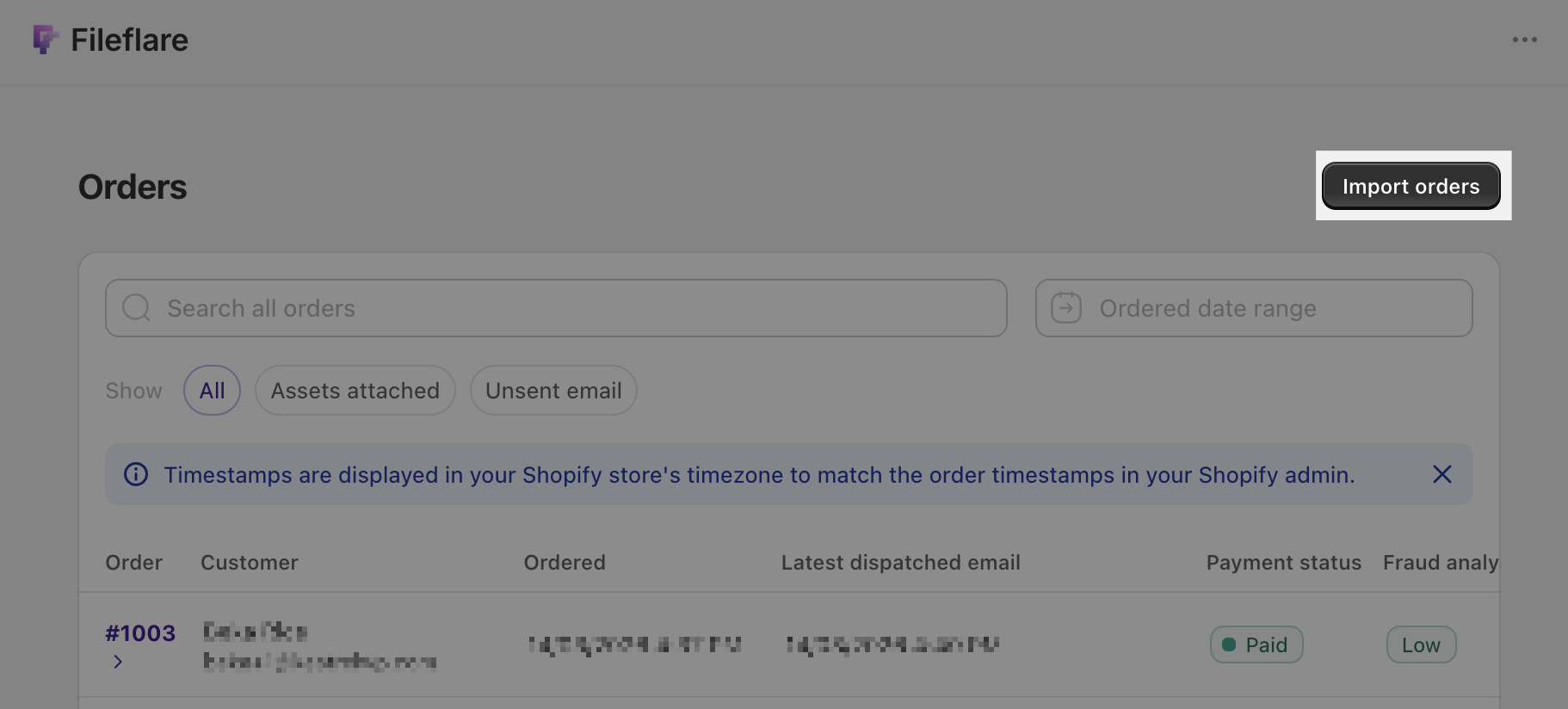
For a single missing order, you can open the Shopify order and choose More actions » View digital order instead of running the storewide import. Orders less than 12 hours old may trigger the delivery email when pulled in this way; older orders get their links without an automatic email. The historical order import guide covers both paths.
Map expiry rules to the promise you sold
Historical orders keep their original Shopify order date. That’s normally what you want: the order list stays chronological, and a stamped PDF can show the date the customer bought it rather than the date you migrated it.
There’s one sharp edge: a storewide rule such as “expire downloads after 30 days” counts from the order date. Import an order from two years ago, and its new Fileflare links are already outside that 30 day window.
Imagine the same store sells Lightroom presets with lifetime updates and a video course with 90 days of access. A customer who bought the presets in 2023 should regain access to the latest files; a customer who finished the course window in 2023 shouldn’t. The order dates are equally old, but the promises aren’t.
Turn those promises into a migration policy before importing:
- Group historical orders by the access originally sold. Separate permanent access, time-limited access, limited downloads, and one- time delivery instead of treating the whole back catalog alike.
- Choose the storewide setting for the majority case. If most buyers keep access, leave the expiry window off and use download limits or IP restrictions where appropriate. Order expiration starts on Basic, while IP restrictions require Premium.
- Handle exceptions at the order level. Set a new expiration on each historical order you want to reopen; the per order date overrides the storewide window. Contact support before importing if the cohort is too large to adjust one order at a time.
- Leave finished promises finished. If the original purchase offered 90 days, don’t quietly turn it into lifetime access during the move.
The download limits and expiration guide covers the settings themselves. Your migration plan owns the harder decision: which promise each historical order should keep. Make that call before importing, and the support queue won’t have to reenact a disaster movie.
Put restored downloads where buyers will look
A database record isn’t useful if customers can’t reach it. Decide which delivery surfaces your store will use:
- Customer accounts give returning buyers a durable place to find purchases.
- Delivery emails put the link in the inbox, but should be sent intentionally for old orders.
- Thank you page links serve new purchases at checkout; they don’t solve access for a buyer returning months later.
- Shopify order emails can carry a link back to the download experience.
For most migrations, customer accounts become the home for historical access, while email and checkout links handle new orders. Fileflare’s customer account blocks require the Basic plan or higher. If you’re moving from another platform, Shopify’s current customer accounts are the cleaner option: imported customer profiles sign in with a one time code sent to their email, so old passwords don’t need to transfer.
The customer account setup guide explains the storefront blocks, and our guide to sending digital files after Shopify checkout shows how the surfaces fit together.
Communicate only after you know the links work
Restoring records and announcing the move are separate steps: import first, test second, communicate third.
Start with a small set of your own or internal test orders. Confirm that the customer profile is linked to the historical order, the customer account shows the right products, every file opens, limits behave as expected, and an intentionally expired order stays expired. Include a pending and a canceled order if your history contains them; those orders may not import, so confirm the result before promising restored access. Then test any email template you plan to use.
If past customers need a new link, send in batches rather than emailing the entire history at once. Fileflare’s bulk send tool can deliver to imported orders, but a ten year catalog rarely needs a ten year announcement. Segment by the access promise you wrote down at the start: active update customers first, recent buyers next, and permanent access customers when there’s a reason to bring them back.
Cut over with a rollback window
When the new flow passes testing:
- Re-enable Fileflare emails and any checkout download surface you plan to use.
- Place one final live test order and confirm fulfillment, email, account access, and the download itself.
- Disable delivery in the old app so customers receive one set of links.
- Keep your source files, catalog mapping, and migration export untouched until the first support cycle has passed.
- Watch the first real orders and inspect any missing file report against your mapping before changing settings broadly.
You can uninstall the old delivery app after you’re confident that no customer promise depends on it. Until then, it’s your rollback path, not clutter.
Treat access as part of the product
The storefront may be new, but the purchase history belongs to the customer. A careful migration keeps the catalog recognizable, restores the right old orders, preserves limits, and gives buyers one obvious place to return.
That isn’t glamorous infrastructure work, but it’s good product design: the file someone paid for is still waiting when they come back.
If you’d rather hand off the mapping, settings, and testing, our Fileflare migration services can handle the move; Scale plans include white glove migration. If you’re doing this for a client, the agency and partner playbook turns the process into a repeatable handoff.
When you’re ready to build it yourself, install Fileflare from the Shopify App Store and run the old and new systems side by side until the handoff is boring. Boring is the gold standard for migrations.