
The dashboard is the first thing you see every time you open Fileflare. For a long time, it was a tidy-enough grid of cards that told you a little and asked nothing of you. Useful, but it wasn’t pulling its weight for a screen you land on that often.
So, we rebuilt it! The new home screen leads with the numbers you actually came to check, surfaces the things worth your attention, and gives new shops a guided path from install to first delivery.
Your download stats, up front
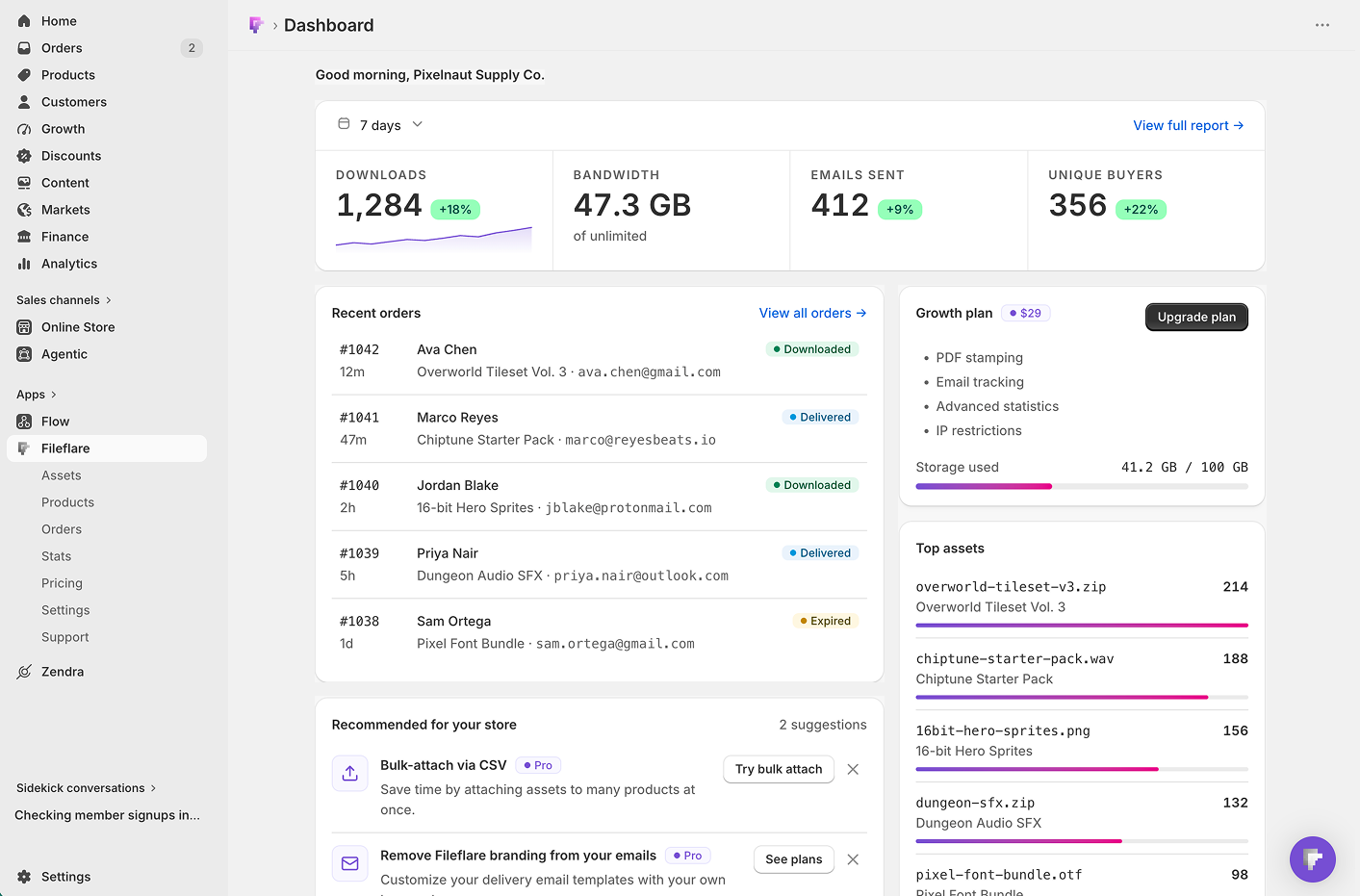
The first thing you’ll notice is the stats hero across the top: your key download numbers for the window you pick, right where you open the app. Switch the date range and everything updates to match.
Each stat carries a sparkline so you can read the trend at a glance, plus a delta badge showing how the current period compares to the one before it. Downloads up 18 percent on the week? You’ll see it without opening a report. It’s the difference between checking a number and reading a trend, and a trend is the thing that tells you whether last week’s launch actually landed.

Everything else, at a glance
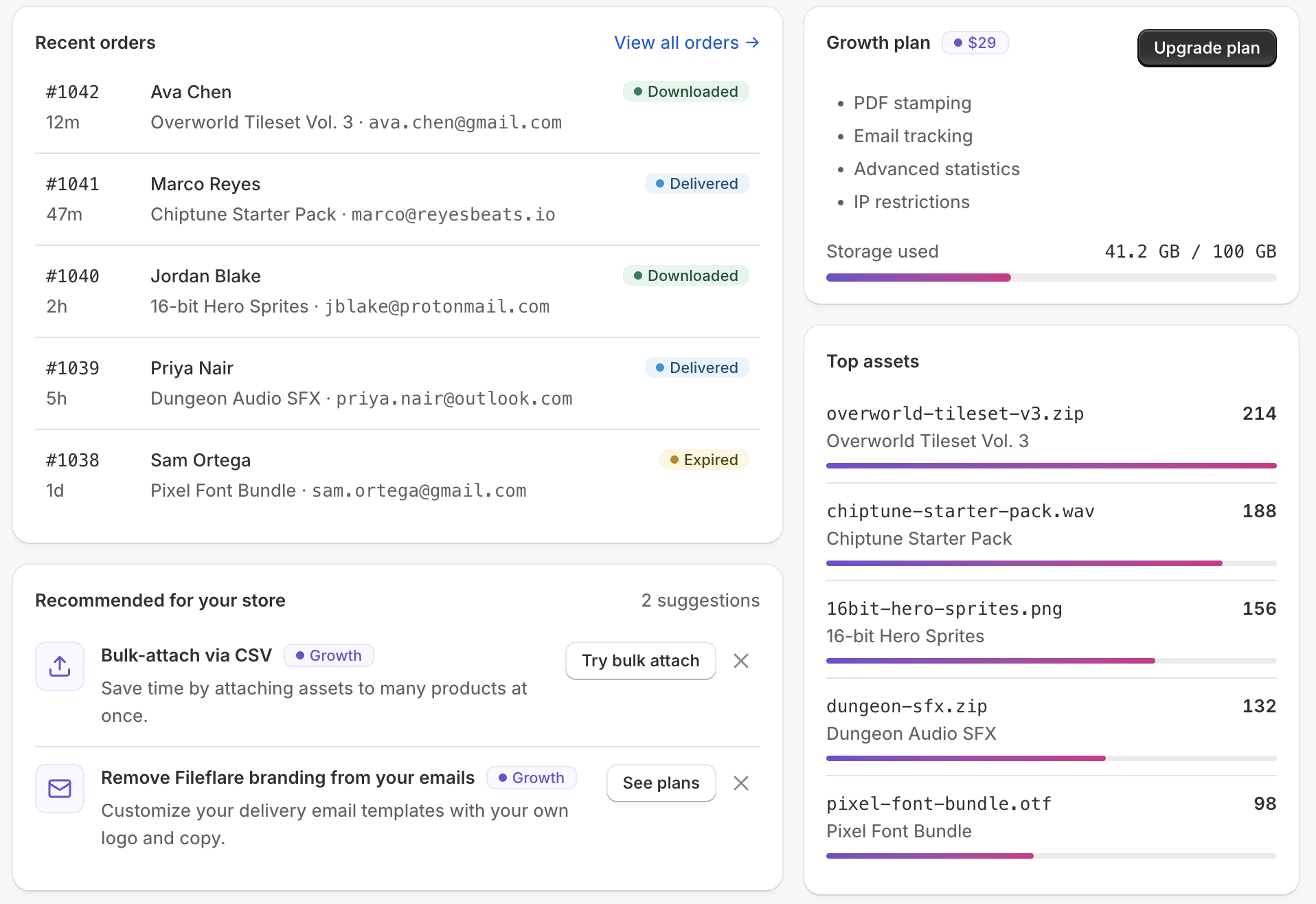
Below the stats sit a row of cards that answer the questions you’d otherwise go digging for:
- Plan and storage. How much of your storage and order volume you’re using against your plan limits, so a ceiling never sneaks up on you.
- Recent orders. The latest digital orders, without a trip to a separate page.
- Top assets. Which files are getting downloaded the most right now.
The idea is simple: the answers to “how are things going?” should be sitting on the screen you already open, not three clicks away.
Guided setup for new shops
Setting up digital delivery for the first time means a few moving parts have to line up: a product, a file attached to it, and an order that proves the whole chain works. New stores now get a step-by-step onboarding stepper built right into the dashboard that walks through it.
It takes you through attaching a product to an asset, then sending a test order to confirm delivery actually fires, with live-data and plan-preview cards along the way so you’re never guessing what happens next. Finish a step (or dismiss one you don’t need) and Fileflare remembers it for your shop, so you pick up where you left off instead of starting over.
The payoff is confidence: you watch a real download land before your first customer ever places an order.

Send a test order whenever you want
Sending a test order isn’t just an onboarding thing. There’s a button for it right on the dashboard, any time you want to check your setup end to end without waiting on a live purchase.
It’s the move to make after you change something that touches delivery: a new file, a swapped asset, a tweaked delivery email, or a fresh download-page layout. Send yourself an order, walk the flow exactly as a customer would, and confirm it all works before anyone’s money is on the line.
Drag, drop, done
Uploading assets used to mean opening a modal and hunting for the file picker. Now you can drag files straight onto the dashboard and drop them into a clearly marked upload modal, with real progress as they go up. It’s a small change, but it’s the kind of thing you feel every single time you add a file.

Recommendations and alerts that get out of the way
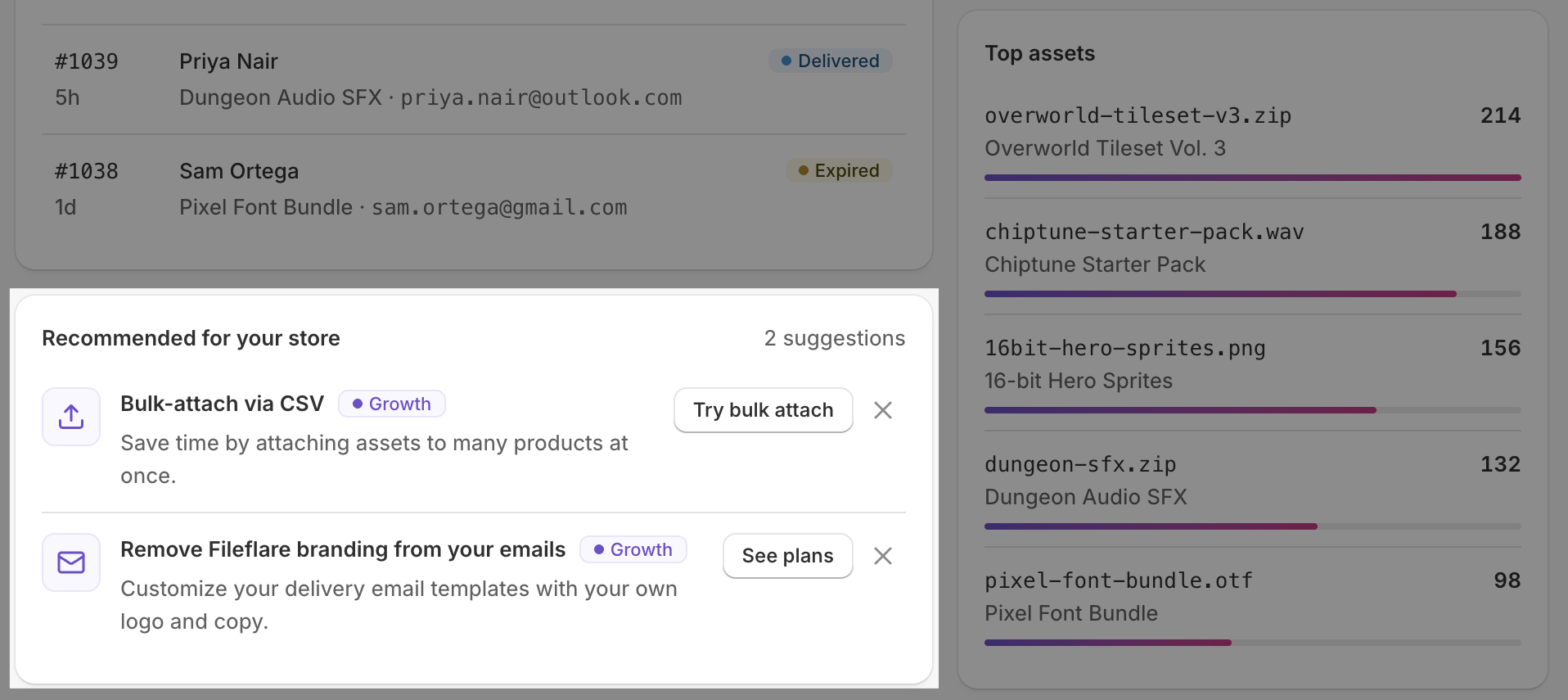
The dashboard now surfaces contextual recommendations and alert notices when there’s something genuinely worth a look, like a setup suggestion or an account notice. Each one is dismissable, so once you’ve handled it (or decided it’s not for you), it’s gone. We’d rather point something out once and let you clear it than nag you about it on every visit.
Go have a look
The new dashboard is live now. Open Fileflare in your Shopify admin and it’s the first thing you’ll see, with your stats already loaded for the window you pick. If you’re brand new, the onboarding stepper will be waiting to walk you from your first attached product to a confirmed test delivery.
For the full detail on each piece, see the dashboard overview and the getting started guide in the docs.
Not on Fileflare yet? You can find us on the Shopify App Store and see the new home screen for yourself on day one.