
The notice arrives with a deadline attached. A customer has disputed order #1042 as never received, and your payment provider wants evidence. If #1042 had been a box of prints, this would be a two-minute job: paste the tracking number, attach the carrier’s delivery confirmation, and get back to work. But it was a 340 MB zip of project files, and nobody has invented a doorbell camera that films a zip file arriving.
The natural reflex is to screenshot your admin. That’s better than sending nothing, but a cropped image of an unfamiliar screen still asks the reviewer to take your word for it. What you want is a document: dated, limited to one order, and readable by somebody who has never used your store.
Fileflare records every download on that order: when each file was served, which IP address requested it, and the browser and operating system behind the request. The order audit report turns that activity into something you can hand to somebody outside your business.
Open the audit report
In Fileflare, go to Orders and click the order number. In the title bar, open More actions and choose View audit report.
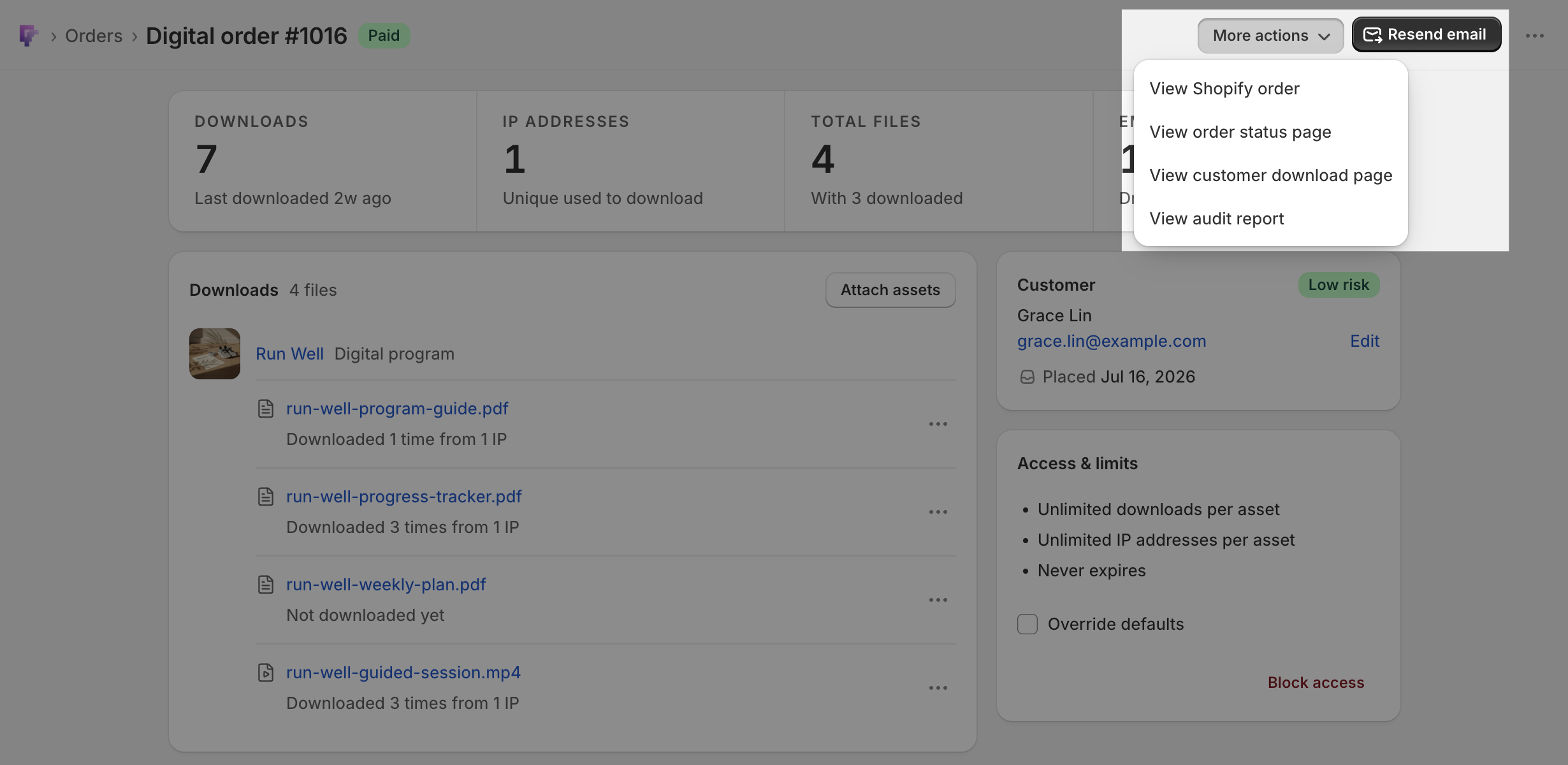
The report opens on its own page, headed Audit report for order and the order’s name. Click Print record, then choose Save as PDF to create a file you can attach. The page is built for print, so Fileflare’s navigation and the print control disappear from the saved version. Your browser also uses the page heading for the filename, which means the PDF lands in your downloads folder already labeled with the right order number. Small detail, but useful when the deadline clock is running.
That separation matters. This isn’t an admin screenshot tidied up for presentation; it’s a purpose-built record stripped down to the information somebody outside your store needs to understand, without first learning how Fileflare’s interface works.
And every plan has it, including the free tier! A dispute doesn’t wait for you to be on the right Fileflare plan.

Read it the way the reviewer will
The document opens with its own title, Digital download delivery record, plus the date and time it was generated. The attribution block below answers who the order belongs to and where it went: order name, order date, customer, and Delivered to — the email address Fileflare used for delivery. A guest checkout may have no customer name to show; when that happens, the record says so instead of leaving a suspicious-looking blank.
Then the figures: total downloads recorded on the order with the number of unique IP addresses behind them, how many of the order’s files have been downloaded out of how many were available, and when the first download happened.
Below the figures is one table, Download events, with a row for every download. Each row carries six things:
- Date and time: when the file was served.
- File: the filename that was downloaded.
- IP address: the address the request came from.
- Accessed from: where the download started, such as the download page or a link in the delivery email.
- Size: the size of the file served.
- Device: the browser and operating system behind the request.
Two small details make the record easier to trust outside your store. Every timestamp uses UTC, so the document reads the same in any country. It also closes with a line explaining that each row was written server-side when the file was served. Keep that line in the printed copy: it tells a stranger where the numbers came from, which is the difference between a log and an assertion.
Because Shopify shows your store’s local timezone, its timestamps may not line up with the report at a glance. UTC is the useful choice for a document that has to make sense after it leaves your business.
Send it even when nothing was downloaded
“I never received it” and “I never downloaded it” are two different claims, and merchants tend to prepare for the second one. The other is easier to miss: the customer is looking for an email they can’t find.
When an order has no downloads, the events table is replaced with a plain statement that none have been recorded, and First download reads None yet. The rest of the record still says something useful: this order existed on this date, these files were made available, and this is the address used for delivery. Pair the report with a resend — you can resend the download email from the same order in one click — and the customer may find their files before the dispute goes any further.
Know what the record doesn’t cover
The audit report is a download record. Knowing its edges before you attach it to a case is worth the two minutes:
- Email history: the only email data on the report is the Delivered to address. For the messages themselves, the order activity timeline records every delivery email alongside the downloads; the send is visible on every plan, and open and click detail comes with email tracking on Growth and above.
- File no longer available: a file that was downloaded and later hard-deleted from Fileflare reads this way in the File column. The download still happened and the row still counts; the filename is what’s gone.
- Not recorded: Fileflare has no value for that field on that row. Most often it’s the device column, when a browser sends a user agent Fileflare doesn’t recognize.
- No file size: the asset is a URL asset, which has no file size for Fileflare to record.
The pattern across all three is deliberate: when a value isn’t available, the report explains why. An unexplained blank in a document you’re sending outside the business looks a lot like missing information.
The record doesn’t decide the case; your payment provider does, using its own criteria. What the report changes is what you can put in the evidence box: a dated document about one order, instead of a description of your setup and a hope that it sounds credible.
Print it before you refund, not after
The report is generated when you open it, so treat it as a snapshot rather than a filed copy. If an order is heading toward a refund or cancellation, save the record first. You want the version that shows what you knew when you made the call, not one generated weeks later after the asset has left your library and its filename is gone.
The same habit covers the requests that arrive without a formal dispute behind them: a marketplace asking you to substantiate a delivery, a bank asking on a customer’s behalf, or a buyer insisting they never downloaded anything while the order’s download limit sits fully spent.
That last one has a companion read: separating bots from customers in your download logs covers how to tell a mail scanner’s pre-fetch from a real buyer before you decide who’s right.
Go have a look
Open any digital order in Fileflare, choose More actions » View audit report, and see what a finished order looks like as a document. It’s worth doing once on a quiet day, with an order nobody is arguing about, so this isn’t a new screen on the day a deadline lands.
The audit report doc covers the page field by field, and the digital order page and activity timeline docs cover the rest of what Fileflare records about an order. If you’re not on Fileflare yet, you can add it to your store and pull a delivery record on the free plan.