
A customer emails to say their download link is dead. You open the order, and the limit is spent: three of three, all logged before they say they ever clicked. Both of you are telling the truth. Something downloaded that file three times, and it wasn’t them.
That ticket is a lookup now rather than a guess. The order activity timeline records every download and every delivery email on an order, and each download row carries the IP address, the user agent, the surface it came from, and how many bytes moved. Reading it takes about 30 seconds, and it usually settles the question before you touch a setting.
Why a download nobody made shows up in the log
Plenty of software opens links before a person does. Mail scanners, corporate security gateways, and antivirus tools pre-fetch URLs to check them for malware, and a download link is exactly the kind of URL they want to check. The fetch is a real request for a real file, so it arrives in Fileflare’s records looking like a real download (because that’s what it is).
This lands hardest on customers with a work email address. A buyer on a personal Gmail account might see one scanner hit; a buyer behind a corporate mail gateway can burn three attempts before the message reaches their inbox. If your download limit is set to three, that customer runs out of attempts on a file they’ve never opened.
Fileflare recognizes some bots, but it’s impossible to recognize all bot fetches or downloads. This article covers how to see if bots affect your customers and how to adjust limits accordingly.
One category of automatic fetch is already handled for you: iOS Safari generates previews of linked files on its own, and Fileflare detects those and doesn’t count them against a limit. An iPhone buyer who taps their link and gets a preview hasn’t spent an attempt.
Open the timeline before you change any settings
In Fileflare, go to Orders » the order number, and scroll to the Timeline card. It’s one chronological feed, newest first and grouped by day, holding every delivery email and every file download for that order.
Download rows and failed email rows have a caret; open a download and you get its IP address, its user agent, the file size transferred, and — when Fileflare knows which surface the customer used — an Accessed from line naming it.

Download activity records on every plan, including the free one, so the log is there from your first order. Download limits themselves start on the paid plans, which is where this diagnosis comes into play.
Email events — sent, delivered, opened, clicked, and bounced among them — need a plan that includes email tracking, and they’re what let you line a download up against the moment the email went out.
Four signals that separate a scanner from a buyer
Read the download rows against each other rather than one at a time. Four things give a machine away.
- Timing: a download logged seconds after the delivery email was sent, before anyone could plausibly open an inbox and read a message, is almost always a machine. Humans take minutes at best, and usually hours. (The email rows that give you that send timestamp come with email tracking.)
- An IP address that doesn’t match the rest: a customer’s own downloads cluster on one or two addresses, since they’re at home or at work. A pre-fetch comes from wherever the scanning service runs, so it sits alone. Location isn’t recorded, so you get the address itself and can look it up if you want to know whether it belongs to a datacenter or a residential provider.
- The user agent: a real buyer’s row names a browser and an operating system, because a person clicked a link in a browser. Automated fetches tend to identify themselves as bare HTTP clients, security products, or headless browsers, and some send almost nothing at all.
- This rule isn’t a guarantee, so Fileflare can’t automatically block things that might be bots. That said, it is a good check if a customer reaches out to you and wants a higher download limit!
- Where it was accessed from: customers wander: they click the email, then come back later through their account or the download page. A single hit from Email with no follow-up from anywhere else, on an order whose customer is actively emailing you for help, points at something that read the message without being able to ask for help.
No one signal is proof, but the goal isn’t necessarily hard proof: it’s to determine if multiple people are sharing a download link, or if one person’s file delivery simply triggered more bots than normal.
Telling one person on two devices from a shared link
The same rows answer the key question: whether a burst of downloads is one buyer being normal, or a link making the rounds. Both leave a distinct pattern.
Two different user agents on the same IP address, a few minutes apart, is one person moving from their phone to their laptop. The same file pulled from five addresses across three countries inside an hour is a link that traveled. A slow drip from a handful of addresses over two weeks is usually a household or a small studio sharing one purchase, which may be entirely fine with you, or may be the thing your license terms exist to prevent.
Once you know which pattern you’re looking at, you can pick a control that fits it instead of tightening everything. Download counts cap total attempts per file, IP address limits cap how many places a link works from (available on Premium), and PDF stamping puts the buyer’s name on every page so a leaked copy names its source. Our article on sharing downloads securely walks through the full set and what each one costs the honest buyer.
Fix the order, then decide whether to change the default
For the customer in front of you, work at the order level. On the order’s Access & limits card, turn on Override defaults and raise their allowance — the fields start from the limits already in effect, so switching the override on never changes the numbers by itself.
Then resend the download email, from the order in Fileflare or from the Fileflare block on the Shopify order, and tell them what happened. “Your company’s mail scanner opened the link before you did, so I’ve topped up your downloads” is a good email to receive.
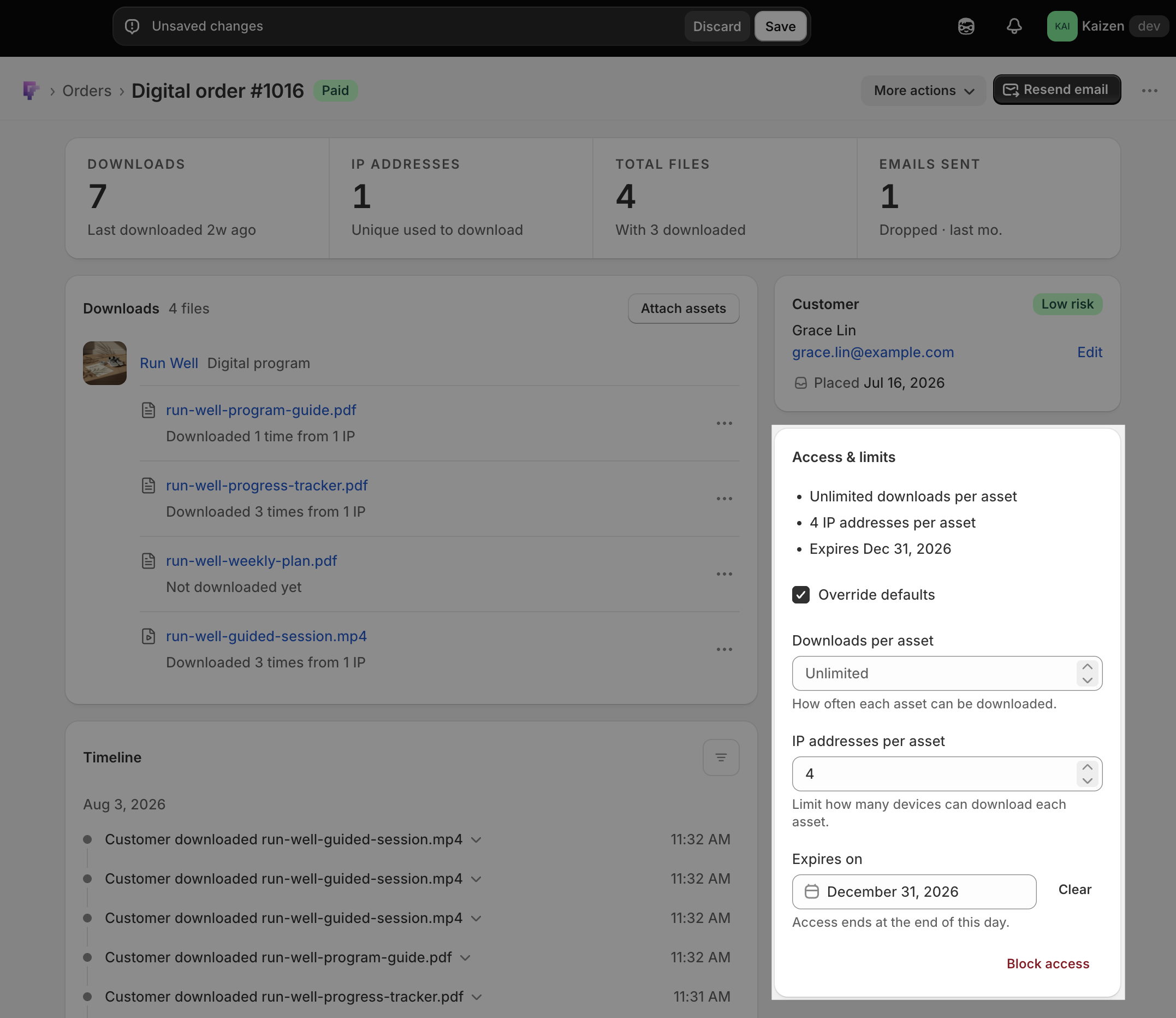
The broader question is whether your global default has enough room in it. Check three or four recent orders in the timeline; if pre-fetch is regularly taking the first attempt, a limit of three is generous for a person and thin for a person behind a corporate gateway. Moving the default to five costs you very little — a shared link will quickly hit that limit anyway. But, pre-fetch stops eating a customer’s only spare attempt, and you buy back time from support tickets. The download limitation settings doc covers the global controls and the per-order overrides together.
If you sell mostly to businesses, set the limit once with scanners in mind rather than adjusting orders one at a time.
The other time these rows do heavy lifting is within a chargeback. When a buyer tells their bank they never received the file, a timestamped record of the delivery email and the download that followed it — with the IP address and the device attached — is a far better response than an assurance that your system works.
Know where the log stops
Showing every single file activity could make for a very long log, so know a couple of behaviors when you look through a timeline.
- The feed shows the 25 most recent entries, so a full order could look like it’s missing details on a particular file. Open the ⋯ menu on the file’s row in the Downloads card and choose View in timeline to query that file’s own history directly.
- A file-filtered view shows downloads only, since emails belong to the order rather than to one file.
- A missing “opened” event proves nothing. Apple Mail’s privacy protection and similar features block open tracking outright, so plenty of customers read an email that never registers as opened. Delivery is the event to trust when you’re deciding whether a message arrived.
The timeline doc lists the rest of its behavior: URL assets record no file size, a deleted file leaves rows with accurate detail but no filename, and location isn’t stored.
Getting started
Next time a customer tells you their link is dead, work in this order.
- Open the order and read the Timeline before you change a single setting. What happened is more useful than what you’d guess.
- Expand the download rows and compare timing, IP address, and user agent against each other. Two signals agreeing is enough.
- Override the order’s limits, resend the email, and tell the customer what you found. Then check whether your global default has enough headroom for the way your buyers actually receive email.
The order activity timeline and digital order page docs cover the screens in full, troubleshoot download issues runs through the other reasons a link stops working, and the order page rebuild has the tour if you haven’t seen it yet. You can add Fileflare to your store and read your first timeline on a free plan.