
Here’s the question that tends to show up right before somebody publishes their first ebook: can people read it without getting a copy to keep?
For PDFs, yes. Your buyer opens the file on your own download page and reads the whole thing without receiving a copy they can save, forward, or drop into a shared folder. There are two boundaries to understand up front:
- In-browser reading and the setting that removes download buttons both live on the Fileflare Premium plan, so everything below describes a Premium store.
- And view-only has a real limit: it can control how the file is delivered, but not what somebody does with the screen in front of them.
You can keep the PDF file behind the reader. You can’t stop someone from capturing what appears on their screen.
What a view-only PDF looks like to your buyer
The customer lands on the download page on your domain — the same place they’d open any other purchase — and reads the file there. Pages render as the customer scrolls, with only the handful around the current page kept live. That means a long manual never asks the browser to hold hundreds of pages at once, phones included.
The controls show the reader’s position and offer zoom in and out; the document starts fitted to the reader’s width. Links inside the PDF still work, too, so a table of contents behaves the way its author intended.
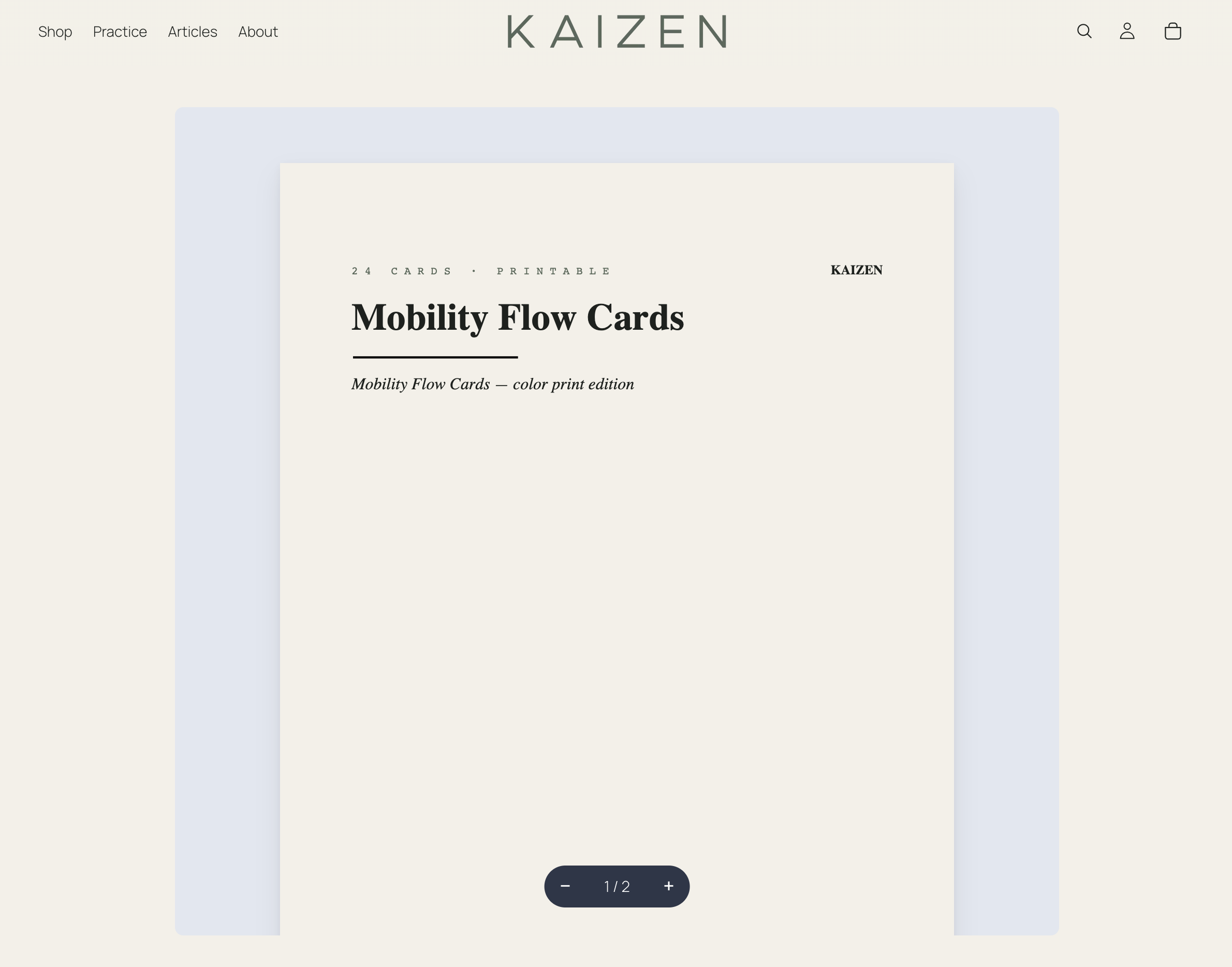
What’s missing is the feature set: there is no download control, no print control, and no selectable text to drag into another document. The reader is built for reading, without making a reusable file available.
What view-only stops, and what it doesn’t
For years, the caveat on hiding a download button — ours included, in our guide to protecting digital products from piracy on Shopify — was that the setting stopped the button, but not much else. The file still arrived from a temporary signed storage URL. Anyone who knew where to look in the browser’s developer tools could copy that URL and fetch the file directly.
That’s changed for PDFs. The reader fetches through a short-lived link on Fileflare’s own domain, and the file’s storage location is never written into the page at all. There’s nothing in the page source to copy, which closes the route most people are picturing when they ask whether a file can be taken.
This update does not make the document un-steal-able. A determined person can still capture what’s rendered on the screen: a screenshot per page, a screen recording, or a phone pointed at a monitor. No web-delivered document can prevent that. What view-only does is remove one-click save, the one-click forward, and the technical shortcut through the storage URL. For most catalogs, that’s the useful line between casual sharing and deliberate copying.
Disable the download button
Fileflare lets you enable streaming-only mode, though you should be aware of a few key behaviors when enabling it.
- It applies to the whole store, not to individual files. You can’t make one high-value PDF view-only and leave the rest of the catalog downloadable — it’s on or off across everything. That makes it a catalog decision rather than a per-product one.
- Files that can’t be streamed keep their download button. A ZIP, a font file, a design source file, etc: Fileflare leaves the button in place for those, because the alternative is a customer who has paid for something they now have no way to open.
- It’s only available on the Premium plan. Premium is where in-browser viewing of PDFs, video, and audio lives, and streaming-only mode sits alongside it. The tier carries several other things you may want! It’s worth weighing the whole plan on the pricing page before you decide.
The streaming docs cover where the toggle lives and which formats it applies to, and prevent download sharing puts it alongside the other access controls.
Decide what’s read and what’s kept
Because the toggle is store-wide, the useful question isn’t “which files should be view-only?” but “is this catalog read-it material or keep-it material?” Our rule of thumb: keep downloadable the files a buyer needs to use, and make view-only the files they only need to read.
Read-it material is the comfortable case: reference documents people consult rather than file away; course manuals and workbooks that belong next to the lessons; research reports; licensed material where you sold the reading rather than the copy; and sample chapters meant to sell the full book. In each case, a buyer who lands on your page and reads is having the experience you designed. Nothing is missing.
Keep-it material is where view-only backfires. Printables, planners, print-ready templates, patterns, and sheet music meant for a stand in a room with no Wi-Fi all need to leave the browser. The file is the product. Take away the download, and the buyer won’t experience that as protection; they’ll experience it as a broken order (and your inbox will hear about it).
If your catalog is mixed, streaming-only isn’t your tool! There’s a fuller map of the options in our guide to sharing downloads securely with customers.
Stamp the files you let people keep
For the files a buyer takes with them, shift from prevention to attribution. Fileflare can stamp each PDF at download time with the buyer’s name, email address, order number, or any combination you choose. Every copy then carries the details of the person who paid for it: a deterrent before a leak (people are less casual with a file bearing their own name) and a trail after one. Stamping is available on the Basic plan and above.
The fonts travel inside the stamped file rather than being borrowed from whatever machine opens it, so the buyer’s name renders as they typed it. That also means a stamped PDF passes the PDF/X preflight checks print shops run on incoming artwork — if you sell print-ready artwork, patterns, or sheet music, the stamped copy goes to the printer as-is instead of coming back with a font warning.
The scripts do have a boundary: Latin and Latin-Extended (accented characters included), Cyrillic, Greek, Vietnamese, and Hebrew all render correctly. Arabic and CJK — Chinese, Japanese, and Korean — don’t yet. If your buyers’ names are written in those scripts, stamp the email address or the order number instead; both come through in Latin characters in almost every case, and you keep the attribution without a row of boxes across the page.
The setup, template options, and placement controls are in the PDF stamping docs, and there’s a longer walkthrough of the strategy in how to watermark PDFs automatically on Shopify.
Get started
- Sort your catalog into read-it and keep-it. If it’s all read-it, streaming-only mode is a clean fit; if any of it is keep-it, plan around stamping instead.
- For a read-it catalog, turn on streaming-only mode and place a test order so you see the reader the way a buyer does, on a phone as well as a laptop.
- For everything downloadable, set up a stamp template with the buyer’s name, email or phone, and order number, and check one delivered file before you announce anything.
If you’re setting up a PDF catalog from scratch, how to sell PDFs on Shopify covers the product and delivery side, while how to protect an ebook from piracy covers the layers around the file. Not on Fileflare yet? Add it to your store, and on Premium you can have a test PDF open in the reader a few minutes later.