
Almost every digital-delivery support email comes down to one question: what actually happened with this order? Did the delivery email go out, did it reach the customer, did they download anything, and if they did, why are they telling you the link is dead?
Answering it used to mean piecing it together from a few different places. So we rebuilt the digital order page around it, picking up where the new Fileflare dashboard left off last month. Everything about one order now sits on a single screen in focused cards: the customer and the address Fileflare delivers to, the access limits in effect, the files that came with the products they bought, the files attached to that order alone, and an activity timeline of every download and every delivery email.
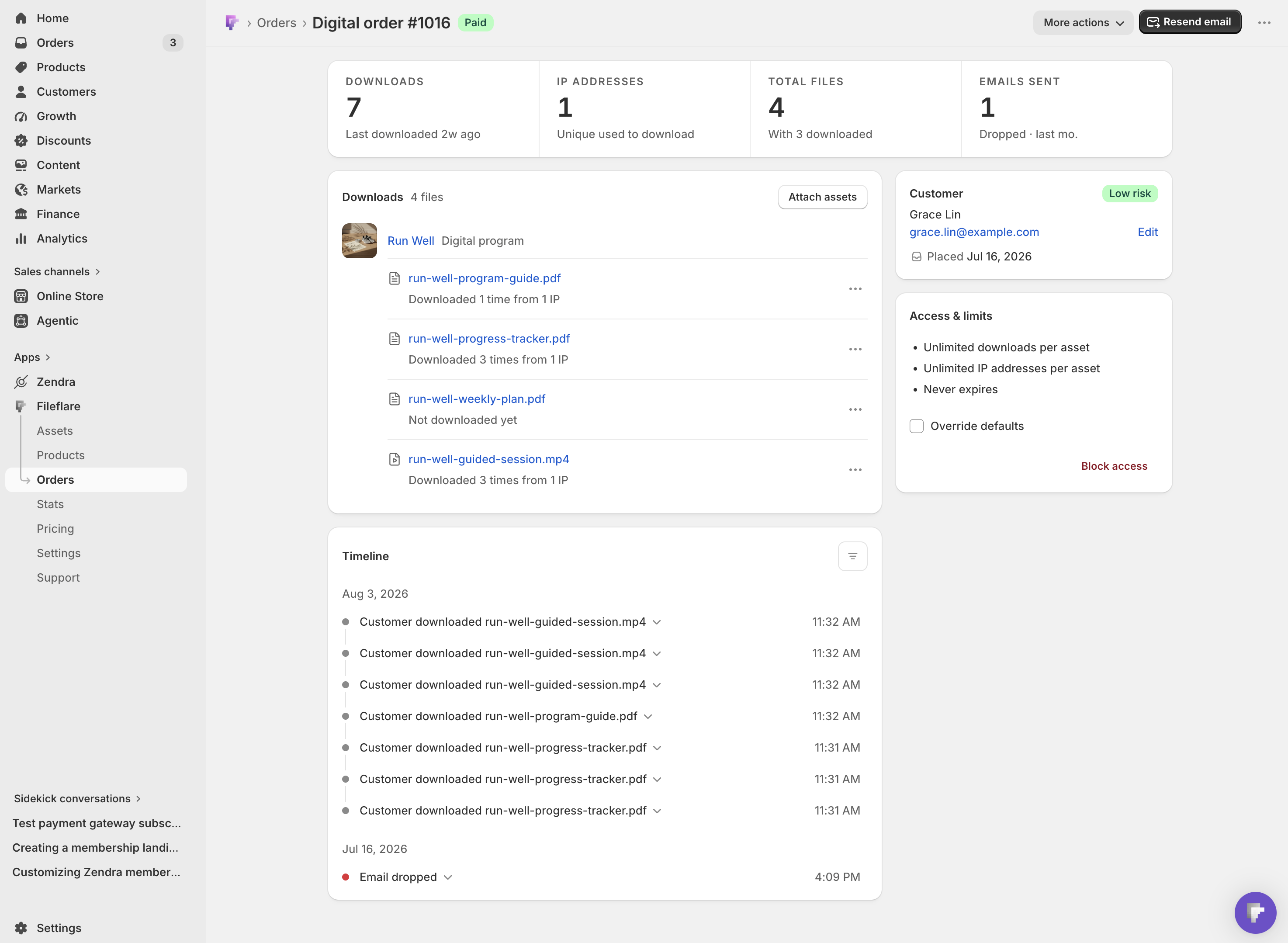
On a desktop screen, the file lists and the timeline run down the wide column with the customer and their limits alongside; on a phone, where you’re usually checking an order between other things, the two cards you act on come first.
Read the order’s history in one timeline
The Timeline card is the reason we did this. It’s a single chronological feed of every delivery email and every file download on an order — newest first, grouped by day — so “Did this customer get their files?” is a scroll rather than an investigation.
Rows are written to be read by their first few words. Downloads read, “Customer downloaded run-well-progress-tracker.pdf.” Emails all start with the word “Email,” and the ones tied to a recipient name them: “Email sent to…”, “Email delivered to…”, “Email opened by…”, “Email bounced when sending to…”. The rest are just the event, like “Email link clicked” or “Email dropped.”

Open a download row for the detail behind it: the IP address it came from, the User agent (“Chrome 150.0 on Mac 10.15”), and the File size that was transferred (a URL asset is a link, not a transfer, so those rows don’t carry a size). That’s usually enough to settle the real question, which is whether five downloads in a minute are one customer on their laptop and their phone, or a link that’s been passed around.On a bounced or failed email row, you’ll see the reason your mail provider gave instead.
The filter in the card’s top-right corner switches between All activity, Emails, and Downloads, and the icon changes state while a filter is on, so a narrowed feed is never a mystery. You can also go the other way and start from a file: the ⋯ menu on any file row has View in timeline, which reloads the card showing only that file’s downloads, with a Clear filter button to go back. That matters on a busy order: the feed shows the 25 most recent entries, so filtering to one file queries its history directly instead of searching what’s already on screen.
Download activity is recorded on every plan; email events need email tracking, which starts on the Growth plan. Fileflare also records the IP address rather than a location, so if you want to know roughly where a download came from, that’s a lookup you do yourself.
See what the customer got, grouped by what they bought
The Downloads card lists the files that came with the order’s products, grouped under each product line. Rows that have seen activity carry their own download summary — “Downloaded 3 times from 1 IP” — which is often all you need before you decide whether to raise a limit or ask a follow-up question.
The ⋯ menu on a file row holds two things: Set download limit, which caps that one file on this one order and falls back to the order’s own limit when you leave it blank, and View in timeline, the filter from the section above.
Attach a file to one order without leaving it
The same card also carries files that belong to this order and nothing else, grouped at the bottom under Additional order downloads: a personalized certificate, the corrected version you promised in a support reply, or a bonus chapter for the customer who found a typo. It’s also the mechanism behind selling personalized digital products, where the file doesn’t exist until the order does. Attach assets opens one modal with three ways to add a file:
- Drop files here, or click to browse is the upload zone, for a file that isn’t in Fileflare yet.
- Select existing asset searches the files you’ve already uploaded.
- Add a URL asset hands the customer an external link, with a name and an optional file size.
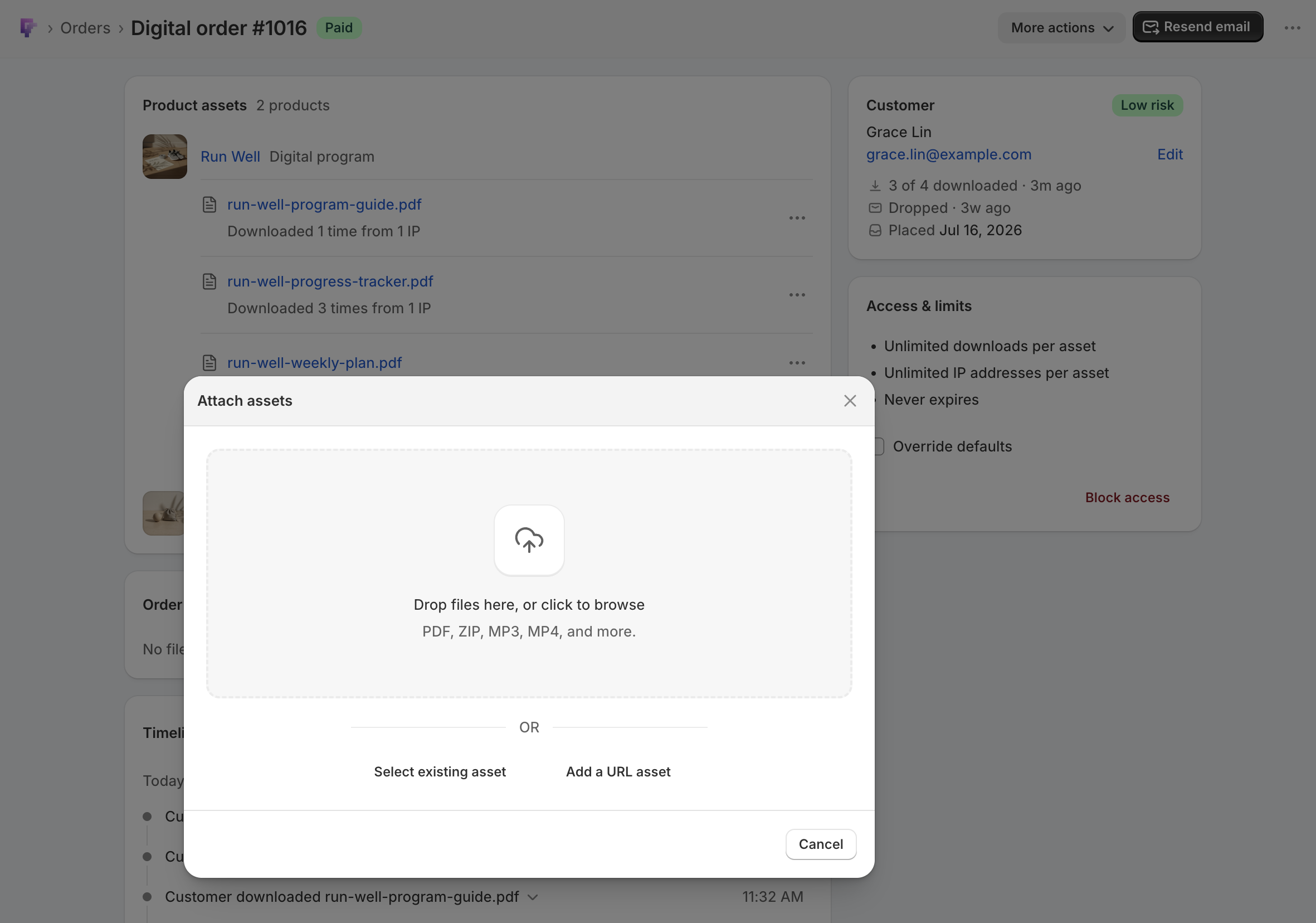
These rows carry the same ⋯ menu as the product ones, plus Detach from order for the file that went onto the wrong order. Attaching files to a single order is available on the Basic plan and up.
Change the rules for one order
Access & limits opens with a plain-language summary of the limits in effect, so you can read the state of the order before you touch anything: “Unlimited downloads per asset,” “Unlimited IP addresses per asset,” “Never expires,” or your own numbers once you’ve set them.
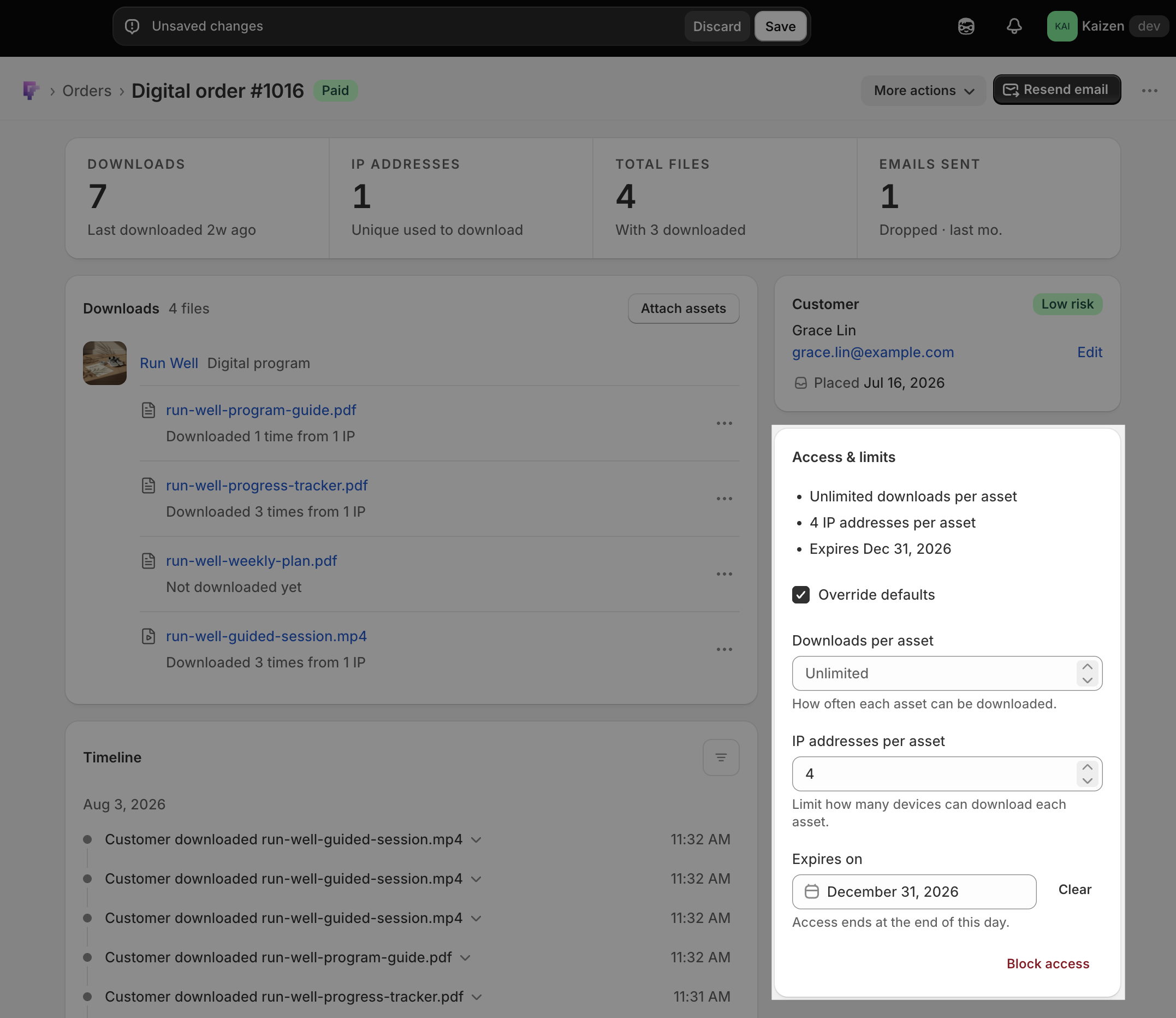
When you enable Override defaults, three fields appear: Downloads per asset, IP addresses per asset, and Expires on. They seed from whatever limits were already in effect, so checking the box never moves the numbers by itself; it only makes them editable — an unlimited count seeds as an empty field with an “Unlimited” placeholder, and an order that never expires shows a “YYYY-MM-DD” one under Expires on. Fields your plan doesn’t include show a lock, and clicking the lock tells you which plan opens them.
Block access sits at the bottom of the card as the one-click revoke, for the refund that came with a chargeback threat or the order you’re still deciding about. It takes effect immediately, it leaves the order’s limits and expiry untouched, and unblocking restores exactly the access the customer had before. If you’d rather curb link sharing without cutting anyone off, the layered controls in how to share downloads securely outline a gentler set of tools.
Resend the email, or go see what the customer sees
Resend email is the primary action in the page header — one click, no menu. On a phone Shopify renders that action icon-only, so look for the resend icon rather than the words. (Resends are capped at 10 emails every five minutes across your store.)
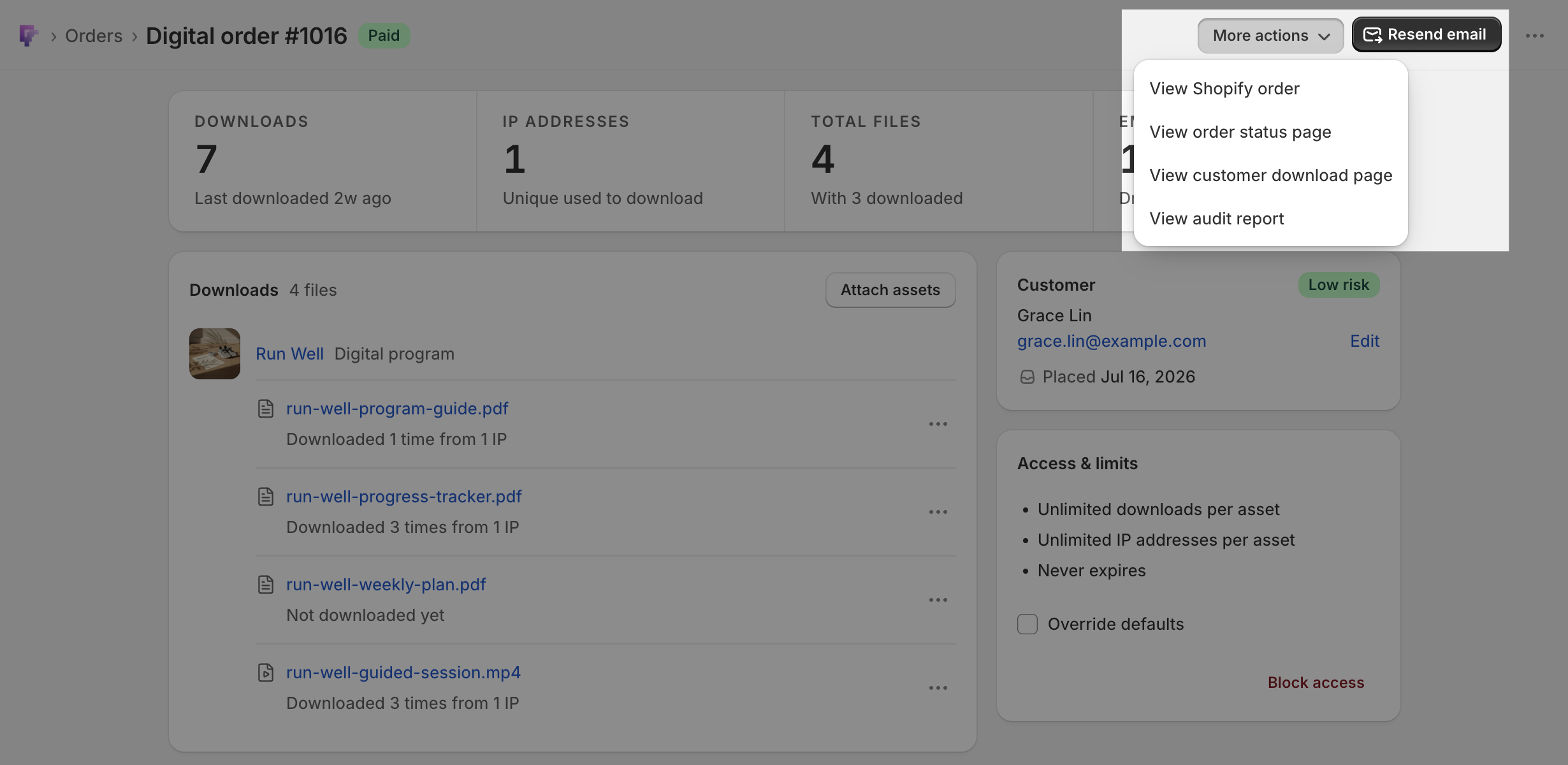
Next to it, More actions holds three links out of Fileflare: View Shopify order, View order status page, and View customer download page. That last one opens the exact page your customer is looking at while they’re emailing you, so you can see the link they say is dead instead of guessing at it.
The Customer card handles the other half of a delivery problem. The address Fileflare sends to has an Edit action beside it, so a mistyped email is a fix rather than a support thread. Editing it changes where Fileflare delivers for this order; it doesn’t rewrite the email on the Shopify order, so correct it in both places if the customer should also get Shopify’s own notifications.
Work an order without leaving Shopify
Plenty of the work you do on an order happens in Shopify, not in Fileflare — you’re processing a refund, reading a fraud analysis, or answering the customer from Shopify’s own inbox. So Fileflare adds a Digital downloads block to the Shopify order page.
Collapsed, it’s one line. A healthy order shows a count: “3 files · 5 downloads.” Anything that needs you takes priority over that count, such as Downloads blocked, Access expired, Refunded, Email not sent, Email not delivered, or Email delayed. Expanded, the block runs through the order in the sequence you’d ask about it:
- What’s restricting access, if anything: blocked downloads, expired access, a refund, or files withheld until unpaid items are paid. A healthy order says nothing here.
- The files on the order, with per-file download counts and any limits you’ve set.
- Delivery and usage: whether the download email was sent, delivered, opened, or bounced, and whether the customer has downloaded anything yet.
- The actions, which are View in Fileflare for the full order page, plus Resend email and Upload & attach file, both of which run right there on the Shopify order. (Uploading to a single order needs the same Basic plan as the Downloads card above.)
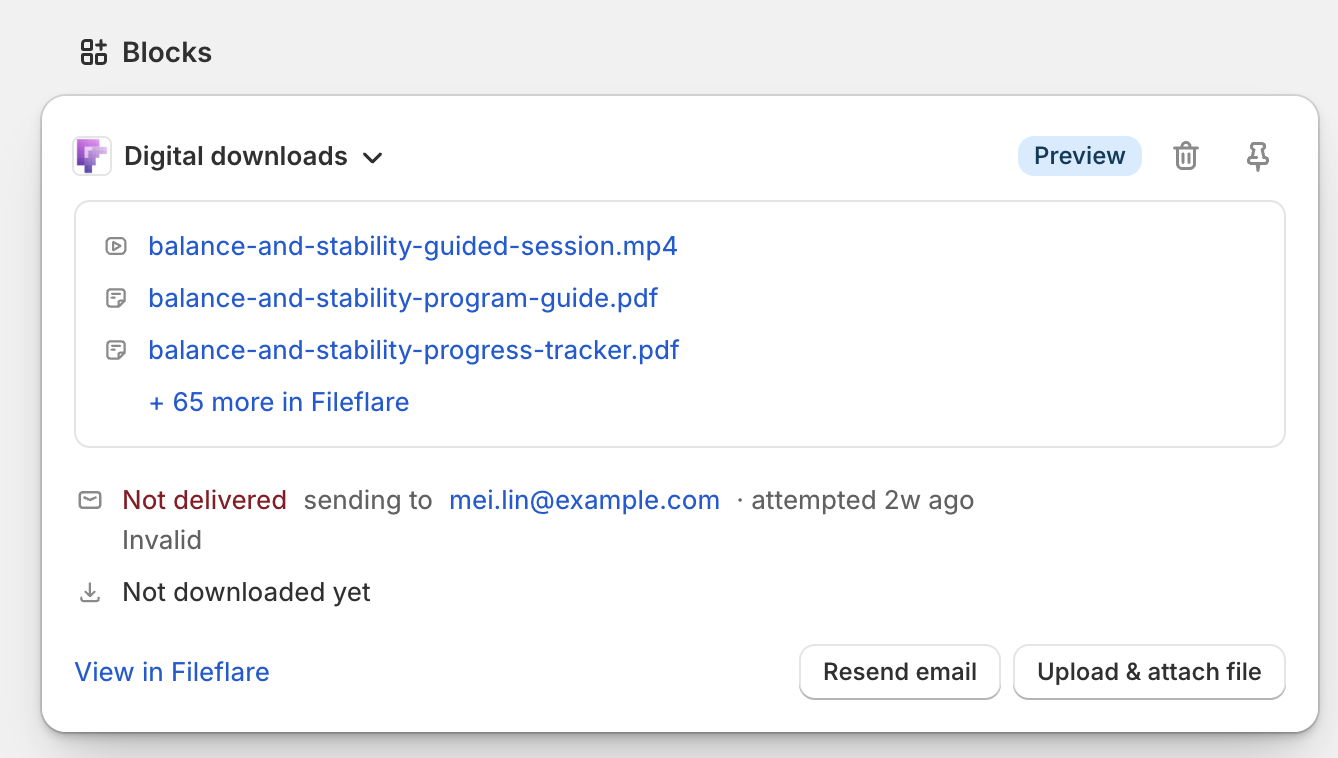
Color is reserved for things that need you. A healthy order is plain text, and the only warning tones you’ll see are real problems, which is what makes a colored line in that block worth reading.
Shopify asks you to pin app blocks to the order page yourself, so the block appears once you’ve pinned it and then stays on every order after that.
Import an order Fileflare doesn’t have yet
Occasionally an order goes missing — a webhook gets dropped, or a purchase lands while the app is reconnecting — and the customer writes in before you notice. Opening More actions » View digital order on the Shopify order now imports that order on the spot, generates its download links, and emails the customer, instead of dropping you on the orders list with nothing to work with.
Orders older than 12 hours import and get their links, but no automatic email goes out, so you can send those manually with Resend email.
Go have a look
The new order page is live now! Open Fileflare in your Shopify admin, go to Orders, and click any order number — or open a Shopify order and use More actions » View digital order to land in the same place. Pick an order with some history on it if you can; a timeline with a few real downloads in it is a much better introduction than an empty one.
For the full detail on each piece, the docs cover the digital order page card by card, the order activity timeline row by row, and Fileflare on the Shopify order page.
Not on Fileflare yet? You can find us on the Shopify App Store and see it on your first order.