
Fileflare sends three transactional emails on your behalf — the fulfilment email when an order is placed, a file-replacement email when you update an asset, and a release email when a pre-order goes live. You can edit the copy, swap in your logo, and change the subject line and sender name so each one feels like it came from your store.
Editing the email body, subject line, and sender name requires the Growth plan or higher. To send from your own domain (instead of Fileflare’s default noreply@digital-downloads.com), you’ll also need to connect SMTP.
When you’d use this
- You want the delivery email to match your brand — your logo, your voice, your colors.
- You’re selling in a non-English market and want to translate the default copy.
- You want to add upsell info, support contact details, or care instructions alongside the download links.
- You’re sending from your own domain via SMTP and want to set a sender name that matches.
If the defaults look fine, you can leave them — Fileflare’s default email is short, clean, and works out of the box. But the delivery email is one of the most-opened messages a customer ever receives from a store, so it’s worth a few minutes to make it yours.
How to use it
Open the template editor
- Open Fileflare from your Shopify Apps menu.
- Go to Settings.
- Click Edit email templates at the top of the page.
You’ll see three tabs — one per email type. Each can be edited independently.

Edit the subject line and sender name
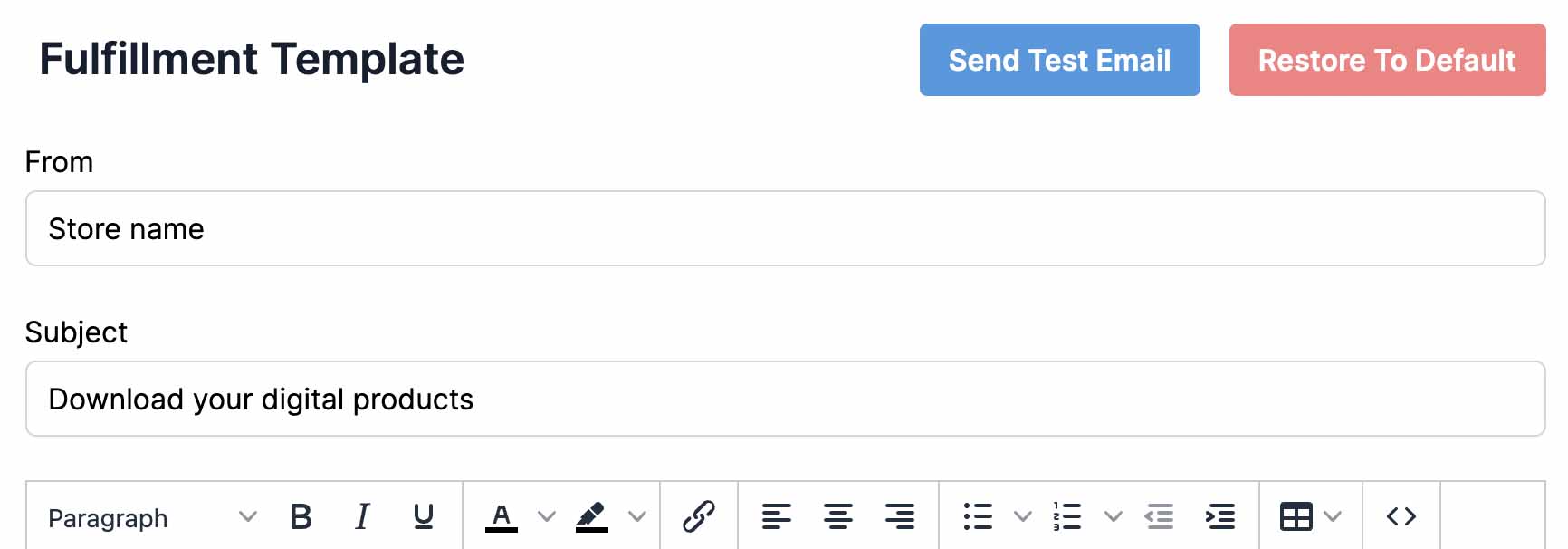
At the top of each template you can set the From name (what appears as the sender) and the Subject line. The defaults reference your store name automatically.
- From name (default): your store name
- Subject (default): “{store name} – assets to download from your recent order”
Heads up: the subject line and From name only save once you’ve customised the email body. If you only edit the subject and hit save without touching the body, the change won’t stick.
Add your logo
Logos in email templates need to be hosted somewhere with a public URL — Shopify’s Files area is the easiest option.
- In your Shopify dashboard, go to Content → Files.
- Click Upload files and pick your logo. After it uploads, copy the file URL.
- Back in Fileflare’s email template editor, click the image icon in the toolbar.
- Paste the URL into the Source box and check the size — keep logos under ~600px wide so they display cleanly on mobile.
- Click Save.
Customise the body
Use the rich-text editor to edit the email like a normal document, or switch to HTML mode for full control. The editor supports merge variables — drop these into your copy and Fileflare will fill them in per order:
(customer name)— the buyer’s first name(store name)— your Shopify store name(assets)— the list of download links / button
For reference, here’s the default copy for each template — useful if you want to match the structure or restore the tone:
Fulfilment email (default)
Hi (customer name),

Thank you for your recent order with (store name).

You can download your files with the following links:

(assets)

Thanks!
File replacement email (default)
Hi (customer name),

There is a new update available:

(assets)

Thanks!
Pre-order release email (default)
Hi (customer name),

Thank you for your recent order with (store name).

You can download your files with the following links:

(assets)

Thanks!
Test your changes
Click the Send test email button on the template editor to send the email to yourself. Use this to check the rendering before turning the template live for customers.
If you’re sending from a custom domain via SMTP, this is also a good moment to run the test email through Mail Tester — it scores deliverability and flags spam triggers.
Restore the default
If a customisation goes wrong, every template has a Restore default button at the bottom of the editor. It reverts the body, subject, and From name to Fileflare’s defaults — no undo, but you can re-edit immediately.
Common issues
- Subject line or From name won’t save — you need to also customise the email body. The save will only persist if all three fields are edited together.
- Logo doesn’t display in the email — the image URL needs to be public. If you uploaded to Shopify Files, copy the file URL (not a CDN preview link). Some hosts (e.g., Google Drive) block hotlinking and won’t render.
- Customers say emails are landing in spam — when sending from
noreply@digital-downloads.com(Fileflare’s default), avoid spammy phrases and overuse of images. When sending from your own domain via SMTP, ensure DKIM, DMARC, and SPF are set up. See improve email deliverability. - Embedded videos don’t play — most email clients strip
<video>tags. Link to a hosted video instead (YouTube, Vimeo) and use a static thumbnail with a play-button overlay as the link.