
If a customer says they didn’t get their download email, the cause is almost always one of a small set of usual suspects. Walk through this list in order — most cases resolve at one of the first three steps.
Email delivery is never 100% reliable, even when everything is configured correctly. If repeated email issues are hurting your store, the most reliable backup is to enable thank-you page downloads or customer account downloads — both bypass email entirely.
1. Check the order status is “Paid”
Fileflare only sends the download email after the order is marked Paid. If the order is in Pending, Authorized, Cancelled, or Refunded status, no email goes out — by design, so customers can’t get free files by cancelling immediately after checkout.
Check the order in Shopify. If it’s stuck in Authorized, your Shopify payment capture is set to manual — see the setup checklist for switching to automatic capture.

2. Check that download emails aren’t disabled
If someone has turned off Fileflare’s automated emails, no orders will trigger an email — old or new.
- Go to Fileflare → Settings → Emails.
- Confirm Send Fileflare download emails is enabled.
- If it isn’t, toggle it on and save.
See Disable download emails for full context on this setting.
3. Check the order has an email address
Shopify lets customers check out with either an email or a phone number. If a customer used phone-only, Fileflare has nowhere to send the download email.
Open the order in Shopify and look at the customer details. If the email is missing or wrong, you have two options:
- Edit the order’s customer email and resend the Fileflare download email manually (Fileflare → Orders → click the order → Resend email).
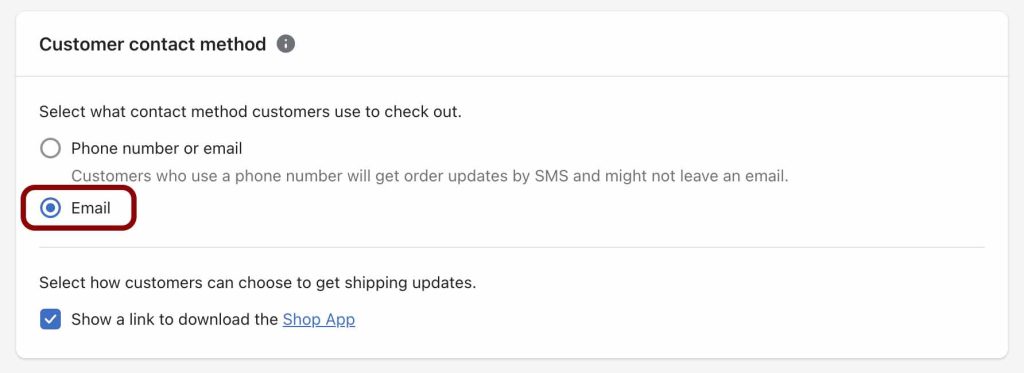
- Make sure all future orders capture an email — Shopify Settings → Checkout → Customer contact method → set to Email.
4. Check the email isn’t in spam
Genuine emails land in spam more often than anyone wants to admit, especially when sending from Fileflare’s default noreply@digital-downloads.com address. Ask the customer to check their spam folder. If this is a recurring issue:
- Connect your own domain via SMTP so emails come from your store address.
- Set up DKIM, DMARC, and SPF on your domain to improve inbox placement.
- Enable thank-you page downloads as a non-email backup.
5. Check for typos in the customer’s email
Customers mistype their own email more than you’d expect. If everything else looks right but the customer never received anything, check the email address on the order. gmial.com, yhaoo.com, missing dots — all common.
Update the email on the Shopify order, then trigger a manual resend from Fileflare.
6. Shopify or infrastructure outage (rare)
Very occasionally Shopify webhook delivery has issues, which means Fileflare doesn’t get notified about the order in the first place. Shopify’s status page is the quickest check. If there’s an active incident, the order will deliver once Shopify’s webhooks recover.