
Streaming lets customers play your video and audio files — and view PDFs — directly in their browser, without downloading first. It works automatically on the customer download page once enabled, and you can optionally hide the download button so customers can only stream.
Available on the Premium plan. Streaming uses the customer download page, so customers need access to it (via customer accounts, the thank-you page, or the email link).
When you’d use this
- You sell music, podcasts, audiobooks, or guided meditations and want customers to listen instantly.
- You sell video courses, tutorials, or workout content and want previews or full playback in the browser.
- You sell ebooks or manuals and want customers to read in-browser without downloading.
- You want to discourage downloads on premium content (streaming-only mode).
How to enable streaming
Streaming is controlled globally with optional per-asset overrides. The same toggle covers video, audio, and PDF playback in the browser.
- Go to Fileflare → Settings → Download control → Global media viewing.
- Enable streaming for the file types you want — video, audio, or PDF in-browser viewing.
- Save.
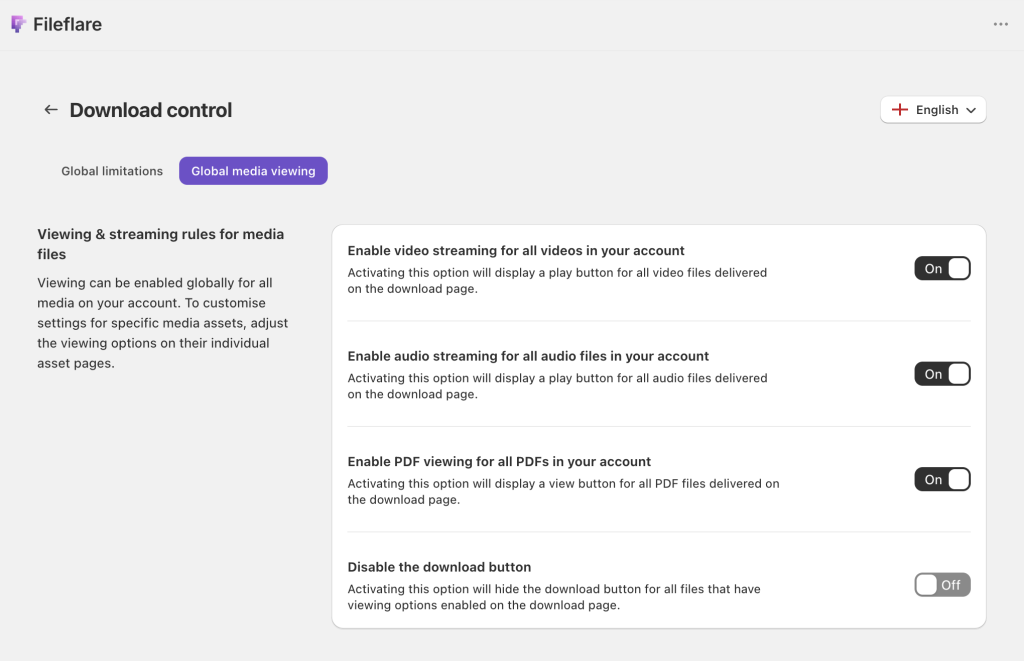
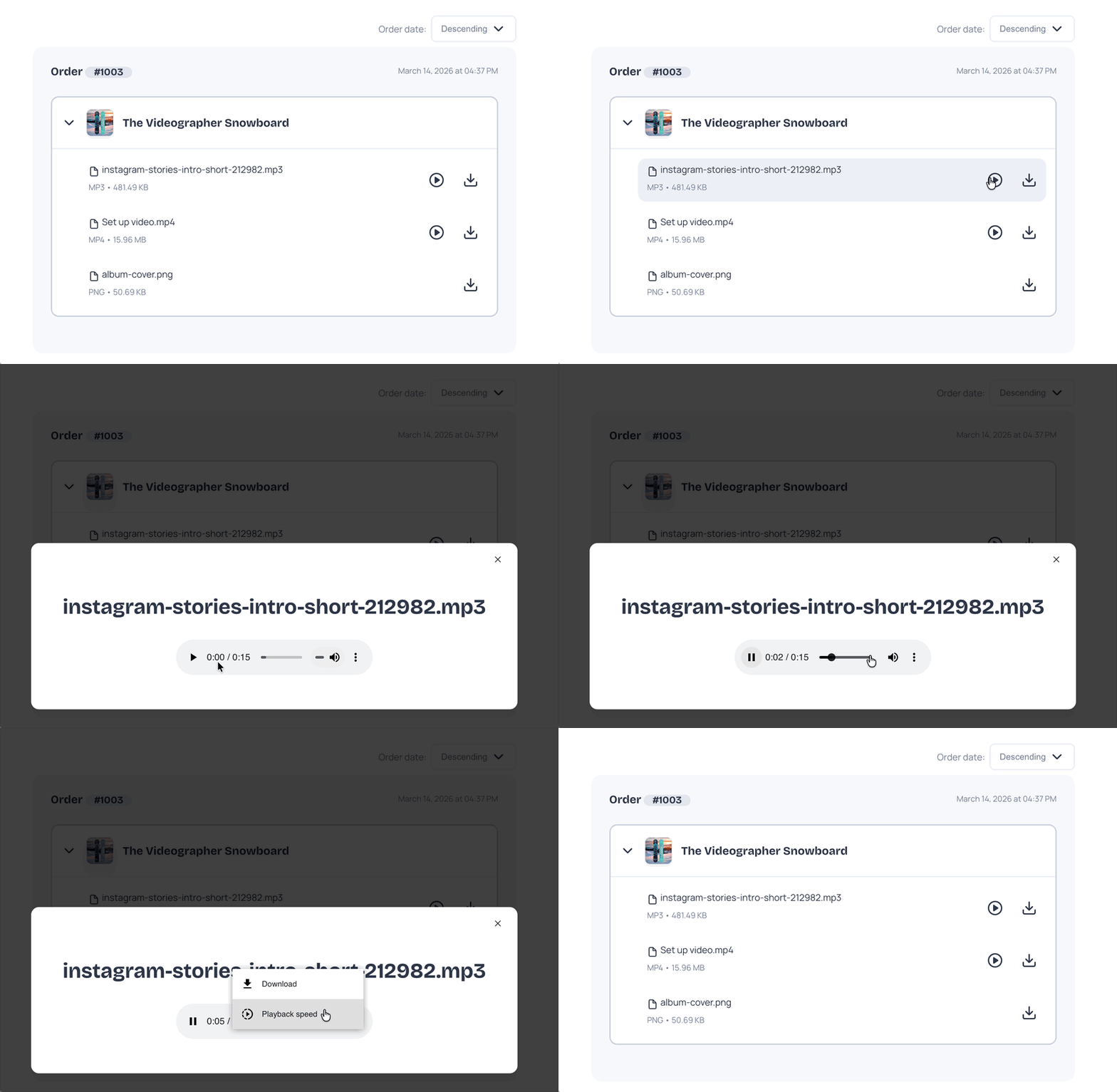
Once enabled, supported files automatically display the appropriate player on the download page. There’s nothing to configure per asset unless you want to override the global setting.
Override per asset
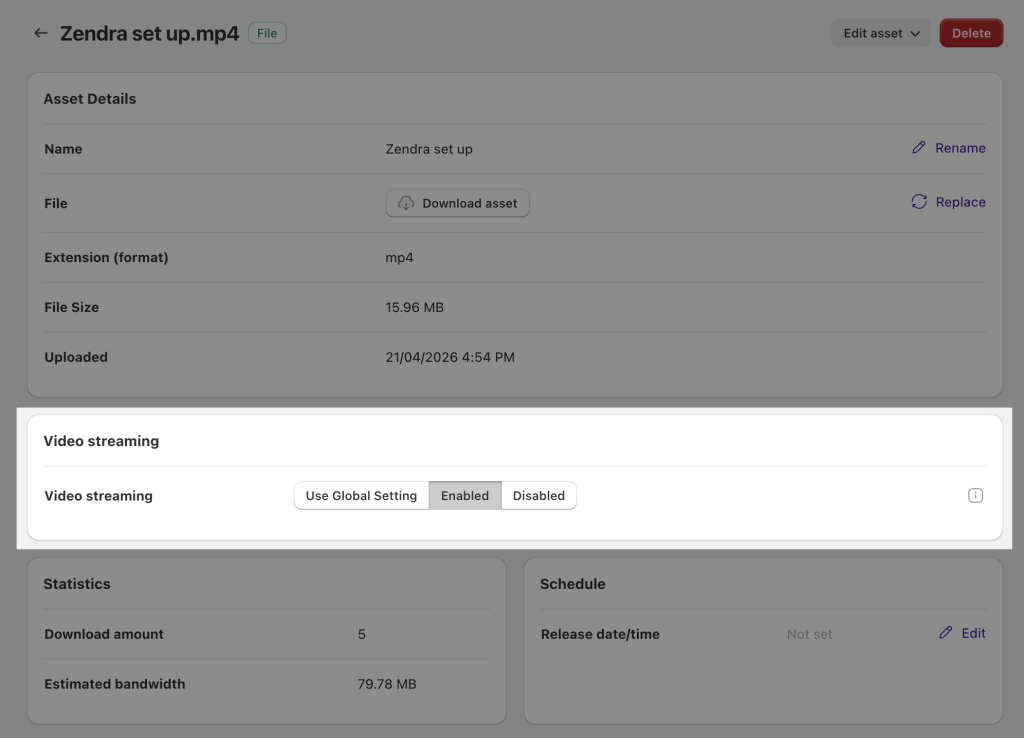
To enable or disable streaming on a single asset (without changing the global setting):
- Open the asset in Fileflare.
- In the asset settings, find the streaming options.
- Choose Enabled, Disabled, or Use global setting.
- Save.
Streaming-only mode (hide the download button)
If you want customers to stream without being able to save the file locally, enable streaming-only mode. The download button disappears from the download page, and customers can only play the file in the browser.
Enable it from Global media viewing by toggling Disable the download button.
Streaming-only is a UI-level deterrent, not DRM. Video and audio are still served via a temporary signed URL that’s visible in the browser’s developer tools, so a technically inclined customer could grab that URL and download the file directly. PDFs are tighter — the reader fetches through a short-lived link on Fileflare’s own domain and the storage location never appears in the page source, so there’s no URL to copy out of developer tools. It’s still not DRM (someone determined can capture what’s rendered on screen), but it’s a real step up for PDFs specifically. For stronger protection, look at PDF stamping for PDFs or download limits and IP restrictions across the board.
Supported formats
Video
MP4 and MOV files play in the in-browser video player. Other browser-compatible video formats may also work depending on the customer’s browser.
Audio
MP3, WAV, and FLAC files play in the in-browser audio player. Other browser-compatible audio formats may also work.
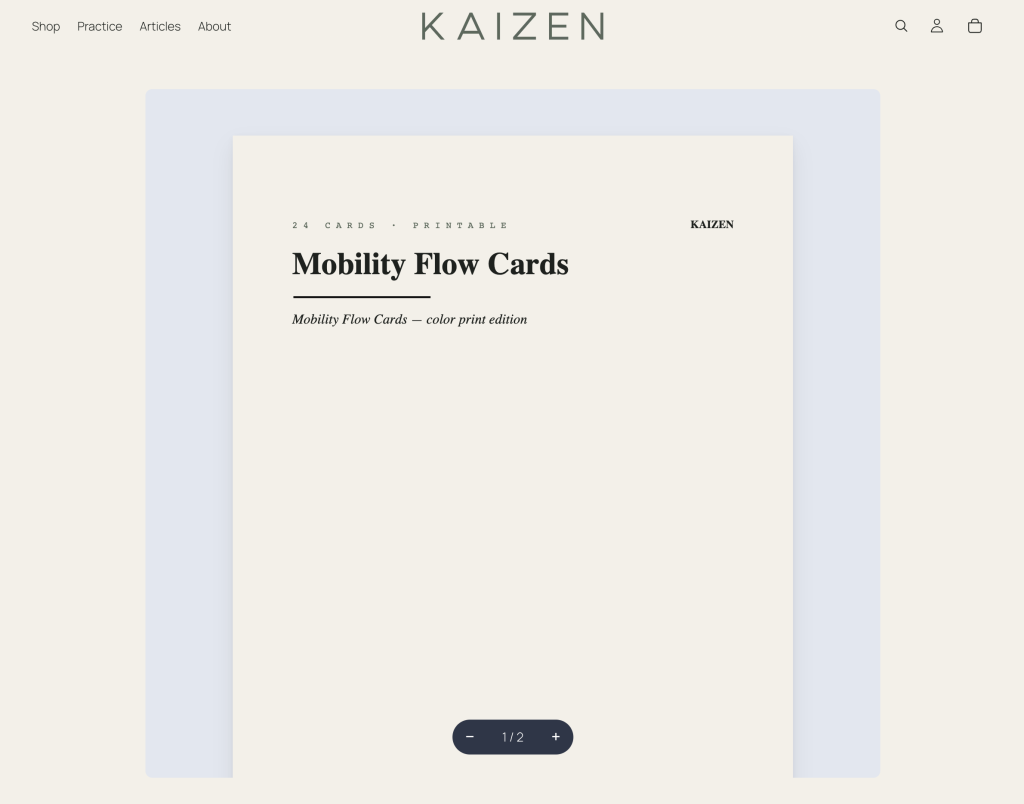
On the Premium plan, PDFs open in a paged reader on the download page. Pages render one after another as the customer scrolls and only the pages around the current one are kept live, so a long manual never asks the browser to hold all of it at once — including on a phone. A control pill at the bottom of the reader shows the current page and total (12 / 300) with − and + to zoom; the document starts fitted to the width of the reader and stays that way as the window resizes, until the customer zooms deliberately.
The reader is view-only by design. There’s no download or print control inside it, text isn’t selectable, and links inside the document still work. The file’s storage location is never written into the page, so there’s nothing to copy out of the page source.
Common issues
- The play button doesn’t appear on the download page — check that streaming is enabled in Global media viewing, and that the file format is supported. If the file is something unusual (.aiff, .ogg, .webm), it may not have a player.
- Customers can still download a “streaming-only” video by inspecting the page — yes, by design (see callout above). The server-side download block currently only enforces on video files; audio and PDF are UI-only. If you need stronger protection on a specific asset, consider PDF stamping (for PDFs) or download limits.
- The download button still shows on a non-streamable file — if the file isn’t a supported format (e.g., a ZIP), Fileflare keeps the download button visible regardless of the streaming-only setting. Otherwise the customer would have no way to access the file.
- “Loading your document…” never finishes, or the reader says the file couldn’t be loaded — refresh the page. The reader fetches through a short-lived link, so if the tab has been sitting open for a while it says, “This viewing link has expired. Refresh the page to keep reading.” A refresh is the whole fix.
- “Your browser doesn’t support the document viewer” — the reader needs Safari 17.4+ or Chrome 119+. Older browsers see that message instead of a blank frame.