
Cancelling Fileflare is straightforward — downgrade to the free plan or uninstall the app. Shopify handles the actual subscription cancellation either way. The choice between the two depends on whether you want to keep your data accessible.
Available on all plans. Cancelling stops paid charges immediately, though Shopify’s billing cycle means you may still see a charge on your next invoice for the period before cancellation. See why am I charged after cancelling.
When you’d use this
- Fileflare’s not the right fit for your store and you want to stop paying.
- You’re closing or pausing your Shopify store.
- Your trial is ending and you don’t want to convert.
- You’re switching to a different digital-downloads app.
Two ways to cancel
Option 1: downgrade to free (keep app, lose paid features)
Best if you want to keep your data accessible (assets, products, orders) but stop paying. The app stays installed, paid features lock, you stop being charged.
- Fileflare → Pricing → Change your plan.
- Choose the free plan, or click Cancel subscription.
- Confirm in Shopify’s prompt.
Option 2: uninstall (remove app entirely)
Cancels the subscription and deletes your data. Shopify requires apps to delete store data within 48 hours of uninstall (typically 1-3 hours).
- Shopify admin → Apps (or Apps and Sales Channels).
- Find Fileflare and click Uninstall.
- Confirm.
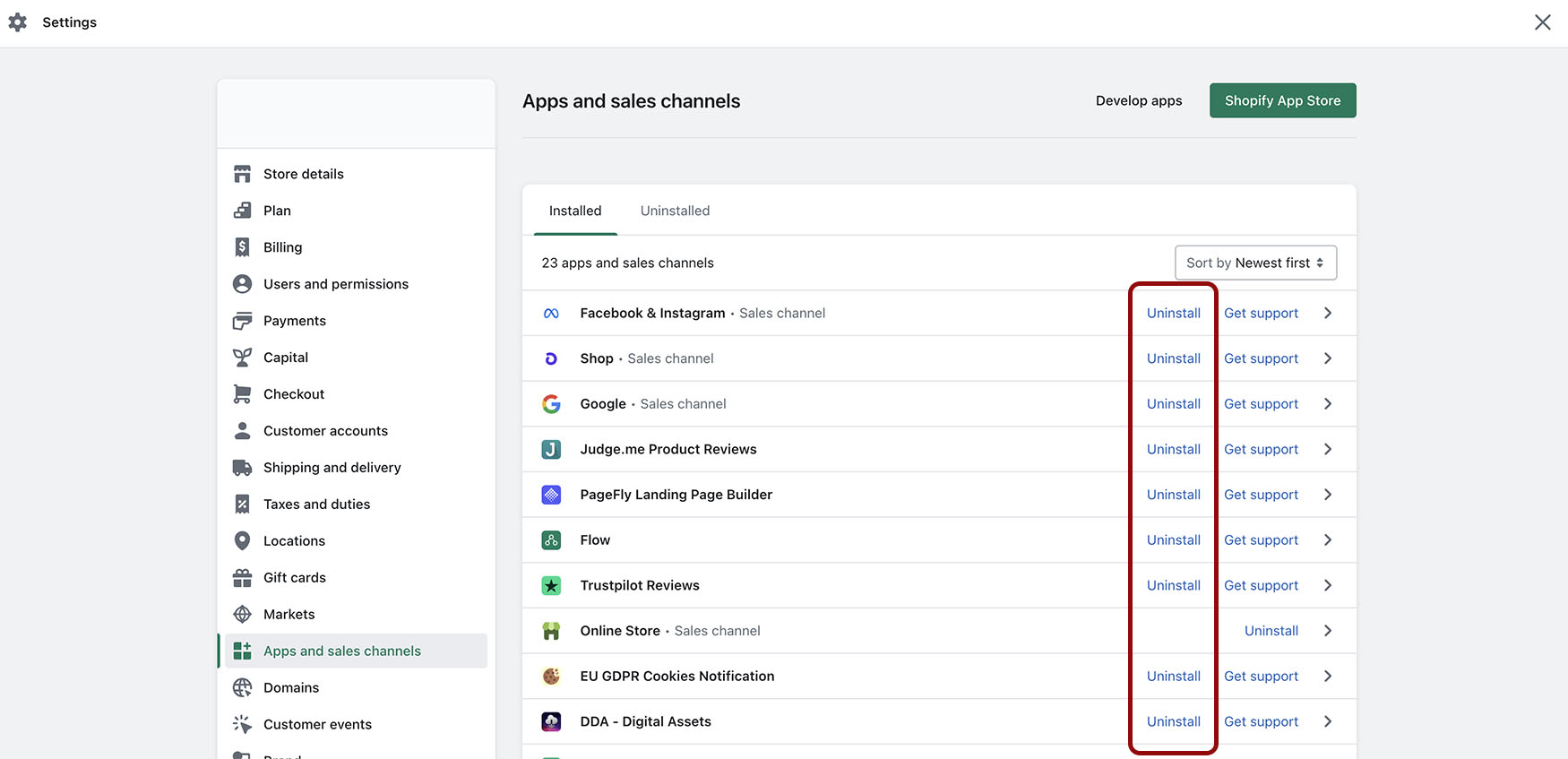
Uninstall is destructive. All your Fileflare data — assets, products, orders, settings — is deleted within a few days of uninstall. If you might come back, downgrade to free instead. If you’re closing your store temporarily, do not actually close the store. Use a vacation mode; Shopify will uninstall all apps when you close and you’ll lose data.
If you’re temporarily closing your store
Don’t uninstall, downgrade to free. Password protect your Shopify store instead, or use the Pause & Build mode — Shopify describes these here.
As of March 2026, Shopify uninstalls apps when you schedule your store closure or close up shop. This means you’ll lose data and need to sign back up + reconfigure everything in Fileflare when you return. We recommend downgrading to free temporarily and using the “Pause & Build” mode.
Theme code cleanup
Fileflare doesn’t add code to your theme automatically — but if you manually pasted any of these, remove them after uninstall:
- Customer-account download snippets (
customers/order.liquidormain-order.liquid). - Custom CSS for Fileflare’s download box.
- Order-confirmation-email Fileflare code.
See Uninstall for the specific code-removal walkthroughs.
Common issues
- Charged after cancelling — Shopify bills 30 days in arrears. The invoice you’re seeing is the period before you cancelled. See why am I charged after cancelling.
- Customer can’t download after I uninstalled — by design. Uninstalling deletes Fileflare data, including order/asset records. If you might need to reverse course, downgrade to free instead of uninstalling.
- I want to keep some data and delete the rest — not currently possible. Uninstall is all-or-nothing. The downgrade-to-free path keeps everything.
- Theme code still in my files after uninstalling — Fileflare doesn’t auto-remove. See the cleanup section above.