
If a customer is having trouble accessing their downloads, the cause is almost always one of a small set of usual suspects. Most issues are quick fixes you can resolve from the Fileflare admin or by walking the customer through a couple of steps. This page is also a customer-friendly reference you can send to a buyer experiencing issues.
If the issue is specifically that download emails aren’t arriving, see Troubleshoot email delivery instead. This page focuses on issues at the download itself — once the customer has the link.
When you’d use this
- A customer reports they can’t download a file they purchased.
- A customer says their links say “expired” or “limit reached” unexpectedly.
- A customer can’t find the file after downloading it (especially on iPhone).
- Downloads stopped working after a Shopify checkout or storefront change.
Walk through these checks first
1. Did you set a download limit you forgot about?
The single most common cause of “I can’t download” is a global limit the merchant set and forgot — e.g., 1 download per order, 2 IP addresses per order. The customer hits the limit on their second click and sees an error.
- Go to Fileflare » Settings » Download controls.
- Review the global download limit and IP limit settings. If they’re stricter than you remember, that’s likely the issue.
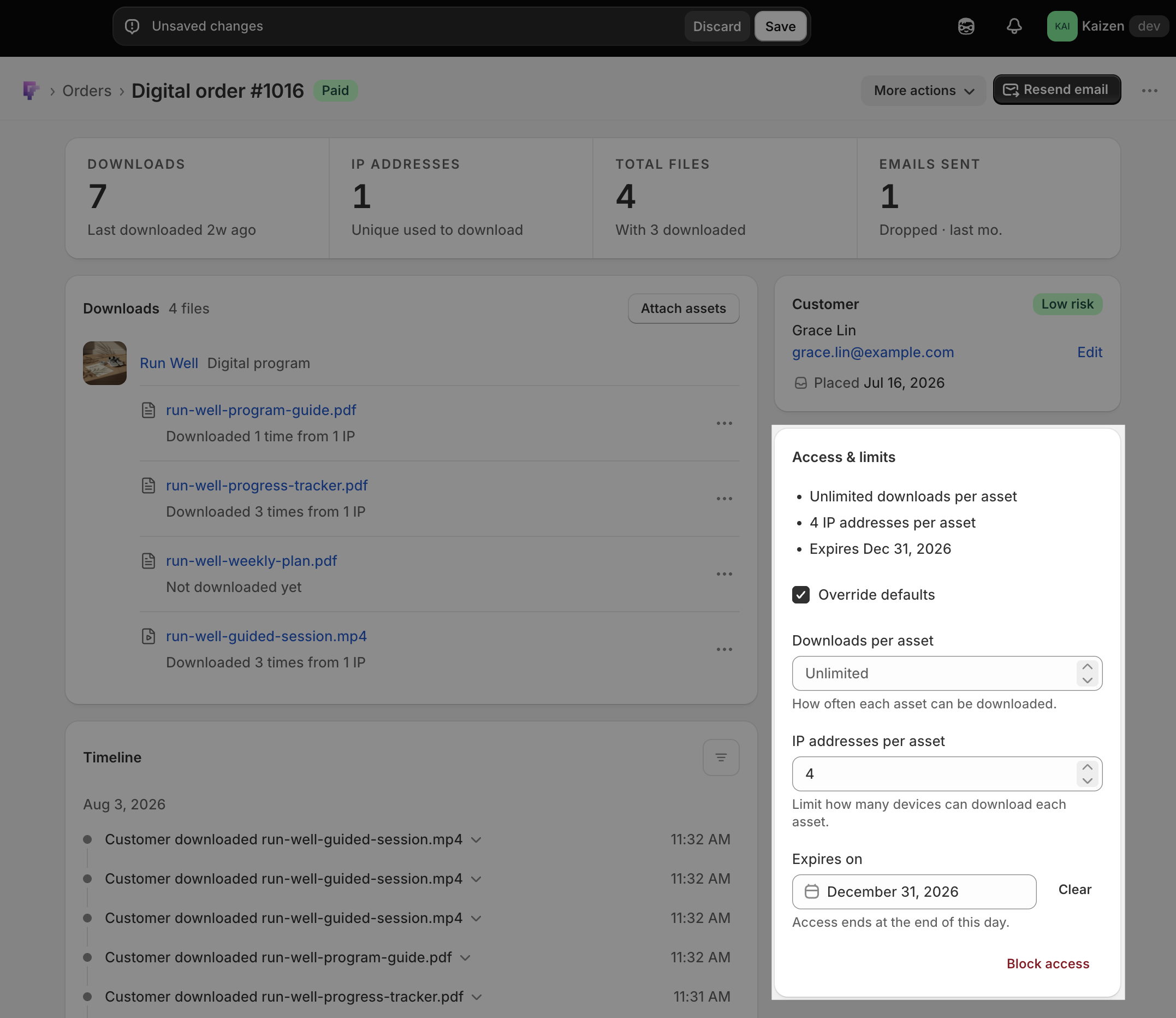
- To fix it for a single customer, open their order and use the Access & limits card: tick Override defaults, raise Downloads per asset (or IP addresses per asset), and save. The fields start from the limits already in effect, so you’re editing real numbers rather than starting from blank. See Reset download limitations for an order.
2. The link says “expired”
The expired message means the order’s expiration date has passed (or you set order expiry to a negative number — see Block downloads). To fix:
- Open the customer’s order in Fileflare, tick Override defaults on the Access & limits card, and check Expires on. If the date is in the past, move it forward — or click Clear beside it to remove the expiry for this order entirely.
- If you didn’t intentionally expire the order, check your global expiration setting in Settings » Global limitations — too short a window will expire orders unexpectedly.
- Click Resend email after fixing.
3. The customer is downloading from an old app’s email
If you migrated from another digital downloads app, the customer might be clicking the old app’s email by mistake. Ask them for a screenshot of the email they’re using — if the link doesn’t go to a Fileflare-hosted URL, it’s the old app. Resend the Fileflare download email from their order.
4. Bots and link-scanners are eating their download attempts
Mail server scanners, corporate firewalls, and security software often pre-fetch links to check for malware. Each pre-fetch counts against the customer’s download limit. Symptoms: the customer says they haven’t clicked yet but already hit the limit on first try.
Fix: open their order, tick Override defaults on the Access & limits card, and bump the limit. The order’s activity timeline is how you confirm the diagnosis — expand each download row and look at the IP address and user agent. A download logged seconds after the email went out, from an IP that doesn’t match the rest, is a scanner rather than your customer.
5. The PDF is too large
Selling PDFs over ~10 MB causes problems for customers on phones with limited storage or slow connections. The download appears to fail silently. Compress the PDF — Adobe’s compressor reduces size without losing quality — and use Replace asset to swap it. Existing customer links still work after the swap.
6. Browser extensions interfering
Privacy extensions, ad blockers, and download managers sometimes mangle Fileflare’s download URLs (the URLs are signed for security; modifying them invalidates the signature). Ask the customer to try the link in incognito/private mode — that disables extensions.
7. Customer can’t find the downloaded file (iPhone, Android)
This is a customer education issue, not a Fileflare issue, but it’s the #1 support ticket for music and ebook stores.
- iPhone: downloads typically save to the Files app under Downloads (iCloud Drive or On My iPhone). For audio files, they don’t auto-import into Apple Music — the customer needs to open them from Files.
- Android: downloads save to the device’s Downloads folder, accessible via the Files or My Files app. Android’s docs.
8. Customer accounts: looking in the wrong place
If you’ve enabled customer account downloads, the download box appears on the order page inside the customer account, not on the account home page. Customers sometimes log in, see no downloads, and assume something’s broken. Ask them to click into the specific order.
9. Thank-you page or Order Status page shows no downloads
If the Fileflare app block isn’t installed in your checkout extensibility configuration, the download box won’t render on the thank-you/Order Status page even if the feature is enabled in Fileflare. To fix: in Shopify checkout editor, add the Fileflare app block to the Thank You and Order Status pages. See Thank-you page downloads.
10. The customer says they could download yesterday but not today (refund or removal)
As of May 2026, refunding or removing a line item on Shopify automatically revokes the corresponding download in Fileflare via the orders/updated webhook. The customer’s download link returns an error once the refund syncs.
If the refund was unintentional or you want to restore access, you have two options:
- Re-fulfill the line item on Shopify — Fileflare picks it up automatically and restores the download.
- Open the order in Fileflare and grant the customer a manual download override.
This behavior only applies to line items refunded or removed on Shopify. Manual download overrides you’ve already set on the Fileflare order are not affected.
11. The order isn’t in Fileflare at all
If a dropped webhook meant Fileflare never heard about the order, there are no download links to fix. Open the order in Shopify and use More actions » View digital order — following that link imports the order, generates its links, and emails the customer, then takes you to it in Fileflare.
Orders older than 12 hours import and get their links but don’t trigger an email, so click Send email once you’re on the order. (If Shopify doesn’t have the order either, you’ll land on Fileflare’s Orders list — that’s the genuine “no such order” case.) For a whole back catalogue rather than a single miss, use import all orders.
Anything else
If you’ve worked through all of the above and the customer still can’t download, start with the order’s activity timeline — it records every download attempt with its IP address and user agent, which usually settles what happened. Then ask the customer for a screenshot or screen recording of what they’re seeing; most remaining issues become obvious from the actual error message. Contact support with the details and we’ll dig in.